Hi @Griggs, Frandrika,
Thank you for reaching out to the Microsoft Q&A forum and sharing the details of your issue.
I truly understand you're able to schedule a Teams meeting but are unsure how to share the login information with your participants. I’m happy to guide you through the steps to make this process simple and clear.
Here’s how you can share the Teams meeting login details after scheduling the event:
- Try to open Your Scheduled Meeting
- Go to your Outlook Calendar or Microsoft Teams Calendar.
- Find and click on the meeting you’ve already scheduled.
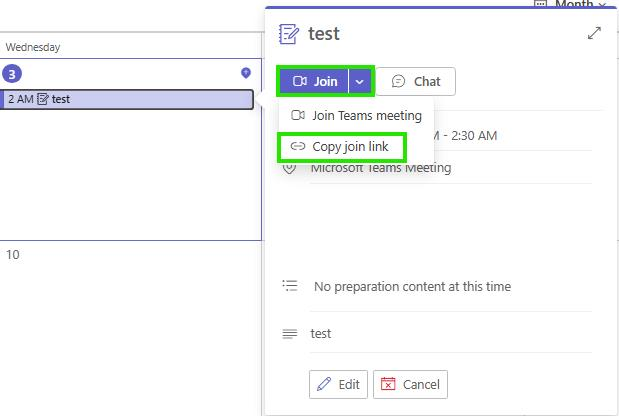
- Then, you can locate the Join Link
- In the meeting details, you’ll see a section that says “Join Microsoft Teams Meeting”.
- This is the login link your participants will use to join the event.
- You can copy the Link
- Right-click on the “Join Microsoft Teams Meeting” link and select Copy Link.
- Alternatively, you can highlight the link and press Ctrl + C (or Cmd + C on Mac)
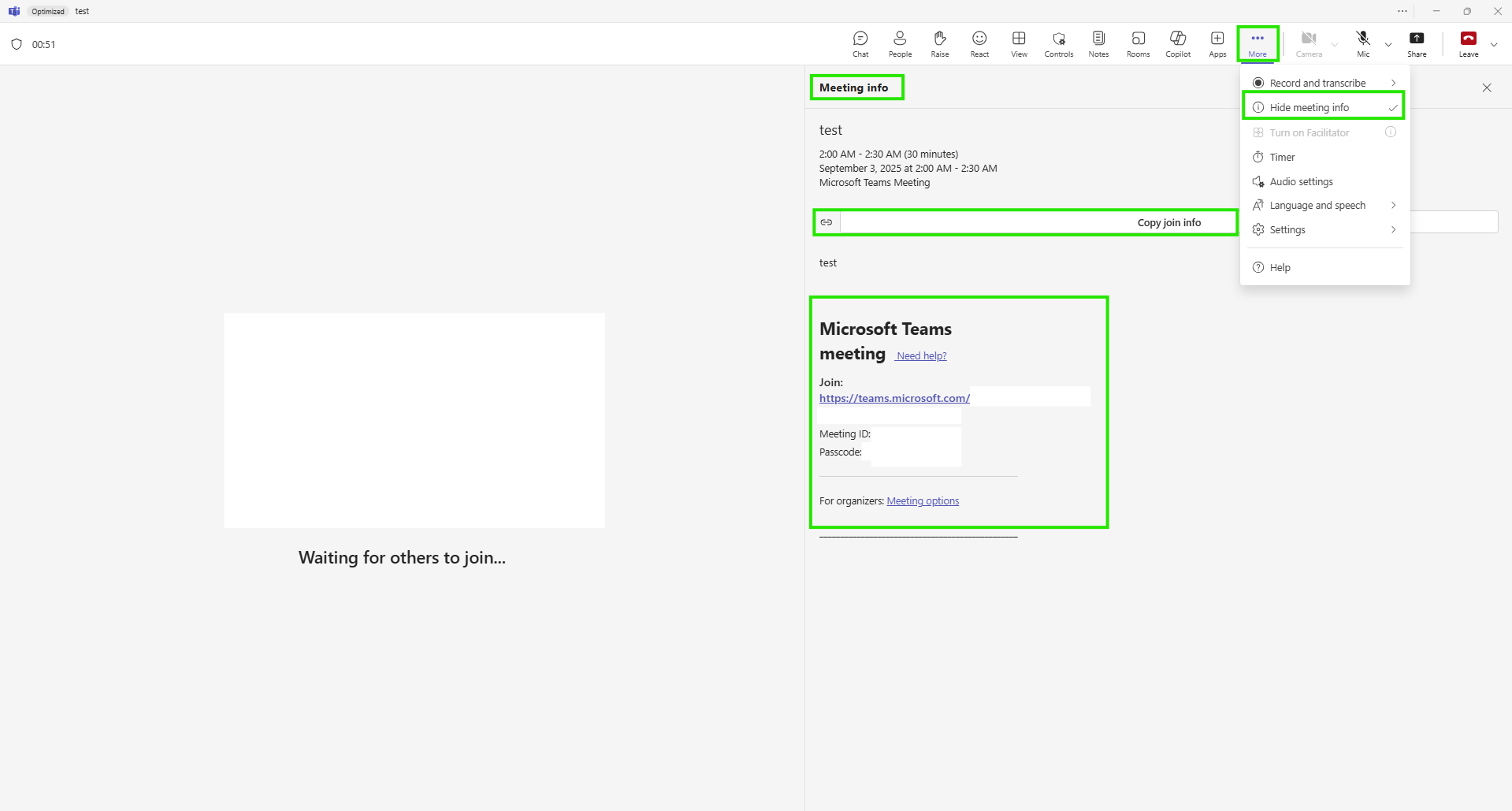
- Or you can go to meeting information during the meeting.
- Finaly, you can try to share with Participants
- You can paste this link into an email, chat message, or any communication channel you prefer.
- If you’ve already added participants to the meeting invite, they will automatically receive the join link in their calendar invite.
Moreover, if you need to invite more people after the meeting is scheduled:
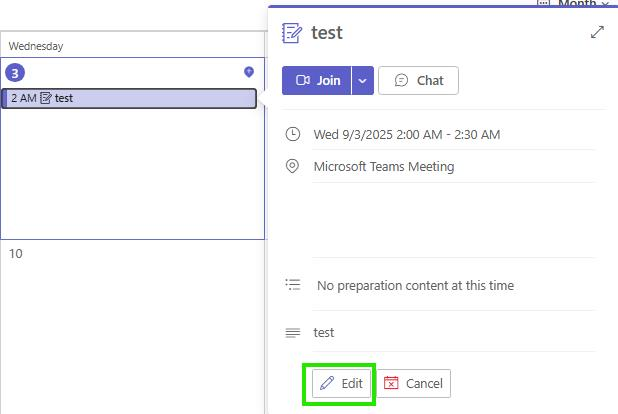
- Open the meeting invite.
- Click Edit.
- Add their email addresses to the attendee list.
- Click Send Update. They will receive the updated invite with the join link included.
Please let me know if you’d like help with a specific step or if you're using a different version of Outlook or Teams. I’m here to assist you further.
Please understand that our initial response may not always resolve the issue immediately. However, with your help and more detailed information, we can work together to find a solution.
If the answer is helpful, please click "Accept Answer" and kindly upvote it. If you have extra questions about this answer, please click "Comment”.  Note: Please follow the steps in our documentation to enable e-mail notifications if you want to receive the related email notification for this thread.
' cx='32' cy='32' r='32' /%3E%3Ctext x='50%25' y='55%25' dominant-baseline='middle' text-anchor='middle' fill='%23FFF' %3EGF%3C/text%3E%3C/svg%3E)

' cx='32' cy='32' r='32' /%3E%3Ctext x='50%25' y='55%25' dominant-baseline='middle' text-anchor='middle' fill='%23FFF' %3EVN%3C/text%3E%3C/svg%3E)