Share via

Fake Virus Messages Popping Up after using Edge to Search

=D 145 Reputation points
2026-04-29T23:42:34.5+00:00

I've got a bit of an urgent problem. I was searching the internet with Edge on how to use Gimp. I clicked on a website offering a solution, when the website rendered there was a message that said something like "prove that you're human by pressing allow"

There was a little dialog box at upper left with an allow button. I stupidly pressed the "allow" button. Shortly afterward I began getting rapid popup messages at the right part of my computer. (screen capture below)

I didn't touch any of the messages. Instead, I ran Windows Built in virus checker (Defender) - nothing was found.

My question is how I get rid of these pop ups that constantly display new pop ups every few minutes or so.

It slipped my mind how easily Windows can get viruses.

I'm using Windows 11 Pro for Business.

2026-04-29_16-34-37

Windows for business | Windows 365 Business
0 comments No comments

4 answers

Sort by: Most helpful
  1. =D 145 Reputation points
    2026-04-30T00:31:57.43+00:00

    Update 3

    I'm poking around Edge looking for unwanted plugins or extensions or whatever. I never use any addons, plugins, extensions, or whatever the term would be used. I never "add" anything to any browser on any computer.

    Anyway, I found this to be interesting. In Edge I clicked the gear icon (which I think is settings), then Privacy Search and Services >> Site Permissions >> Recent Activity

    I see that weird website again uots-protect.co.in

    Do I need to worry about this? (see screen captures below). How do I remove any trace of uots-protect.co.in?

    2026-04-29_17-23-06

    2026-04-29_17-25-49

    0 comments No comments

  2. =D 145 Reputation points
    2026-04-30T00:18:56.33+00:00

    Update 2

    The screen capture below shows what likely infected my computer.

    2026-04-29_17-16-54

    0 comments No comments

  3. =D 145 Reputation points
    2026-04-29T23:56:07.3533333+00:00

    Update. I think I found it.

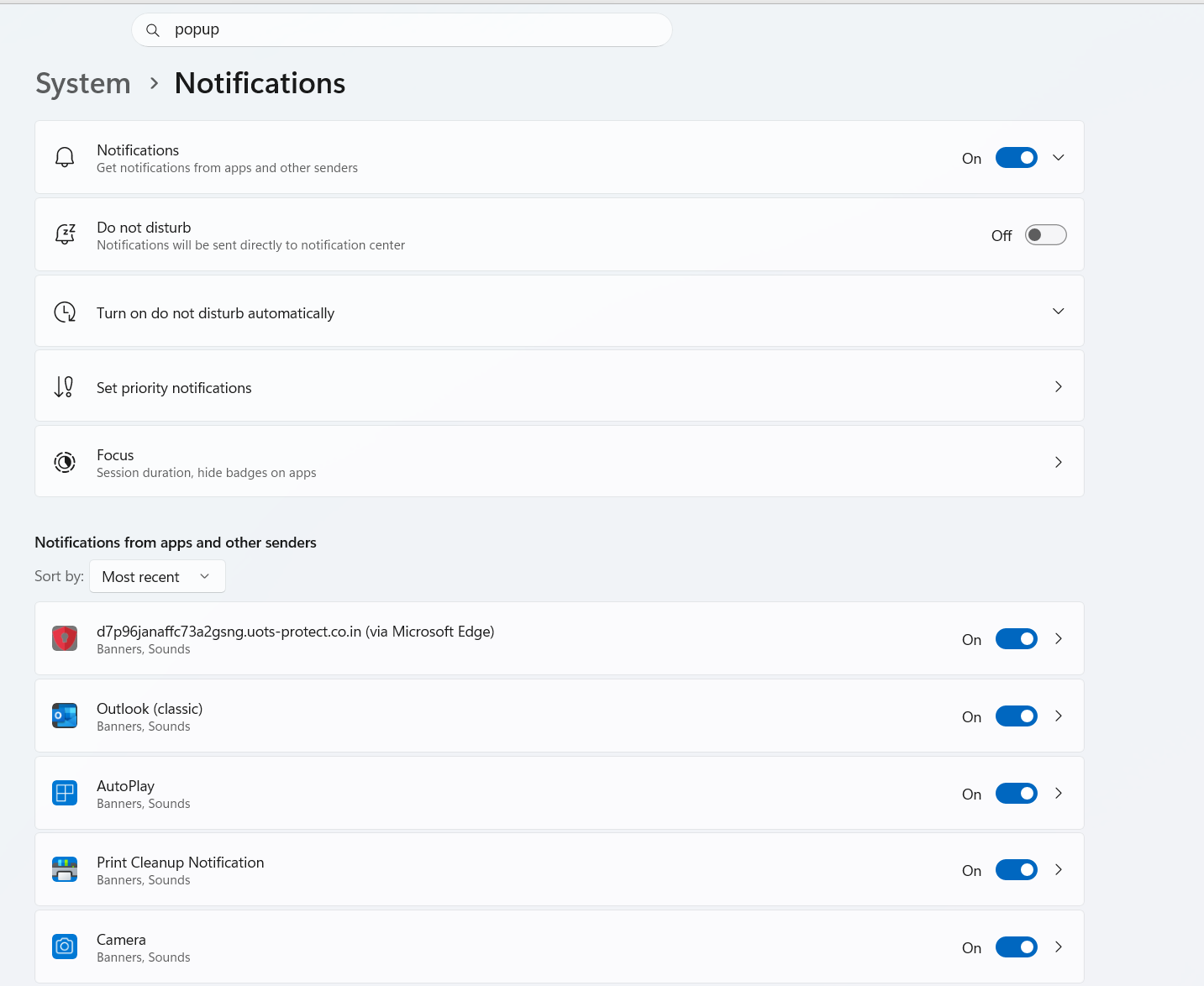
    In System >> Notifications I see a very weird, recently added facility that, apparently, allows rapid pop ups. In this case the popups were continuously popping up every 30 seconds or so. Clicking on any part of the popup caused Edge to open to some virus infested site. However, the instant I moved the slider switch to off position (see top entry under "Notifications from apps and other senders" in screen capture) all of the fake virus messages stopped.

    This sort of thing never occurs with macOS. Mostly Windows has been good - but this is a work computer, so I don't do a lot of heavy internet surfing on this machine. It's a bit of rude awakening that some random entity can alter your computer with malicious code.

    Although I've switched the malicious program off - how to I remove this? I'm assuming some type of malicious software is still in my system.

    Windows Defender isn't giving any warnings - so that's good.

    I'd really like to remove the offending code (uots-protect.co.in) that Edge allowed to be installed under the guise of detecting if I'm a human or not.

    What a pain.
    2026-04-29_16-45-07

    0 comments No comments

  4. Q&A Assist
    2026-04-29T23:42:58.2866667+00:00
    AI generated content. This question contains an answer created with AI from Q&A Assist. Learn more

    These are fake browser notification pop‑ups from a malicious website, not real Microsoft Defender alerts. They started after the “prove you’re human – click Allow” prompt granted that site permission to send notifications.

    To stop them in Microsoft Edge on Windows 11 Pro:

    1. Open Edge.
    2. Select Settings and more (⋯) > Settings.
    3. Go to Privacy, search, and services > Site permissions > All permissions.
    4. Select Notifications (or go directly to the notifications section if shown).
    5. In the Allow list, find any suspicious site (for example, the domain shown in the pop‑ups) and remove or block it.
    6. Optionally, turn off the setting that lets sites ask to send notifications so this cannot happen again.

    If pop‑ups also appear as separate windows or tabs while browsing, keep Edge’s protections enabled:

    1. In Edge, go to Settings and more > Settings > Privacy, search, and services.
    2. Select Site permissions > All permissions > Pop-ups and redirects.
    3. Make sure Blocked (recommended) is turned on.

    Because these scams are delivered through the browser, not as installed apps, a clean Microsoft Defender scan is expected. To stay protected:

    • Keep Edge and Windows up to date.
    • Use Edge’s built‑in protections (Microsoft Defender SmartScreen and pop‑up blocking).
    • Avoid clicking “Allow” on notification prompts from unknown sites.

    If similar scareware pages ever lock the browser in full screen, close Edge via Ctrl+Shift+EscTask Manager and end the Edge process, then reopen it and clear recent browsing data.


    References:

Your answer

Answers can be marked as 'Accepted' by the question author and 'Recommended' by moderators, which helps users know the answer solved the author's problem.
