Note
Access to this page requires authorization. You can try signing in or changing directories.
Access to this page requires authorization. You can try changing directories.
Use this guide to connect an external Azure OpenAI or Foundry resource to your Content Understanding resource and route model usage through that connected resource. This setup helps you reuse existing model capacity across resources.
Cross-resource flow overview
Use this high-level diagram to understand how Content Understanding uses a connected resource for model inference.
+---------------------------------------------------------------+
| Azure subscription                                            |
|                                                               |
|  +---------------------------+                                |
|  | Content Understanding     |                                |
|  | resource                  |                                |
|  |                           |                                |
|  | defaults:                 |                                |
|  | gpt-4.1 -> connA/gpt41    |                                |
|  +-------------+-------------+                                |
|                |                                              |
|    analyze API | uses default deployment mapping              |
|                v                                              |
|  +---------------------------+                                |
|  | Connected resource        |                                |
|  | (Azure OpenAI or Foundry) |                                |
|  |                           |                                |
|  | deployments:              |                                |
|  | - gpt-4.1                 |                                |
|  | - text-embedding-3-large  |                                |
|  +---------------------------+                                |
|                                                               |
|  Authentication path: API key or Microsoft Entra ID           |
+---------------------------------------------------------------+
Prerequisites
To get started, make sure you have the following resources and permissions:
- An active Azure subscription. If you don't have one, create a free account.
- A Microsoft Foundry resource created in a supported region.
- An Azure OpenAI or Foundry resource with supported chat completion and embeddings deployments. For model and deployment requirements, see Connect your Content Understanding resource with Foundry models and Service quotas and limits.
- Access to configure both resources in the Azure portal, including permissions to create connected resources.
- For Microsoft Entra ID authentication, a managed identity enabled on the Content Understanding resource and an assigned role such as
Cognitive Services Useron the connected resource. For more information, see Security features in Azure Content Understanding in Foundry Tools.
Connect an Azure OpenAI or Foundry resource
Connect your model resource from the management center of your Content Understanding resource.
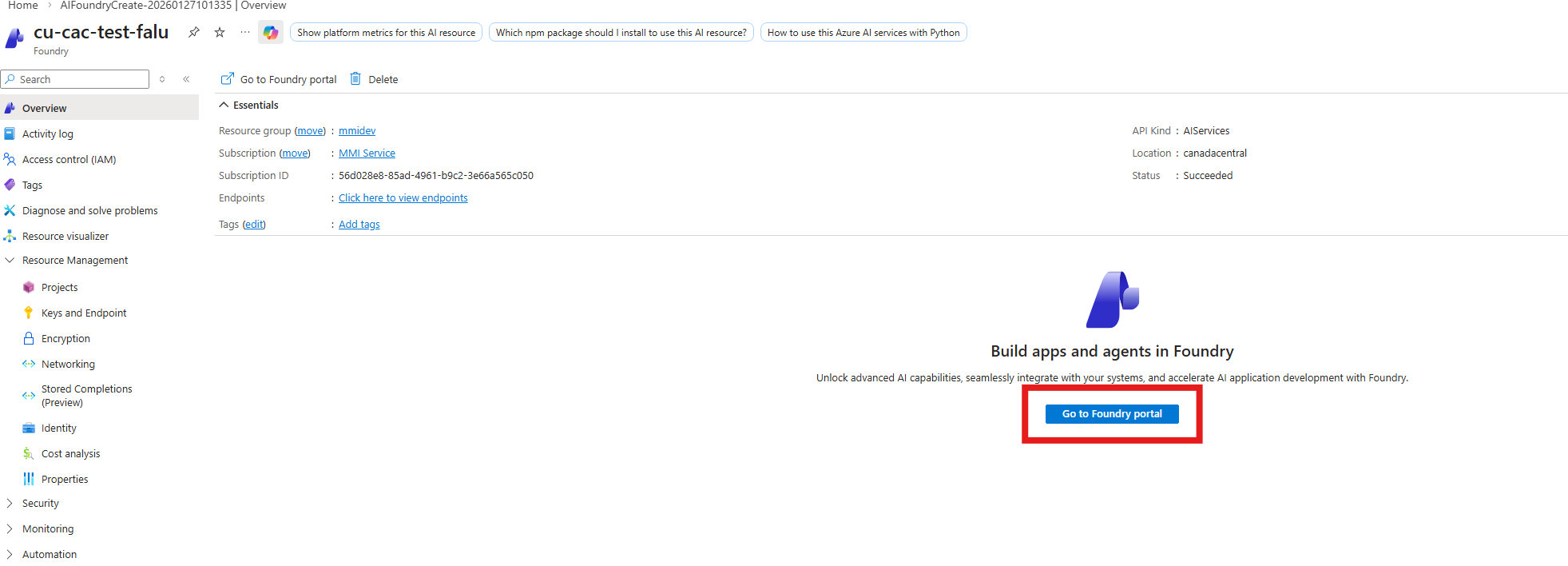
Open your Content Understanding resource in the Azure portal.
Select Go to Azure AI Foundry portal.
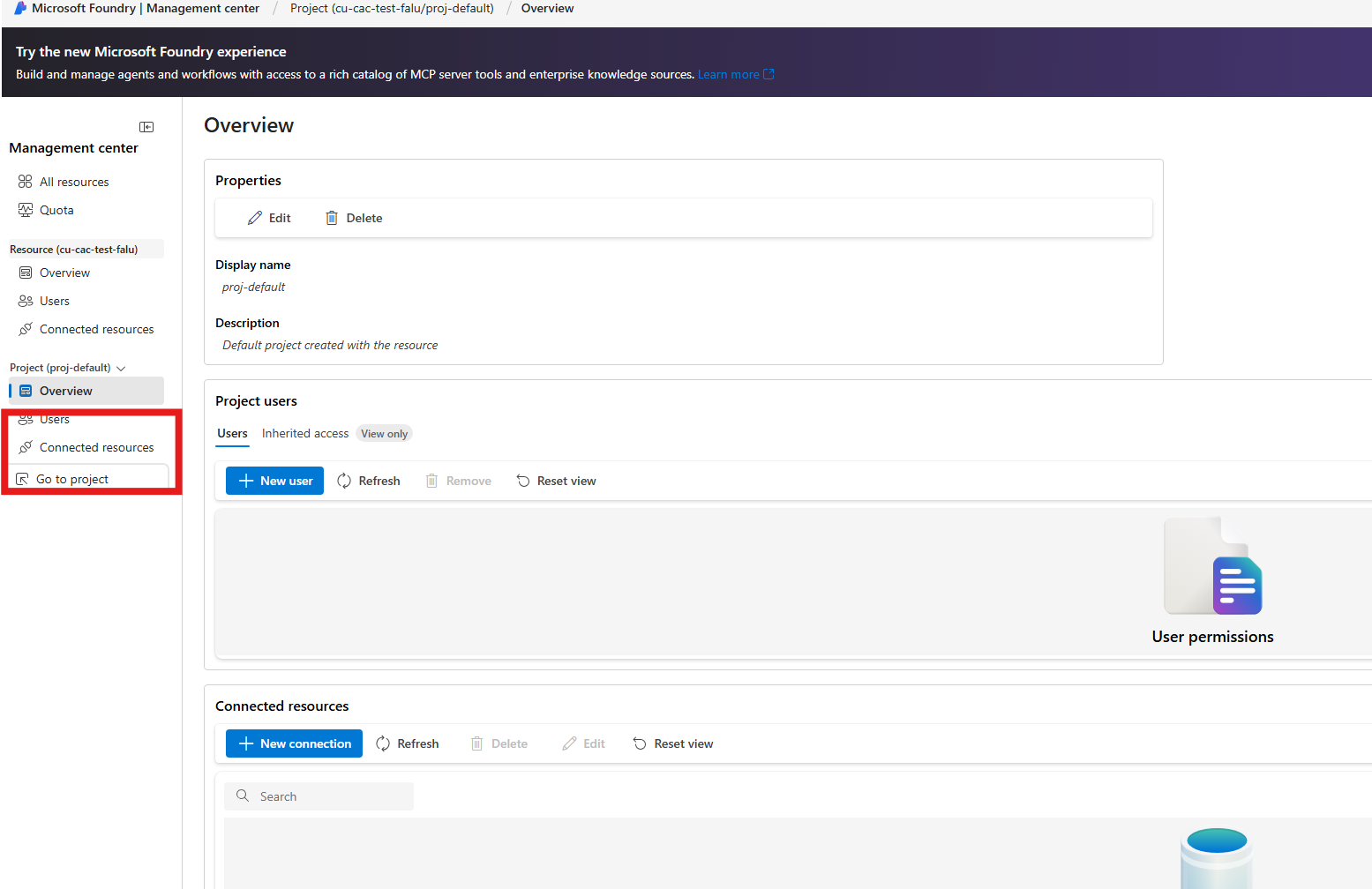
Open Management center.

Select Connected resources.
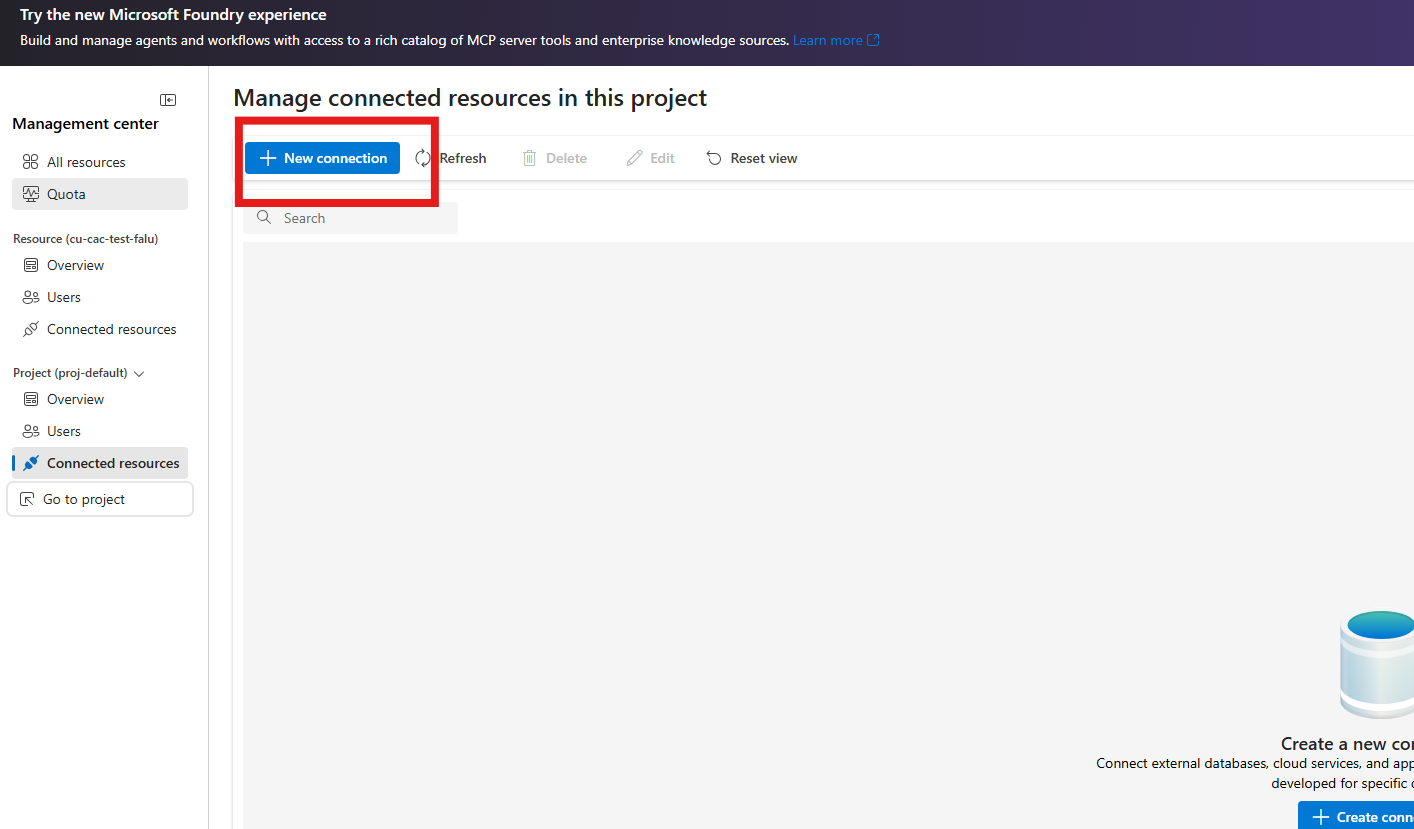
Select New connection.
Select Azure OpenAI or Microsoft Foundry.
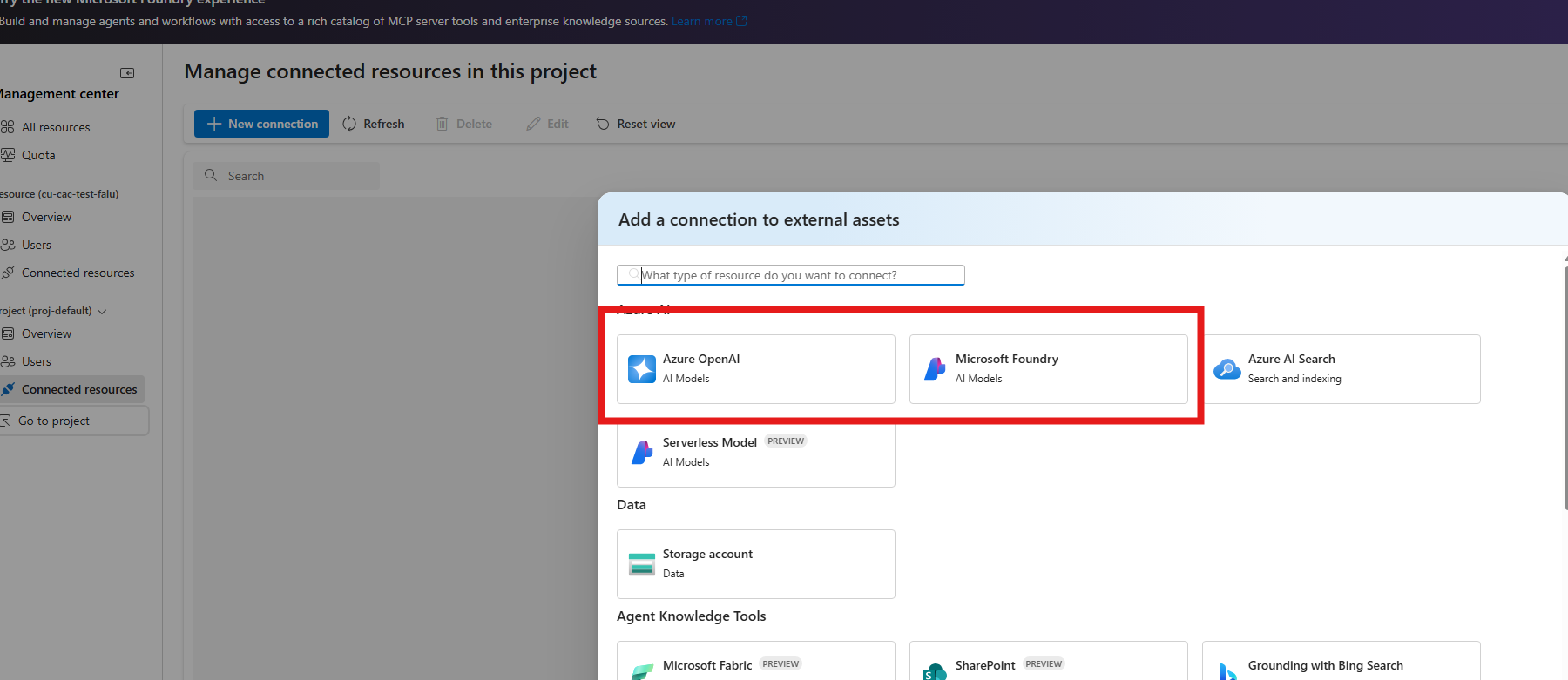
Search for and select your resource.
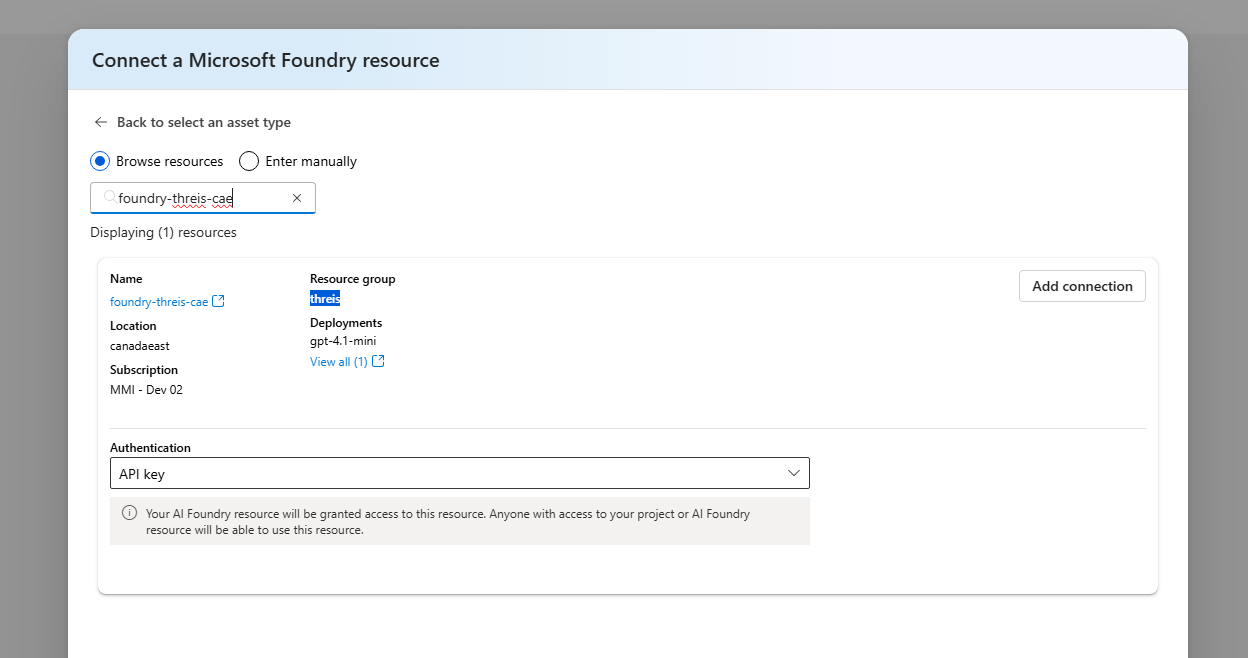
Select an authentication type, and then select Add connection.
Authentication details:
- API key: Content Understanding uses the API key from the connected resource.
- The connected resource must allow API key authentication.
- If API key authentication is disabled on the connected resource, requests fail.
- Microsoft Entra ID: Content Understanding uses the managed identity of the Content Understanding resource.
- Enable managed identity on the Content Understanding resource.
- Grant the managed identity access to the connected resource, such as Cognitive Services User.
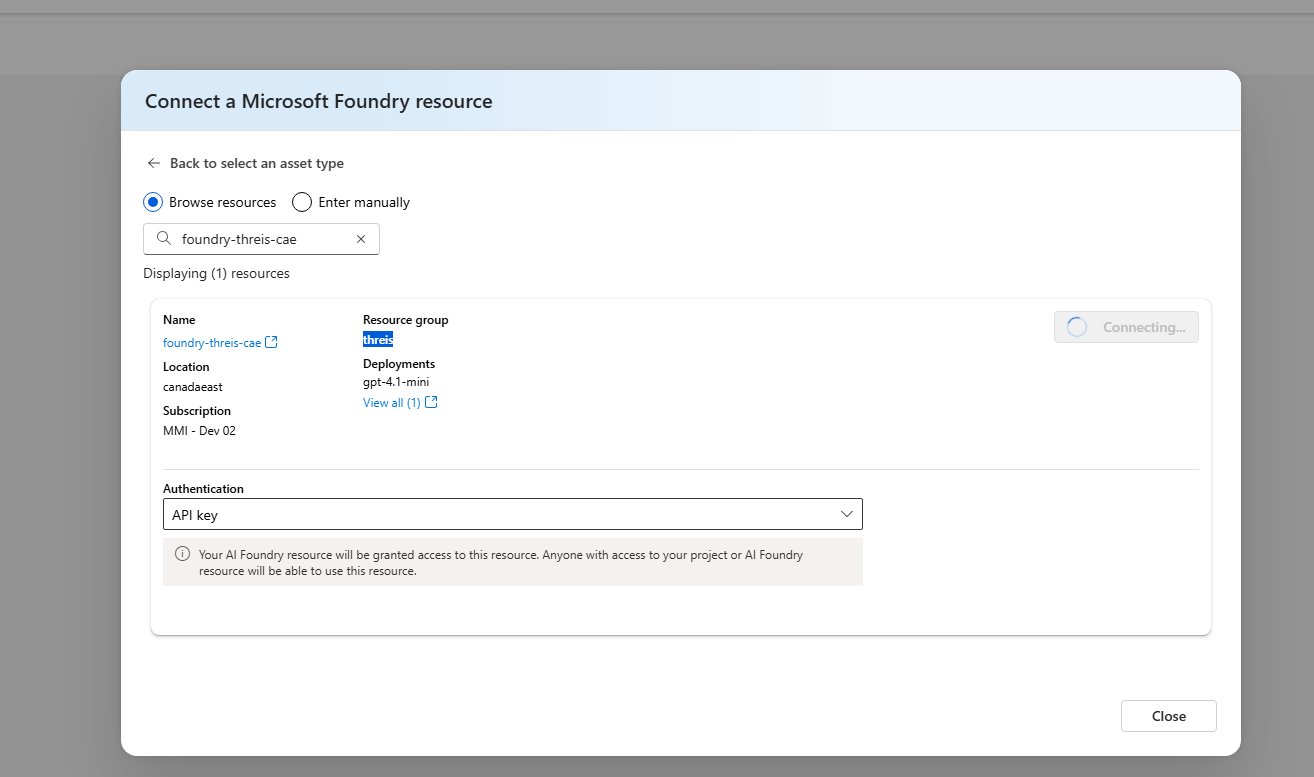
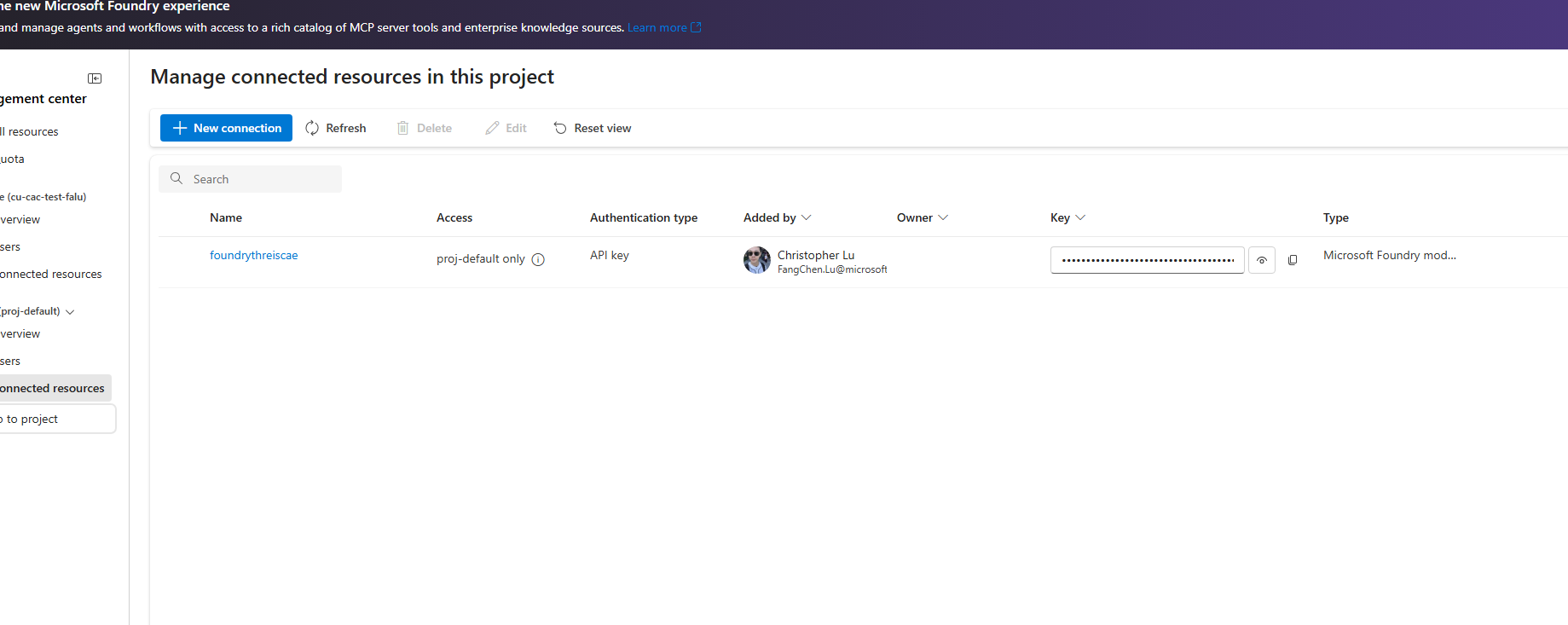
After the operation completes, the connection appears in Connected resources.
- API key: Content Understanding uses the API key from the connected resource.
Set default deployments for cross-resource usage
Set resource defaults so analyzers can use the connected deployment with the {ConnectionName}/{DeploymentName} format.
Before you start:
- Get the connection name from Connected resources.
- Get the deployment name from Models + endpoints in the connected resource.
Use the defaults API to set model deployments:
PATCH {endpoint}/contentunderstanding/defaults?api-version=2025-11-01
Content-Type: application/json

{
  "modelDeployments": {
    "gpt-4.1": "{ConnectionName}/{DeploymentName}",
    "text-embedding-3-large": "{ConnectionName}/{EmbeddingDeploymentName}"
  }
}
Verify the configuration
Choose one of the following options to verify your setup.
Option 1: Verify with Content Understanding Studio
- Follow Quickstart: Try out Content Understanding Studio with the primary resource.
- In Studio, run a prebuilt analyzer on a sample file.
- Confirm the analysis completes and returns structured results in the results pane.
Option 2: Verify with the REST quickstart
- Follow Quickstart: Use Azure Content Understanding in Foundry Tools REST API.
- Run the sample request in Send a file for analysis.
- Confirm the operation succeeds by checking Get analyze result and verifying
statusisSucceeded.
If either verification path succeeds, your Content Understanding resource is using the connected cross-resource capacity.