Note
Access to this page requires authorization. You can try signing in or changing directories.
Access to this page requires authorization. You can try changing directories.
This article explains the backup process for disconnected operations for Azure Local environments. It provides practical steps to trigger a backup and parameter configurations to customize it. Operators need access to the Operator subscription and role-based access control (RBAC) permissions.
For more information, see Disconnected operations for Azure Local.
Overview
The backup feature currently backs up the control plane VM data only. Associated workloads or configured clusters aren't included in the backup. Backups capture all data needed for the disconnected operations control plane VM. Because backups aren't automated, take backups regularly and before making changes to the environment.
Why backup operations?
Backup capability is critical because the Azure Local with disconnected operations virtual machine (VM) acts as the control plane. It stores authoritative metadata for subscriptions, resource groups, policies, and connected Azure Local resources. Any corruption or loss of this control plane disrupts the entire environment. Regular backups protect against catastrophic failures, infrastructure loss, or misconfigurations by capturing the control plane state at specific points in time.
Prerequisites
Before you back up your system, complete these prerequisites:
Operator access: Ensure your identity has the required OperatorRP RBAC role in the Operator subscription.
Server Message Block (SMB) share: Provision an accessible SMB share as backup target from the Azure Local disconnected operations VM where system state backups are written.
Encryption key: Store the encryption certificate externally (.cer for backup) and provide it during the backup process. We recommend an Azure Key Vault in global Azure in the same subscription where the Azure Local with disconnected operations instance registration entry exists.
Import backup module (required): Before running any backup cmdlets, import the backup module from your Operations Module by using its full path:
# Import the backup cmdlets from the Operations Module (use the full path on your system)
Import-Module "<full path to Operations Module>\Azure.Local.Backup.psm1"
Backup parameters and customization
Before running the backup command, configure environment-specific settings and parameters, such as backup paths, encryption certificates, retention preferences, and target locations. These configurations ensure that the backup process runs correctly and aligns with your infrastructure layout and security requirements.
To configure settings and parameters, open an administrator PowerShell session and run these cmdlets.
# point az to arca
> az cloud set --name arca

# Login as admin
> az login

# set operator subscription which will be listed after login
> az account set --subscription <operator subscription GUID>

# Create backup config with SMB share details, Encryption Key
> Set-ApplianceBackupConfiguration
Here's an example output of the Set-ApplianceBackupConfiguration cmdlet:

Trigger and monitor a backup
To trigger the backup, invoke the backup operation by using the configured settings and parameters. This operation captures a consistent snapshot of the disconnected operations control plane. After you start the operation, the system validates the configuration and begins creating the backup based on the defined backup policy. This process runs in the background and triggers a backup ID.
To trigger and monitor a backup, follow these steps:
Trigger the backup operation.
Start-ApplianceBackupHere's an example output:

List the active backup operations.
Get-ApplianceBackupOperationListHere's an example output:
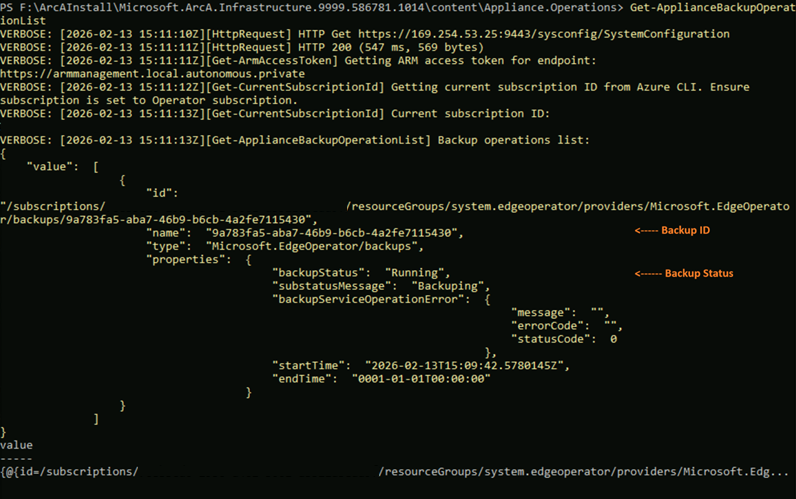
Track the backup status. Provide the backup operation ID when prompted.
Wait-ApplianceBackupOperationCompleteHere's an example output:


This feature is available only in Azure Local 2602 or later.