Note
Access to this page requires authorization. You can try signing in or changing directories.
Access to this page requires authorization. You can try changing directories.
Applies to: Multi-rack deployments of Azure Local 2511 and later
This article describes how to manage the VM resources for an Azure Local VM for multi-rack deployments.
After you deploy Azure Local virtual machines (VMs) enabled by Azure Arc, you may need to add or delete resources like data disks.
Note
You can add network interfaces when the VM is stopped. If you add a network interface with a static IP after the VM is provisioned, the IP isn't automatically configured inside the guest OS. You need to manually configure the IP address within the VM.
Prerequisites
- Access to a multi-rack deployment of Azure Local with one or more running Azure Local VMs. For more information, see Create an Azure Local VM enabled by Azure Arc.
Add a data disk
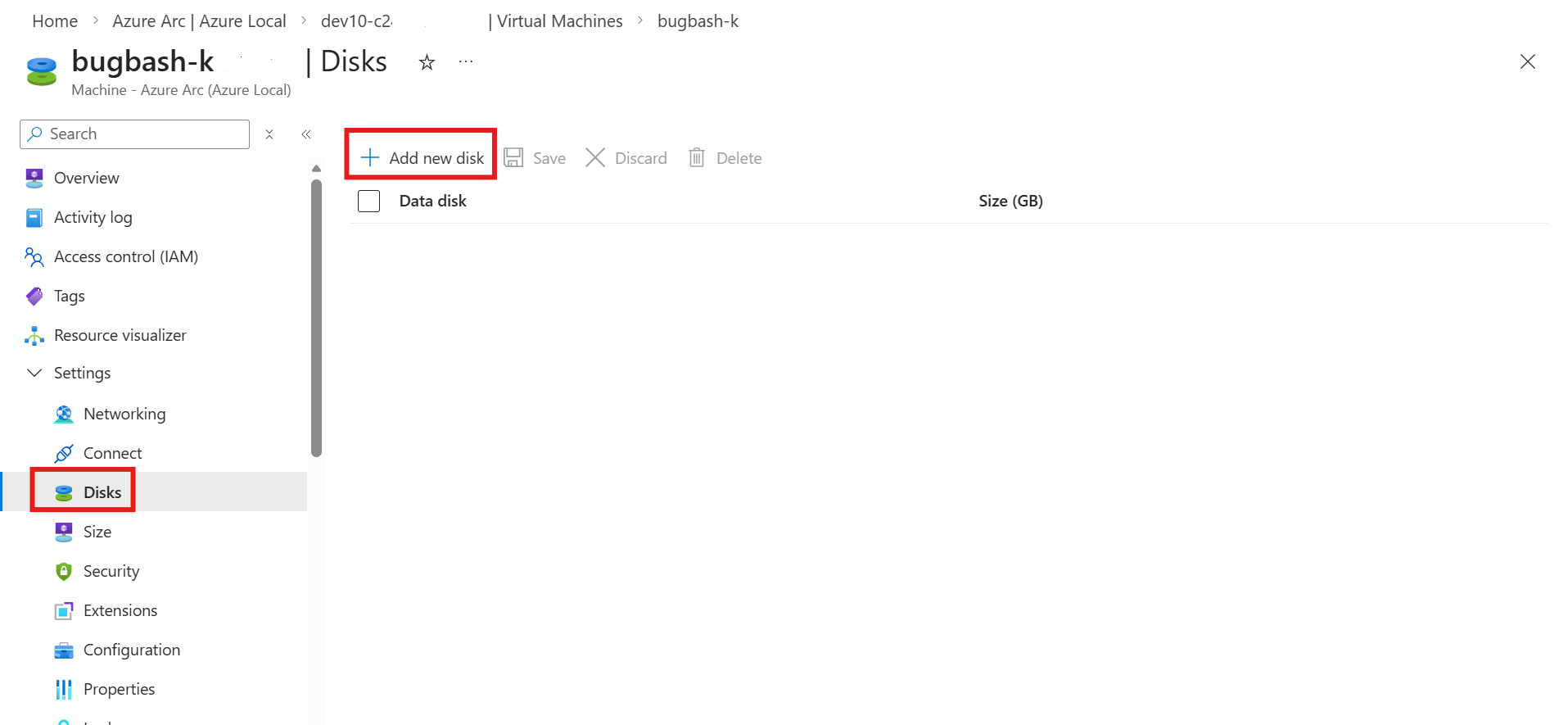
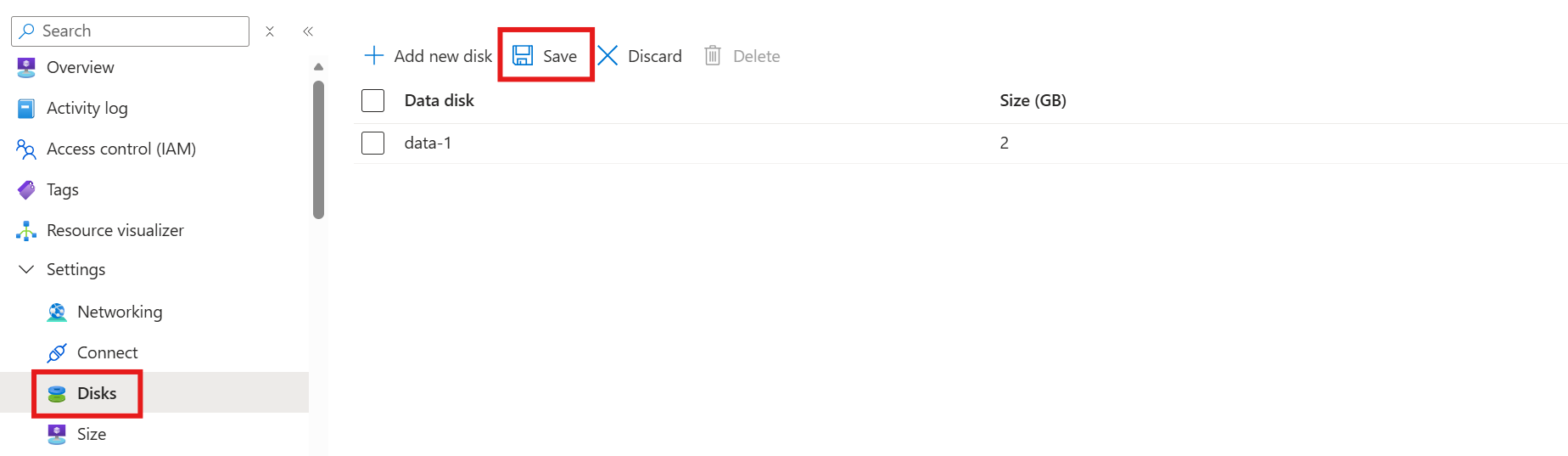
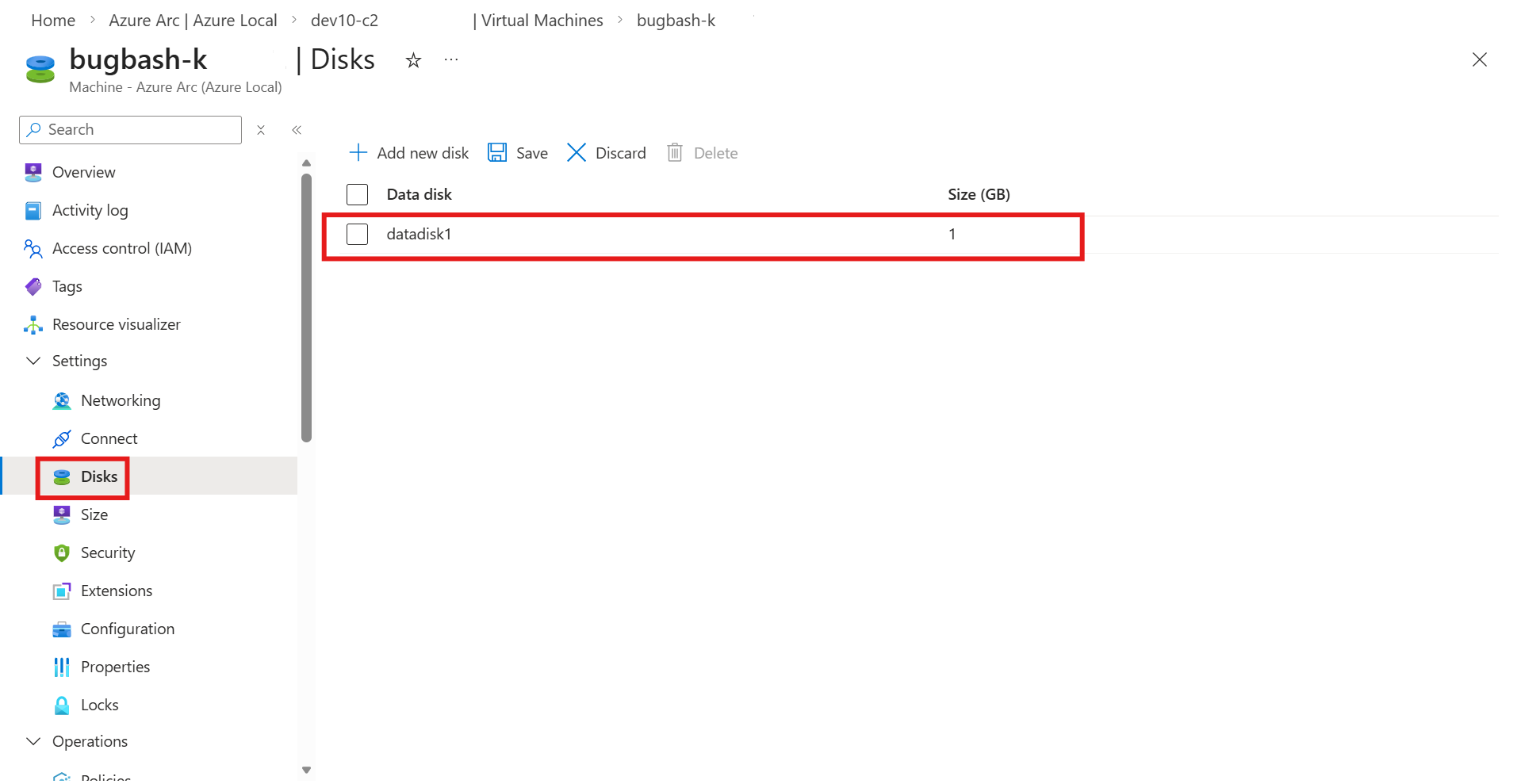
After you create a VM, you might want to add a data disk to it. Data disks can be added and removed while the VM is running (hot-plug); you don't need to stop the VM first.
To add a data disk to a VM, complete the following steps using Azure CLI from the computer that you use to connect to Azure Local.
Create a data disk:
az stack-hci-vm disk create --resource-group $resource_group --name $diskName --custom-location $customLocationID --location $location --size-gb 1Attach the disk to the VM:
az stack-hci-vm disk attach --resource-group $resource_group --vm-name $vmName --disks $diskName --yes
Expand a data disk
You can expand an existing data disk to your desired size using Azure CLI.
Note
The size you're changing the data disk to can't be the same or less than the original size of the data disk.
The maximum size of the disk can expand depending on the storage capacity of the cluster. Disk size maximum is 20 TB.
To expand the size of your data disk using Azure CLI, run the following command:
az stack-hci-vm disk update --name $diskName --resource-group $resource_group --size-gb $size_in_gb
Here's a sample output that indicates successful resizing of the data disk:
{
 "endTime": "2025-03-17T17:55:49.3271204Z",
 "error": {},
 "extendedLocation": null,
 "id": "/providers/Microsoft.AzureStackHCI/locations/EASTUS2EUAP/operationStatuses/00000000-0000-0000-0000-000000000000*0000000000000000000000000000000000000000000000000000000000000000",
 "location": null,
 "name": "00000000-0000-0000-0000-000000000000*0000000000000000000000000000000000000000000000000000000000000000",
 "properties": null,
 "resourceId": "/subscriptions/00000000-0000-0000-0000-000000000000/resourceGroups/resourceGroupName/providers/Microsoft.AzureStackHCI/virtualHardDisks/dataDiskName",
 "startTime": "2025-03-17T17:55:25.8868586Z",
 "status": "Succeeded",
 "systemData": null,
 "tags": null,
 "type": null
}
Delete a data disk
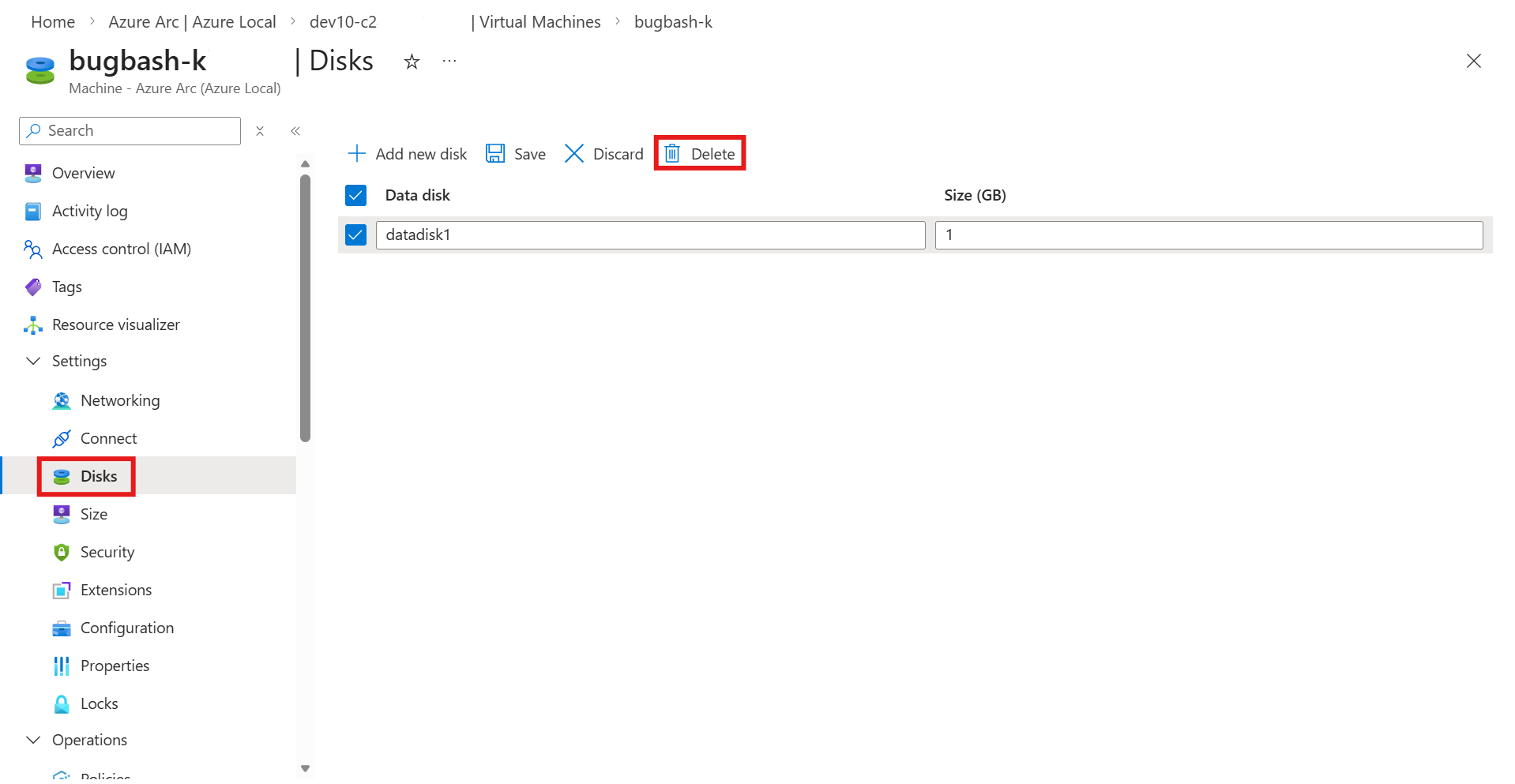
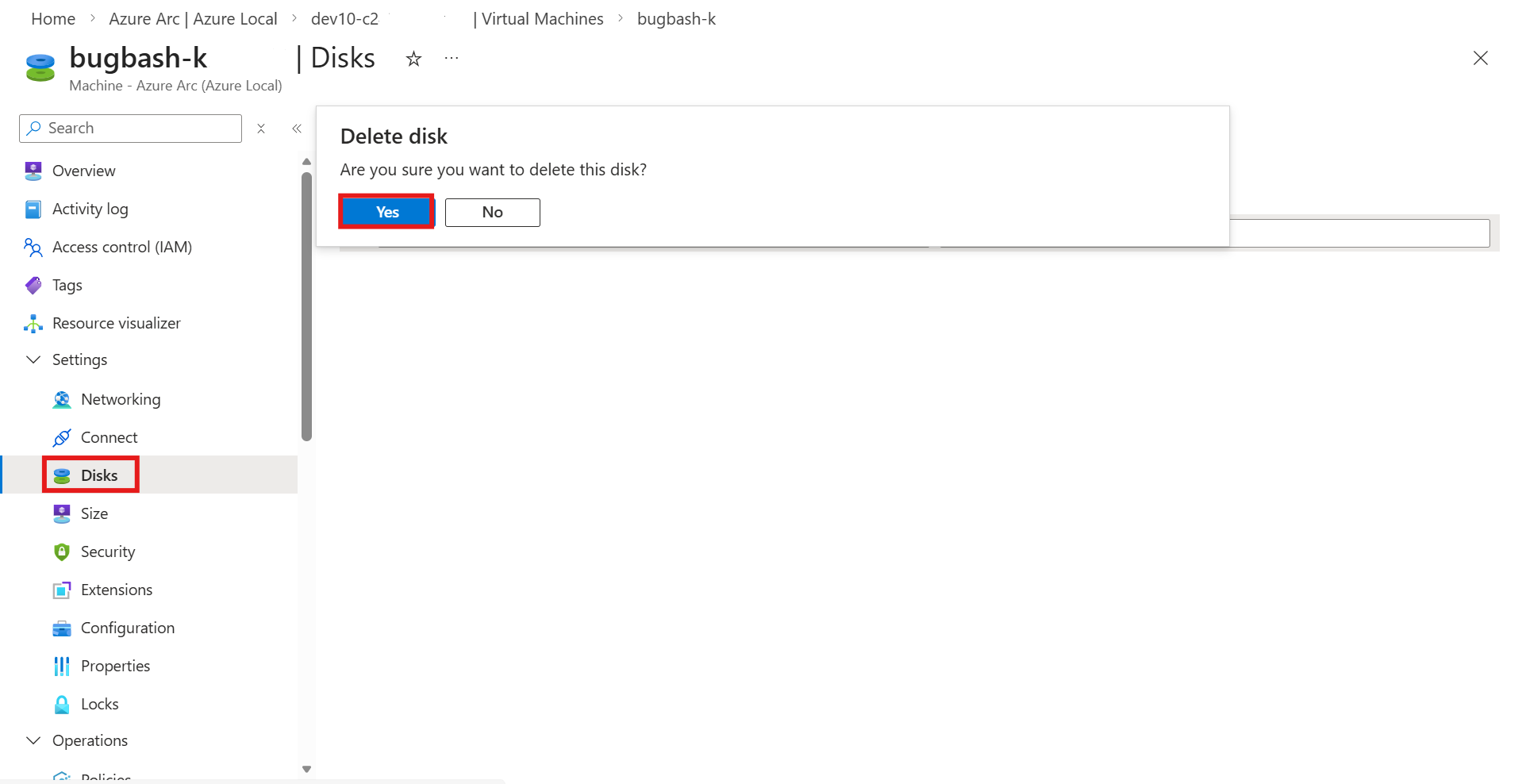
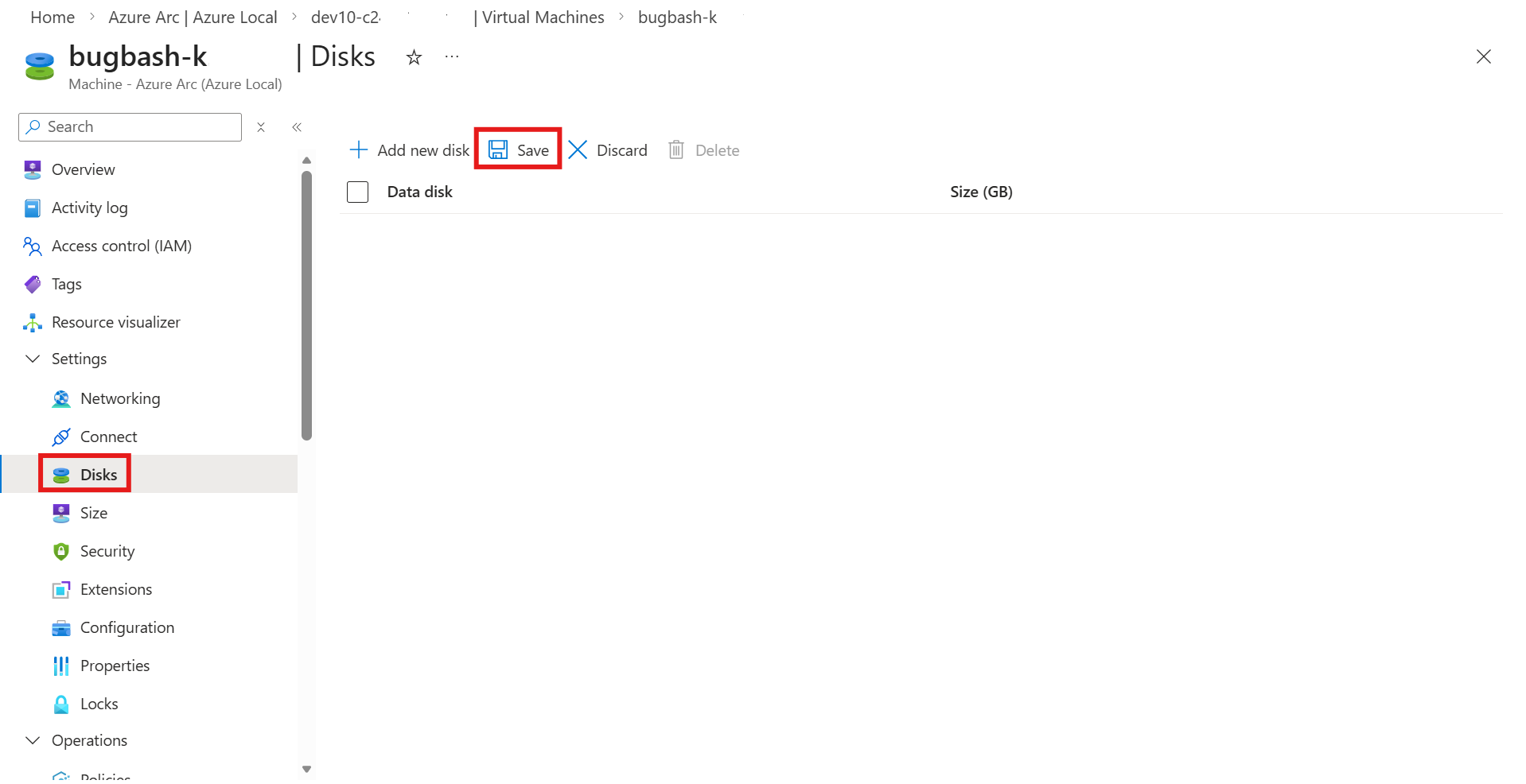
When you delete a data disk, you get a notification that the job for disk deletion started. After the disk deletion completes, the list refreshes to display the remaining data disks.
To delete a data disk from a VM, complete the following steps using Azure CLI from the computer that you're using to connect to Azure Local.
Detach disk from the VM:
az stack-hci-vm disk detach --resource-group $resource_group --vm-name $vmName --name $diskNameDelete the disk (optional):
az stack-hci-vm disk delete --resource-group $resource_group --name $diskName