Note
Access to this page requires authorization. You can try signing in or changing directories.
Access to this page requires authorization. You can try changing directories.
Azure virtual machine scale sets (VMSS) automatically send host-level metrics to Azure Monitor, which provide insights into the overall performance and health of the scale set. For complete monitoring though, you also need to collect guest-level performance data from the instances in the scale set, which provides insights into the applications, components, and processes running on each instance and their performance and health.
This tutorial walks you through enabling monitoring to collect guest performance data from your virtual machine scale sets using the Azure portal and the logs-based experience.
Note
Virtual machine scale sets currently support only the logs-based experience for monitoring described in Enable enhanced monitoring for an Azure virtual machine. The metrics-based experience available for individual virtual machines is not yet supported for scale sets.
In this tutorial, you learn how to:
- Enable monitoring for a virtual machine scale set, which installs Azure Monitor Agent and begins data collection.
- Configure data collection to send performance metrics to a Log Analytics workspace.
- View and analyze performance data collected from the scale set instances.
Prerequisites
To complete this tutorial, you need:
- An Azure virtual machine scale set to monitor.
- A Log Analytics workspace. If you don't have one, it's created automatically when you enable monitoring. See Create a Log Analytics workspace.
Note
As part of the Azure Monitor Agent installation process, Azure assigns a system-assigned managed identity to each instance in the scale set if such an identity doesn't already exist.
Enable monitoring
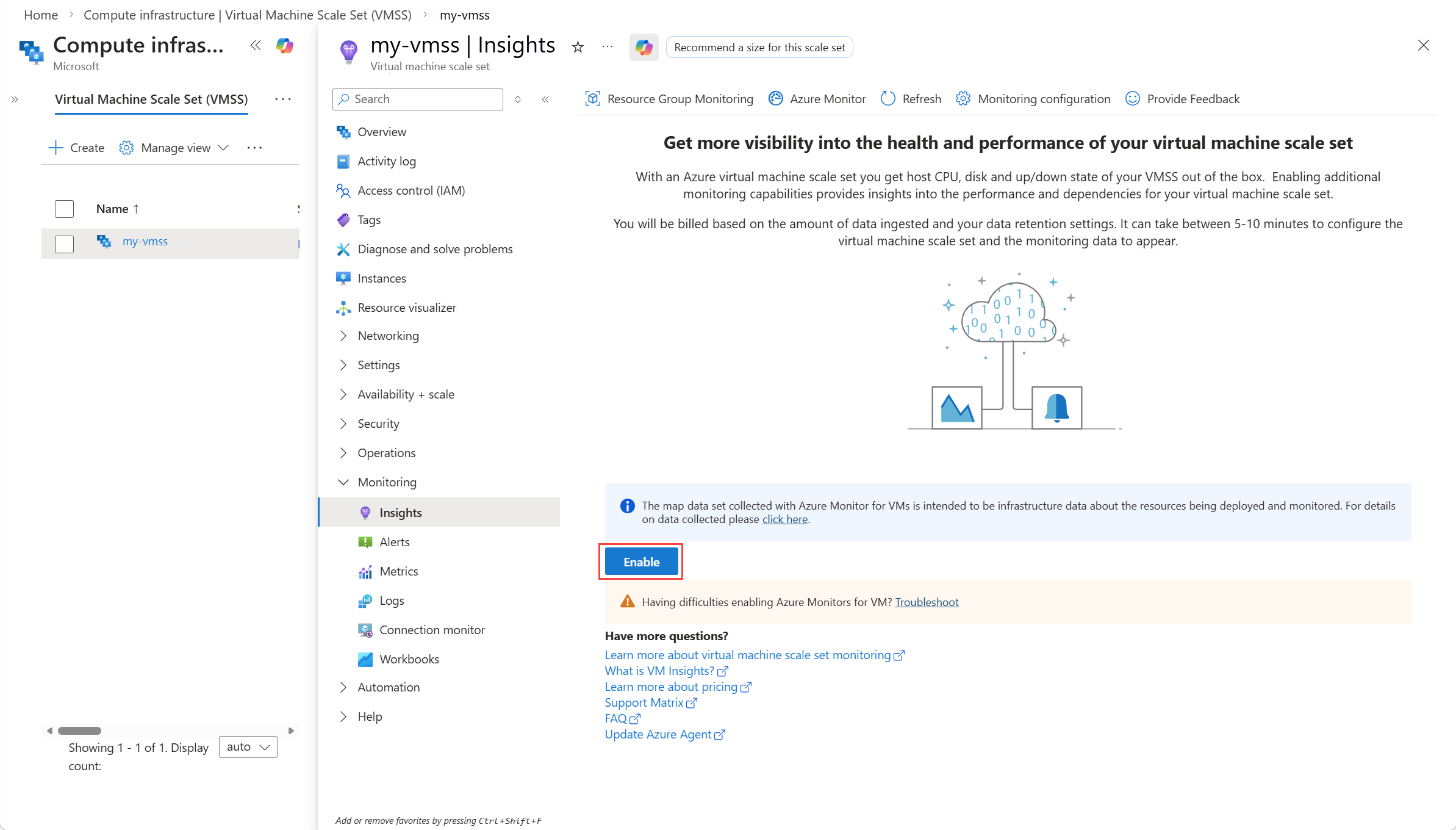
Select Insights from your virtual machine scale set's menu in the Azure portal. If monitoring hasn't been enabled, you see a message offering to enable it. Select Enable.
On the Monitoring configuration page, select a Log Analytics workspace. If you don't have a workspace, a default workspace is selected and created in the same region as the scale set.
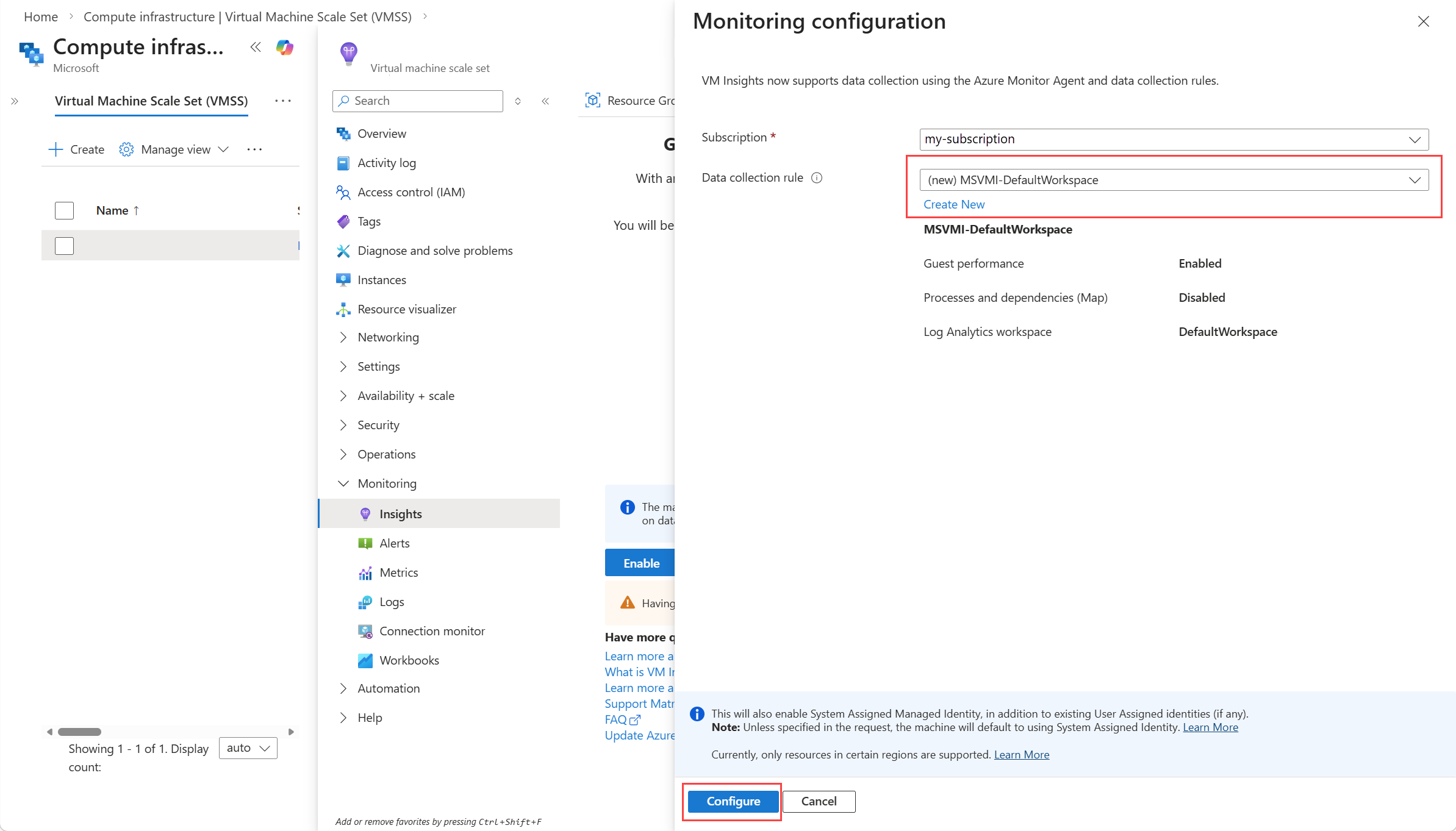
Select Configure to begin the deployment.
The deployment process installs the Azure Monitor agent on all instances in the scale set and creates a data collection rule (DCR) that specifies which performance counters to collect and where to send the data. The process may take several minutes to complete.
View performance data
After the deployment completes, it takes a few minutes for enough data to be collected to populate the performance charts.
From your virtual machine scale set in the Azure portal, select Insights and then select the Performance tab to view performance charts.
The Performance view provides a set of charts that allow you to analyze the performance of different components across all instances in the scale set such as CPU, memory, disk, and network over time.
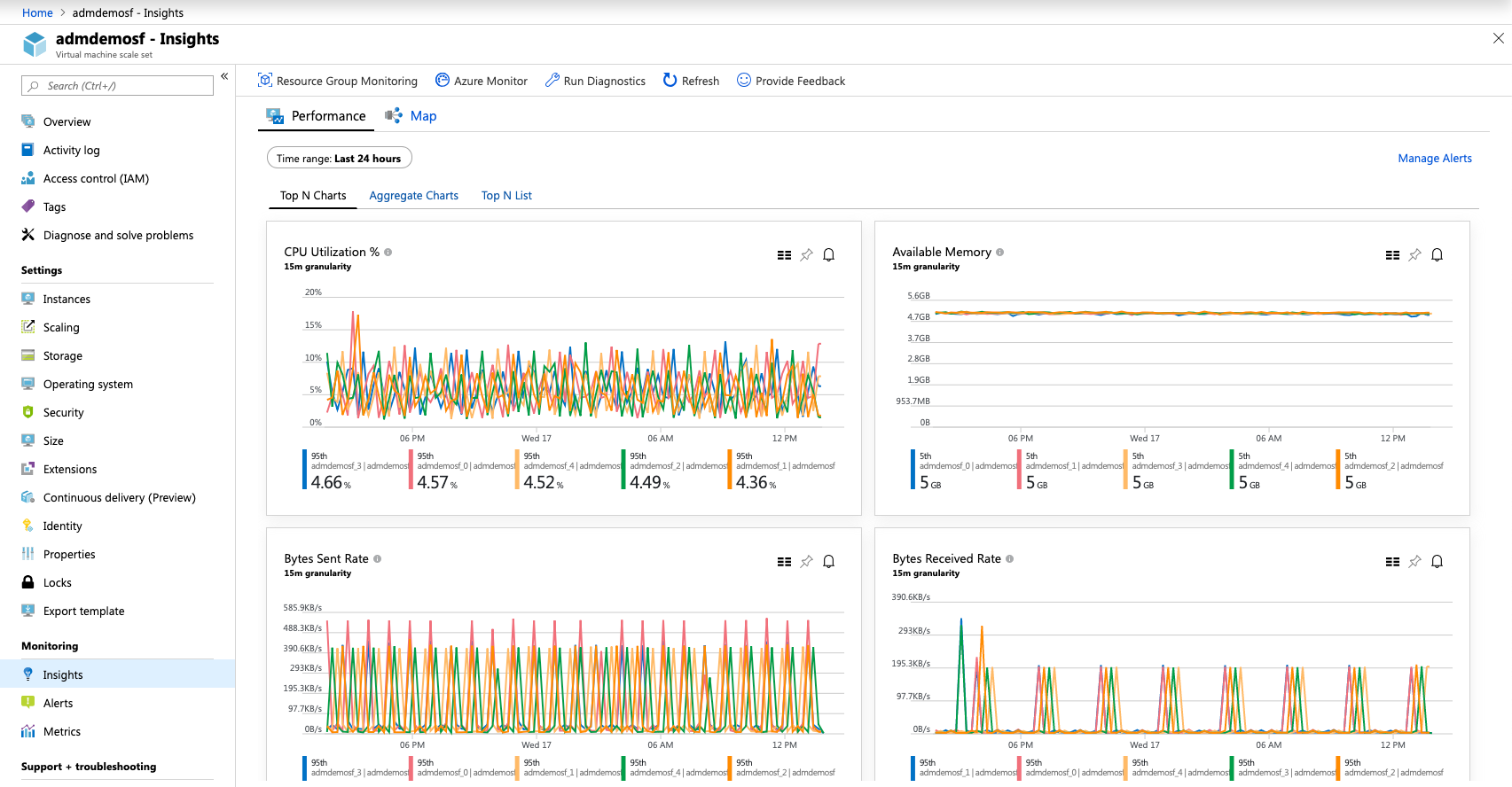
The performance charts include:
- CPU Utilization %: Shows the CPU usage percentage across instances.
- Available Memory: Shows the amount of available memory across instances.
- Logical Disk Space Used %: Shows the percentage of disk space used across instances.
- Logical Disk IOPS: Shows disk I/O operations per second.
- Logical Disk MB/s: Shows disk throughput in megabytes per second.
- Bytes Sent Rate: Shows network bytes sent per second.
- Bytes Received Rate: Shows network bytes received per second.
You can adjust the time range using the time picker at the top of the page to view performance data over different time periods.
View multi-VMSS performance data
You can also view performance data across multiple virtual machine scale sets in your subscription:
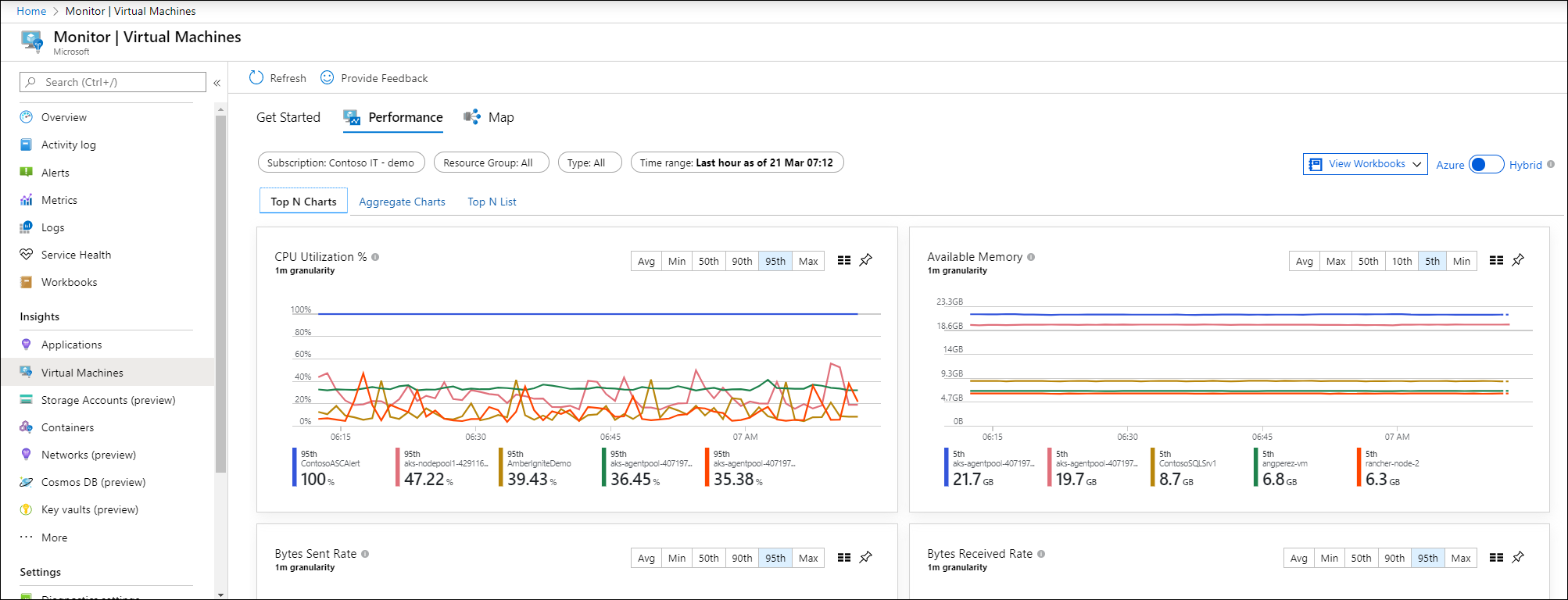
From the Monitor menu in the Azure portal, select Virtual Machines under the Insights section and then select the Performance tab. Use the Workspace and Group selectors to filter the view to specific workspaces, subscriptions, resource groups, or virtual machine scale sets.
This view provides aggregated performance charts showing:
- Top machines by CPU utilization
- Top machines by lowest available memory
- Top machines by disk space used
- Top machines by bytes sent
- Top machines by bytes received
Next steps
Now that you have enabled monitoring for your virtual machine scale set, you can:
- Enable recommended alerts to get notified when the scale set or its instances experience issues. See Enable recommended alerts for Azure virtual machine scale set.
- Collect additional guest log data such as Windows event logs or Syslog from your virtual machine scale set instances. See Collect guest log data from virtual machines with Azure Monitor.
- Use workbooks to create custom dashboards and reports. See Visualize data with Azure Monitor workbooks.