Note
Access to this page requires authorization. You can try signing in or changing directories.
Access to this page requires authorization. You can try changing directories.
Azure Migrate provides an enhanced portal experience for migrations that streamlines the end‑to‑end, application‑aware migration journey. In this article, you learn how to navigate the end-to-end portal to do the below activities for migrations,
- Start migration for servers discovered using the Azure Migrate appliance (VMware, Hyper-V, or Physical).
- Track migration progress across the Preparation, Testing, and Completion stages and perform required actions at each stage.
Prerequisites
Before you begin, ensure the following prerequisites are met,
Azure Migrate appliance that matches your source environment (VMware, Hyper‑V, or Physical) is installed and configured. Azure Migrate appliance is required to use the end‑to‑end portal experience.
Discovery is completed using the installed Azure Migrate appliance.
For more information, see the following tutorials:
- Tutorial: Discover servers running in a VMware environment with Azure Migrate.
- Tutorial: Discover servers running on Hyper-V with Azure Migrate: Discovery and assessment.
- Discover physical servers and servers running in AWS and GCP
Note
If you're starting migrations using other tools (agent-based replication appliance, Hyper-V replication provider) directly without installing Azure Migrate appliance (VMWare, Hyper-V, Physical), You can use the classic Azure Migrate Portal. To switch to the classic portal, Navigate to your Azure Migrate Project>Execute>Migrations and click the link available in the banner.
Execute migrations
This section explains how to start execution for your servers discovered using the Azure Migrate appliance.
In Azure Migrate project, go to Execute > Migrations, and then select Start execution.

On the Specify intent pane, select Servers or Virtual machines (VMs), and choose Azure VM as the target. You can either select an existing assessment or manually select servers from the discovered inventory. Configure this setting using the How will you select workloads drop-down menu.
Under Discovery method, select the appliance that matches your source environment (VMware, Hyper‑V, or Physical). Appliances that are already installed appear in the list.

- VMware agentless: Select the configured Azure Migrate VMware appliance, select Agentless migration or Agent-based migration, and then select Continue.
- Hyper-V: Select the configured Azure Migrate Hyper-V appliance. If the replication provider isn’t already installed, you can install it using the link provided on the portal. After you configure the provider by using the provided link, continue to the next step.
- Physical servers: Select the configured Azure Migrate Physical appliance and then select Continue.
In Workloads, select the servers that you want to replicate, and configure the required settings. You can select up to 10 servers in a single selection.
- For VMware agent-based and physical servers, select the replication appliance you have set up from the drop-down menu. In case you are executing agent-based migrations in the project for the first time, select Set up the replication appliance and complete the registration by following the steps from How to set up replication appliance for agent-based migrations.


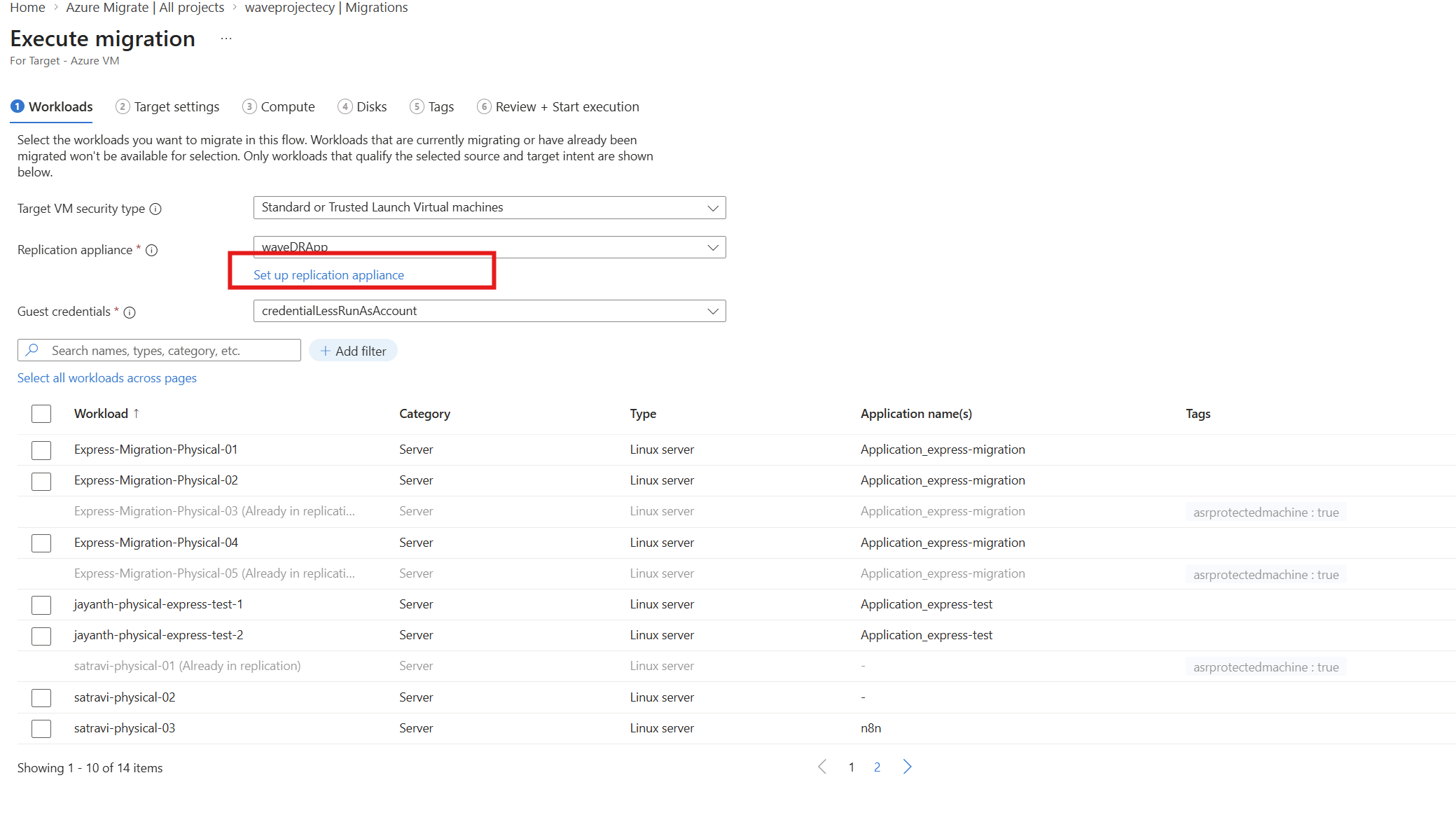
- Complete the remaining configuration for Target, Compute, Disk, and Tags, review your settings, and then select Execute migration.
Track migrations
This section explains how to track server migrations.
- In Azure Migrate project, go to Execute > Migrations. Use View by applications or View by workloads to switch how items are grouped.
- Execution progress is shown in Execution stage and Execution status:
- Execution stage: Preparation, Testing, or Completion.
- Execution status: In progress, In error, Action pending, or Completed.

- The Execution progress is tracked across three stages in the Execution stage:
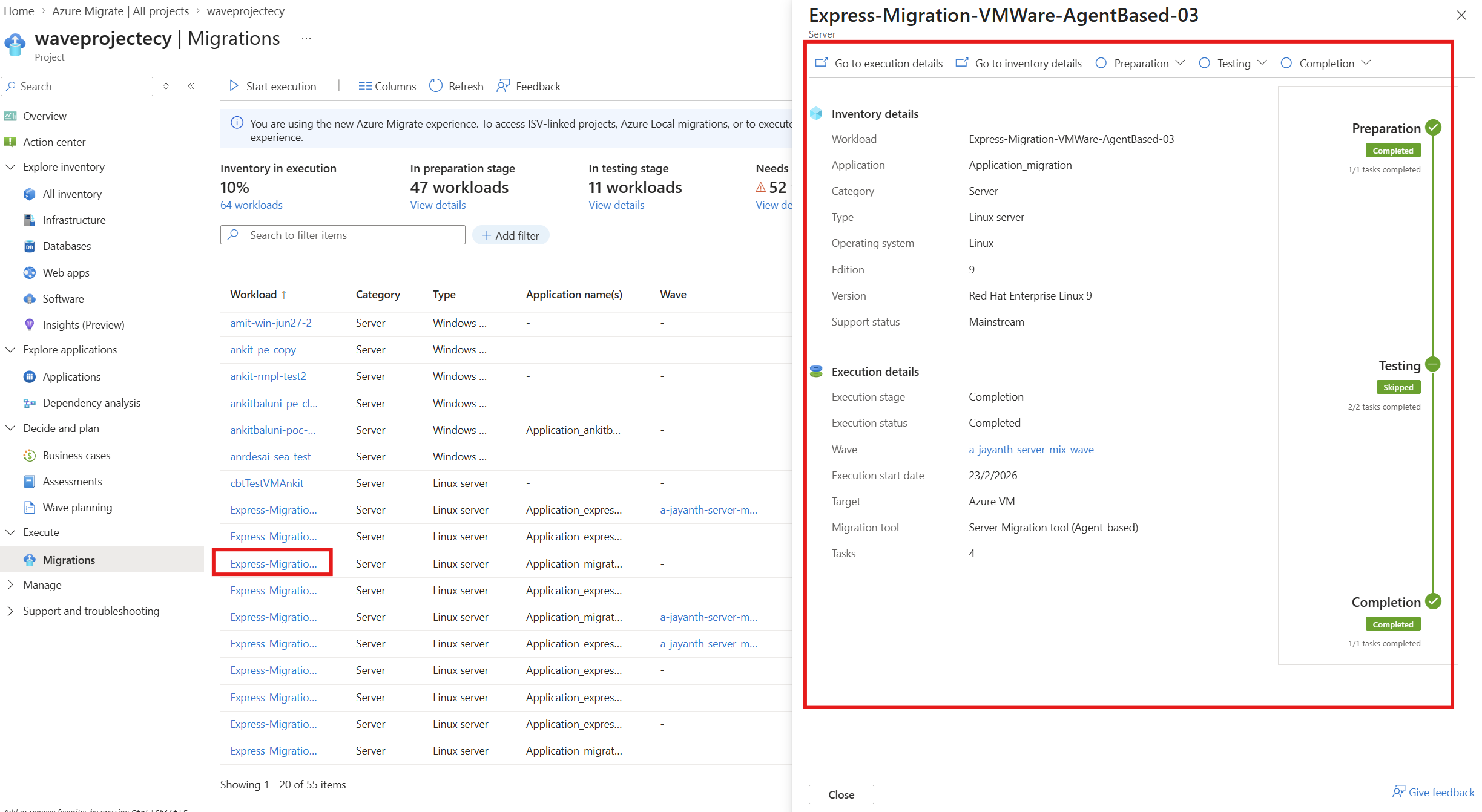
- Preparation: Servers that are enabled for replication remain in the Preparation stage while initial replication (data replication) is in progress. After initial replication is complete, the servers move to the Testing stage. To start or stop replications for the servers, click on a server in Preparation stage from the list, select the Preparation drop-down menu and choose the required action you want to take.
- Testing: Servers for which initial replication is complete and delta replication is in progress will move to the Testing phase. You can choose run test migrations on a test virtual network before the actual migration (recommended).Ensure that you clean up test migrations after validation. To do this, click on a server in Testing stage from the list, select the Testing drop-down menu and choose the action you want to take. You can skip the Testing stage and start migration directly by using the actions available in the Completion drop-down menu.
- Completion: Servers for which Test Migrations are completed or skipped will move to this stage. You can perform final migrations (Cut over) for these servers. To do this, click on a server in Completion stage from the list, select the Completion drop-down menu and choose the Migrate to begin final migration. After migration finishes, ensure that you select Complete Migration from the same drop-down menu to clean up resources and shut down the source virtual machines.
Related content
- Learn more about different migration methods in Azure Migrate.
- Learn more on how to migrate your VMWare Virtual Machines using Agentless method.
- Learn more on how to migrate your VMWare Virtual Machines using Agent-based method.
- Learn more on how to migrate your Hyper-V Virtual Machines.
- Learn more on how to migrate your Physical or other machines using the Agent-based method.