Note
Access to this page requires authorization. You can try signing in or changing directories.
Access to this page requires authorization. You can try changing directories.
Applies to: Dynamics 365 Customer Service and Dynamics 365 Contact Center—standalone only
Note
Copilot Studio bot is renamed as Copilot agent (agent or AI agent). Human agent is now renamed as customer service representative (service representative or representative). You might come across references to the old and new terms while we update the product UI, documentation, and training content.
You can configure omnichannel historical analytics to provide service managers with business intelligence and AI-generated insights into their organization’s service performance. The reports use natural language understanding to automatically detect the language used in your support conversations and to group related conversations into topics.
The historical analytics reports include:
- Summary
- Conversation
- Queue
- Voice
- Voicemail
- Agent
- Bot
- Proactive Outbound
- Bot-Intent
- Quality Assurance Agent
Note
The reports retain their current state even when you switch session tabs. However, if you customized the Copilot Service workspace app, configure the app to retain the report state.
Dashboard metrics become available 24 hours after you enable historical analytics. In Customer Service workspace, go to the Omnichannel historical analytics dashboard and use the dashboard filter to select the dashboard you want to view.
Prerequisites
- You must have one of the following roles: System Administrator, Omnichannel Administrator, Omnichannel Supervisor, or CSR Manager.
To configure other user roles to access analytics and dashboards, review Configure user access to analytics and dashboards.
Manage Omnichannel historical analytics reports
You can manage the Omnichannel historical analytics reports in Copilot Service admin center. Enable the main Omnichannel historical analytics report before you enable the other dashboards on this page.
- In the site map of Copilot Service admin center, select Insights in Operations. The Insights page appears.
- In the Omnichannel historical analytics section, select Manage. The Omnichannel historical analytics page appears.
- Select the Enable Omnichannel historical analytics report toggle to enable the related dashboards.
- Select Save to apply changes.
Enable historical analytics for Copilot agents
On the Omnichannel historical analytics page, select Add historical analytics for bot, and save the changes.
- If Copilot agents are configured with Dynamics 365 Contact Center and you select this option, the Summary and Bot dashboards appear as options in the dashboard filter for the Omnichannel historical analytics report. The Bot dashboard displays metrics specific to the Copilot agent.

- If no Copilot agents are integrated with the application or you didn't select this option, then the Bot dashboard displays the key performance indicators (KPIs) and charts for all agents.

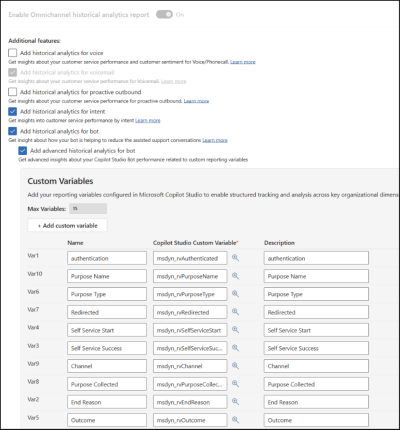
Enable advanced historical analytics for voice and chat Copilot agents
On the Omnichannel historical analytics page, select Add historical analytics for bot, and save the changes.
To include custom variables for reporting in Microsoft Copilot Studio:
In the Custom Variables section, add your reporting variables configured in Microsoft Copilot Studio to enable structured tracking and analysis for line of business, division, product line, and other custom-defined attributes.
Save the changes.
You can add a maximum of 15 custom variables.
Enable historical analytics for voice
On the Omnichannel historical analytics page, select Add historical analytics for voice, and save the changes.
Enable historical analytics for voicemail
On the Omnichannel historical analytics page, select Add historical analytics for voicemail, and save the changes.
Enable historical analytics for proactive outbound engagements
You can get insights about your contact center performance for proactive outbound engagements. The Proactive Outbound dashboard is available in Dynamics 365 Contact Center only.
On the Omnichannel historical analytics page, select Add historical analytics for proactive outbound, and save the changes.
Enable historical analytics for Quality Assurance Agent
The Quality Assurance Agent dashboard is available in Dynamics 365 Contact Center only.
On the Omnichannel historical analytics page, select Add historical analytics for quality assurance agent, and save the changes.
Enable historical analytics for intent
On the Omnichannel historical analytics page, select Add historical analytics for intent, and save the changes.
Related information
Customer Service dashboards
Configure user security to resources in an environment
How access to a record is determined