Note
Access to this page requires authorization. You can try signing in or changing directories.
Access to this page requires authorization. You can try changing directories.
Note
Community interest groups have now moved from Yammer to Microsoft Viva Engage. To join a Viva Engage community and take part in the latest discussions, fill out the Request access to Finance and Operations Viva Engage Community form and choose the community you want to join.
This article helps you set up electronic invoicing for Paraguay. It lists configuration steps that depend on the country or region in Microsoft Dynamics 365 Finance and Microsoft Dynamics 365 Supply Chain Management. These steps supplement Electronic invoicing setup. For last mile integration with the Paraguayan tax authority, Microsoft partners with Edicom.
After you set up electronic invoicing, generate, digitally sign, and submit XML invoice files to the Edicom authorized certification provider (PAC) according to the regulatory requirements in Paraguay.

Note
This electronic invoicing approach uses an invoicing service that's available only in cloud deployments of Finance or Supply Chain Management.
Prerequisites
Before you start, make sure you meet these prerequisites.
Set up the Paraguayan legal entity. Learn more in Set up a legal entity and tax information for Paraguay.
Review the Electronic invoicing overview.
Complete the common Electronic invoicing service configuration described in Electronic invoicing configuration.
Enable the following features in Feature management:
Electronic invoicing integration
Electronic invoicing integration resubmits document from failed action
Execute upda1. Import the following Electronic reporting (ER) format configurations. Learn more in Import Electronic reporting (ER) configurations from Dataverse and Import Electronic reporting (ER) configurations.reporting-import-ger-configurations.md).
Customer invoice context model
Edicom response error log import
Edicom Response Processing LATAM
Edicom source file response import format
Inventory-PY
PackingSlip (PY)
Project e-invoice (PY)
Note
These formats build on the corresponding LATAM format configurations, which use the Invoice model LATAM and Invoice model mapping LATAM configurations. The system imports all other required configurations automatically.
Configure the electronic invoicing feature
The "Paraguay Electronic Invoice (PY) Edicom integration for Paraguay" feature is an outbound flow that issues the following sales documents.
| Name | Code | Original name |
|---|---|---|
| Electronic sales invoice | 1 | Factura electrónica de venta |
| Credit Note | 5 | Nota de Crédito |
| Debit Note | 6 | Nota de Débito |
The feature publishes some parameters with default values. Before you deploy the electronic invoicing feature to the service environment, add a feature that's based on the Microsoft-provided feature and complete the common parameters on the Feature parameters tab. Review the default values and update them as needed so they reflect your business operations.
Edicom interactions for Paraguay
Paraguay has three core interactions with Edicom in the base flow:
- Invoice submission
- Signed XML retrieval
- Status retrieval of the submitted invoice
Each of these interactions requires common parameters, such as Edicom connection details and the authentication token provided by Edicom. These parameters are reused across the feature setup for all document types. Edicom supplies these values during the company's onboarding process.
Paraguay electronic invoice (PY) Edicom integration
Important
The Paraguay Electronic Invoice (PY) feature is provided by Microsoft. Before it can be used, it requires more configuration, as described in this article. Learn how to configure invoicing features and apply changes in Work with feature setups. For example, in addition to the connection parameters, you can filter specific legal entities so that they're processed in applicability rules. By default, the feature is applicable to all legal entities that have a primary address in Paraguay.
To integrate Edicom for Paraguay electronic invoices, follow these steps:
Import the latest version of the Paraguay Electronic Invoice (PY) Globalization feature as described in Import features from the repository. The following illustrations show what the feature looks like after you import it from Dataverse.

If you go to the Configuration tab, as shown in the previous screenshot, there's a page displaying information similar to the following table:
Name Version Status Country/region code Edicom Response Processing LATAM 13.2.5 Completed Edicom response error log import 13.1 Completed Inventory (PY) 296.140.32.25 Completed PY PackingSlip (PY) 296.140.32.31 Completed PY Project e-invoice (PY) 296.140.19 Completed PY Note
The version numbers can change if the formats are updated. The table is for illustrative purposes only.
Create a copy of the imported Globalization feature, and select your configuration provider. Learn more in Create a Globalization feature.
On the Versions tab, confirm that the Draft version is selected.
On the Feature parameters tab, specify values for the following connection and integration parameters that are required for interoperation with Edicom's API.
These parameters are general purpose and apply to all actions, so configure them once here.Tip
The following table provides example values for each feature parameter, so you can understand the type of data that should be entered for each one. These values are illustrative only and were provided by Edicom to Microsoft for testing purposes. When you're onboarded, Edicom provides you with your own unique values to use in your configuration.
Parameter Description Data type Value EdicomApplication Application String <ID_PROVIDED_EDICOM>EdicomDomain Domain String <ID_PROVIDED_EDICOM>EdicomGetStatusSchema Get status schema name String IN_DOCUMENT_STATUS_MICROSOFT_UY EdicomGroup Group String <GROUP_ID>EdicomSignedXMLSchema Signed XML schema name String EDIWIN-SOURCE-FILE_XML_CFE_ADENDA_<ID_PROVIDED_EDICOM>EdicomSubmitInvoiceDestination Destination name String <ID_PROVIDED_EDICOM>_EDIWINEdicomSubmitInvoiceSchema Submit invoice schema name String OUTBOUND_DOCUMENT_MICROSOFT_UY EdicomToken Auth token Secret name EdiwinParaguayToken EdicomWebServiceURL Web service URL String https://ipaasgw.edicomgroup.com Tip
When configuring the feature parameters for Edicom integration, follow these steps:
- Select Application, and enter the service ID number you obtained from Edicom.
- Select Domain, and enter the same service ID number.
- Select Get status schema name, and enter the provided schema name.
- Select Group, and enter the group code you received.
- Select Signed XML schema name, and enter the appropriate schema name.
- Select Destination name, and enter the service ID number concatenated with "_EDIWIN". For example, if your service ID is 123456, enter 123456_EDIWIN.
- Select Submit invoice schema name, and enter the schema name.
- Select Auth token, and choose the name of the secret you created for the token.
- Select Web service URL, and verify the web address is correct.
The copy of the feature always starts in a Draft version. Regardless of whether you made changes, you must complete, publish, and deploy the feature as described in Complete and deploy a Globalization feature.
Outbound flow pipeline
There are three electronic invoice formats for Paraguay included in the Paraguay Electronic Invoice (PY) feature. Each format requires its own setup and configuration. The formats are:
- Inventory (PY)
- PackingSlip (PY)
- Project e-invoice (PY)
The following sections provide general configuration steps that apply to all formats. They also explain specific considerations for each format.
Electronic invoice feature
Setups view
After you import the feature, you see five tabs: Versions, Configuration, Feature parameters, Setups, and Tags. Select Setups, then select View to open the Feature version setup page.
Feature version setup
Use this page to review and set up the feature for Paraguay. The page has four sections: Processing pipeline, Applicability rules, Variables, and Parameters.
Processing pipeline
The Set up Actions and Parameters section is divided into two distinct grids:
Top right – processing pipeline
The Processing pipeline grid is similar to the following table:
| Action | Action name | Description | Enable retry | Retry action | Export result | Update action |
|---|---|---|---|---|---|---|
| Transform document | Generate invoice XML file | |||||
| Integrate with Edicom | Submit invoice | |||||
| Get status from Edicom for an invoice | Get signed XML from Edicom | Checked | ||||
| Get status from Edicom for an invoice | Get invoice status from Edicom | |||||
| Process response | Process invoice status response |
Note
The Get status from Edicom for an invoice action is crucial in the flow, as it's marked with the Update action checkbox. This designation means that this specific step—and all steps following it repeatedly execute in a loop. The system continues this process until the invoice reaches a final, terminal status, ensuring that the latest status from Edicom is always retrieved and processed.
Bottom right – parameters
The lower grid shows the parameters for the selected processing action. These parameters fine-tune the step's behavior. Each entry lists a name, description, data type, and value so you can set processing logic for business needs.
Transform document parameters
| Name | Description | Value |
|---|---|---|
| Input file | Source file provides to the action the data to be executed. | Variable: BusinessDocumentDataModel |
| Direction | Direction describes which format is used: import or export | export |
| Configuration | Configuration describes format that is executed | Inventory e-Invoice: Inventory e-Invoice |
| Configuration Integration point | Source file provides data to the reporting runtime | InvoiceCustomer |
| Custom file name | Custom file name from the client |
Linking the correct format in Transform document parameters
When configuring the Transform document action in the processing pipeline, ensure the following:
Configuration: Set this to the exact name of the feature format you're configuring.
- For example:
Project e-Invoice (PY)→ Configuration:Project e-Invoice (PY)Inventory e-Invoice (PY)→ Configuration:Inventory (PY)e-Packing Slip (PY)→ Configuration:PackingSlip (PY)
- For example:
Configuration Integration Point:
- Use
InvoiceCustomerfor inventory formats (Inventory (PY),PackingSlip (PY)). - Use
InvoiceProjectfor project formats (Project e-Invoice (PY)).
- Use
Tip
If the feature name contains "Project," use InvoiceProject. If it contains "Inventory," use InvoiceCustomer. Incorrect settings result in empty XML or missing required data.
Integrate with Edicom parameters
| Name | Description | Value |
|---|---|---|
| Web service URL | URL address to send request | FeatureParameter: EdicomWebServiceURL |
| Http request body | Http request body (can be empty) | Generate invoice XML file: Output file |
| User name | KeyVault secret name to store user name | |
| Password | KeyVault secret name to store user password | |
| Client ID | Client ID secret name in the KeyVault | |
| Client Secret | Client Secret secret name in the KeyVault | |
| Auth token | Auth token secret name in the KeyVault | EdiwinParaguayToken |
| Domain | Domain | FeatureParameter: EdicomDomain |
| Application | Application | FeatureParameter: EdicomApplication |
| Destination | Destination | FeatureParameter: EdicomSubmitInvoiceDestination |
| Schema | Schema | FeatureParameter: EdicomSubmitInvoiceSchema |
| Duplicates | Duplicates | 0 |
| Group | Group | FeatureParameter: EdicomGroup |
| Custom file name | Custom file name from the client | Generate invoice XML file: File name |
Get signed XML from Edicom parameters
| Name | Description | Value |
|---|---|---|
| Web service URL | URL address to send request | FeatureParameter: EdicomWebServiceURL |
| User name | KeyVault secret name to store user name | |
| Password | KeyVault secret name to store user password | |
| Client ID | Client ID secret name in the KeyVault | |
| Client Secret | Client Secret secret name in the KeyVault | |
| Auth token | Auth token secret name in the KeyVault | EdiwinParaguayToken |
| Domain | Domain | FeatureParameter: EdicomDomain |
| Application | Application | FeatureParameter: EdicomApplication |
| Schema | Schema | FeatureParameter: EdicomSignedXMLSchema |
| Group | Group | FeatureParameter: EdicomGroup |
| ERP UUID | Reference ID of the document submitted to Edicom | Submit invoice: ExternalID |
Get invoice status from Edicom parameters
| Name | Description | Value |
|---|---|---|
| Web service URL | URL address to send request | FeatureParameter: EdicomWebServiceURL |
| User name | KeyVault secret name to store user name | |
| Password | KeyVault secret name to store user password | |
| Client ID | Client ID secret name in the KeyVault | |
| Client Secret | Client Secret secret name in the KeyVault | |
| Auth token | Auth token secret name in the KeyVault | EdiwinParaguayToken |
| Domain | Domain | FeatureParameter: EdicomDomain |
| Application | Application | FeatureParameter: EdicomApplication |
| Schema | Schema | FeatureParameter: EdicomGetStatusSchema |
| Group | Group | FeatureParameter: EdicomGroup |
| ERP UUID | Reference ID of the document submitted to Edicom | Submit invoice: ExternalID |
Process response parameters
| Name | Description | Value |
|---|---|---|
| Input file | Response to analyze | Get invoice status from Edicom: Output file |
| Reporting configuration list | List of configurations used for response parsing | Edicom Response Processing LATAM: Edicom Response Processing LATAM |
| Custom file name | Custom file name from the client | |
| Reporting configuration list | List of configurations used for response parsing | Edicom response error log import: Edicom response error log import |
Terminate pipeline parameters
| Name | Description | Value |
|---|---|---|
| Terminal state | Desired state of the pipeline when terminating | complete |
| Number of days | Number of days to wait before terminating | 8 |
Note
- If the status response indicates a failure, the pipeline is terminated, and the submission is marked as failed.
- If the response shows successful submission to the Paraguayan Tax Authorities (DGI), the process completes after eight days if no further responses arrive.
Applicability rules and feature setup scope
Configure applicability rules so the service can find the correct Electronic Invoicing Globalization feature. These applicability rules are provided out of the box by checking the legal entity’s International Organization for Standardization (ISO) country/region code.
Applicability rules for Paraguayan electronic invoice formats
The following applicability rules for each electronic invoice format for Paraguay. Replace <Legal Entity ID> with the actual ID of your legal entity.
Inventory PY
| And/or | And/or | Field | Operator type | Value | Data type |
|---|---|---|---|---|---|
| And | CountryISOCode | Equals | PY | string | |
| Or | DocumentType | Equals | Customer invoice | string | |
| DocumentType | Equals | Customer credit note | string | ||
| DocumentType | Equals | Customer debit note | string |
Packing slip PY
| And/or | And/or | Field | Operator type | Value | Data type |
|---|---|---|---|---|---|
| And | CountryISOCode | Equals | PY | string | |
| DocumentType | Equals | Customer packing slip | string |
Project PY
| And/or | And/or | Field | Operator type | Value | Data type |
|---|---|---|---|---|---|
| And | CountryISOCode | Equals | PY | string | |
| Or | DocumentType | Equals | Project invoice | string | |
| DocumentType | Equals | Project credit note | string | ||
| DocumentType | Equals | Project debit note | string |
Variables
The following variables are used in the outbound data flow actions of the Paraguayan feature. (These variables are provided out of the box.)
- BusinessDocumentDataModel – The Business Document Data model variable that is received from Finance or Supply Chain Management and transformed into the format that is required for submission.
- SignedXML – The signed XML variable that is sent back to Finance or Supply Chain Management. This variable contains the base64-encoded response body from the Get Signed XML from Edicom step. It's used in the response types to save the signed XML that is obtained from Edicom as an attachment to the invoice journal. It's also used to generate printable reports through QR codes.
| Name | Description | Type | Data type | Value |
|---|---|---|---|---|
| BusinessDocumentDataModel | Contains the electronic document from the client | From client | file | |
| SignedXML | Signed XML document in base64-encoded format | To client | file | Get signed XML from Edicom.Base64ResponseBody |
After you import the Electronic invoicing for Paraguay feature with the default setup, follow the next steps to set up electronic documents.
Setups > Application setup
To configure the mapping between Dynamics 365 Finance source tables and electronic document formats, go to the Setups tab within the Electronic invoice feature section, and then select Application Setup. This step lets you define how data from Finance is linked to the correct electronic invoice formats for Paraguay.
Note
Although this configuration isn't set at the general feature level, it acts globally for the selected feature setup. You don't need to repeat these steps for each individual format or feature—one configuration is sufficient for all supported document types within the feature.
The following grid defines the link between the source table in Dynamics 365 Finance, the document context model, and the mapping configuration used for electronic invoicing:
| Table name | Context model / Context | Electronic document mapping | Mapping name | Description |
|---|---|---|---|---|
| Customer invoice journal | Customer invoice context model / Customer invoice context | Invoice Model mapping LATAM | Customer E-Invoice | Maps customer invoices from the CustInvoiceJour table to the LATAM invoice model for electronic submission. |
| Project invoice | Customer invoice context model / Project invoice context | Invoice Model mapping LATAM | Project E-Invoice | Maps project invoices to the LATAM invoice model for electronic submission. |
Tip
Ensure that the Context and Mapping name match the document type. Incorrect mappings cause errors in XML generation or submission to DGI.
Configure electronic document parameters
To configure electronic document parameters, follow these steps:
- Import the Paraguay-specific ER configurations for the document context and electronic document model mapping. Learn more in Set up Electronic document parameters.
- Go to Organization administration > Setup > Electronic document parameters.
- In the Electronic document section, add records for the Customer Invoice journal and Project invoice table names.
- For each table name, set the Document context and Electronic document model mapping fields as in step 1.
On the Electronic Document Parameters page in Dynamics 365 Finance, the navigation pane shows the following options:
Electronic Document
Features
Electronic Invoicing
Integration Channels
For the Electronic Document option, the Electronic Reporting section appears.
Within Electronic Reporting, the grid lists the electronic document configurations. It includes associations between:
The source table name
The document context model and context
The electronic document model mapping
The final mapping name used for generating the electronic invoice.
This configuration controls how Dynamics 365 Finance maps internal data models to external electronic formats for submission to tax authorities or service providers.
Configure the grid as follows:
| Table name | Microsoft-owned | Document context model | Document context | Electronic document model mapping | Mapping name |
|---|---|---|---|---|---|
| Customer invoice journal | No | Customer invoice context model | Customer invoice context | Invoice Model mapping LATAM | Customer E-Invoice |
| Project invoice | No | Customer invoice context model | Project invoice context | Invoice Model mapping LATAM | Project E-Invoice |
Save your changes, and close the page.
For each table name, follow these steps:
Select Response types, then select New to create a response type from the back end, and enter these values:
- In the Response type field, enter SignedXML (default). See the Variables section.
- In the Description field, enter a meaningful name, or leave it blank.
- In the Submission status field, select Pending.
- In the Model mapping field, select Edicom source file response format.
Repeat the preceding step, but set the Submission status field to Pending update actions execution. This setting lets you loop a subset of pipeline actions to pull updated statuses and other information for submitted documents from the tax authority.
Response type Description Submission status Data entity name Model mapping SignedXML Signed XML obtained from EDICOM Pending Edicom source file response import format SignedXML Signed XML obtained from EDICOM Pending update actions execution Edicom source file response import format Note
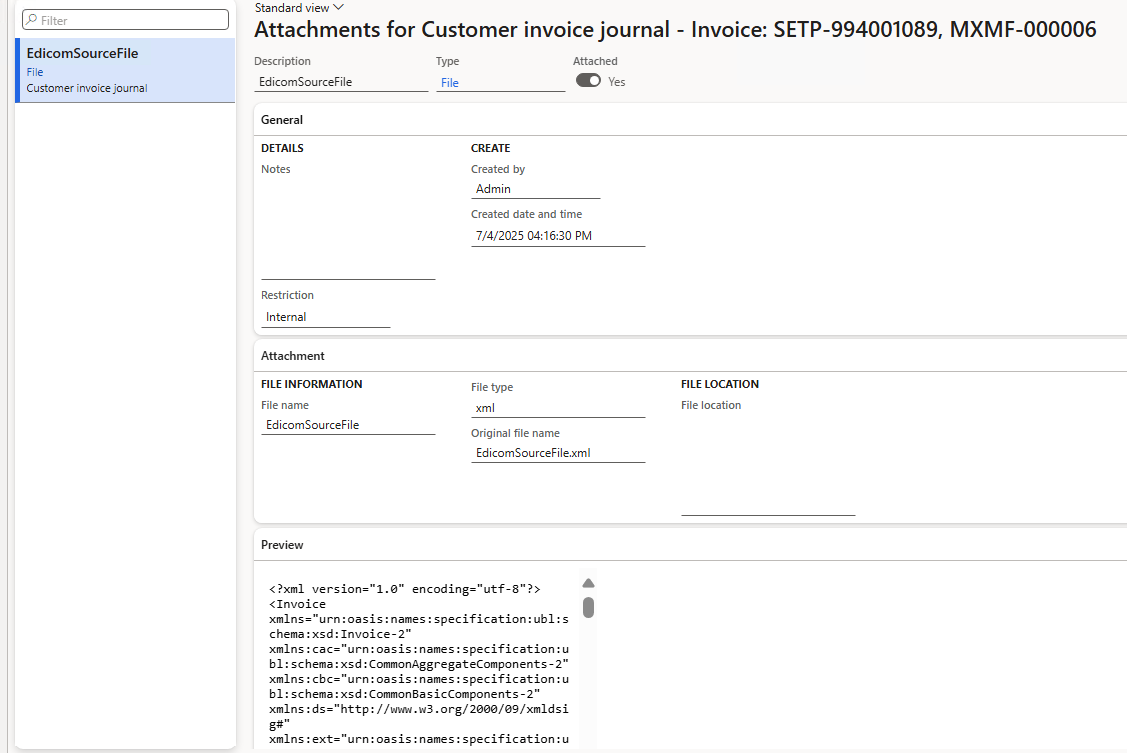
The response includes the signed XML obtained from Edicom. The system stores this signed XML as an attachment to the corresponding invoice journal. The system uses it to generate printable invoices with QR codes.
Issue electronic invoices
After you complete the required configuration steps, generate and submit electronic invoices for posted invoices. Go to Organization administration > Periodic > Electronic documents > Submit electronic documents. For more information, see Submit electronic documents.
Check submission results. Go to Organization administration > Periodic > Electronic documents > Electronic document submission log, and select the required document type. For more information, see Work with Electronic document submission log.
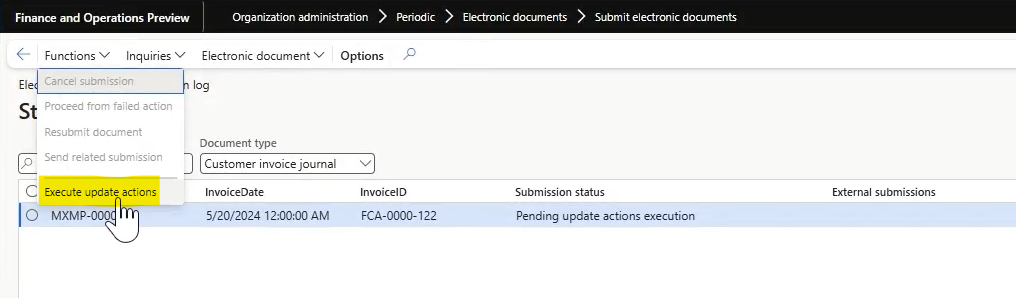
For Paraguay, after you submit the invoice, the submission status changes to Pending update actions execution. The response body might be empty for the signed XML and for the call that gets the invoice status. An empty response body indicates the XML isn't available immediately after submission. To address the pending status, use the Execute update actions function. This function resumes the pipeline from the action that's marked as an update action. It then runs subsequent actions in a loop. The status changes to Executing, and after a few seconds reverts to Pending update actions execution.
Note
Set a recurrence schedule to run the Execute update actions function in batch mode on a periodic basis.
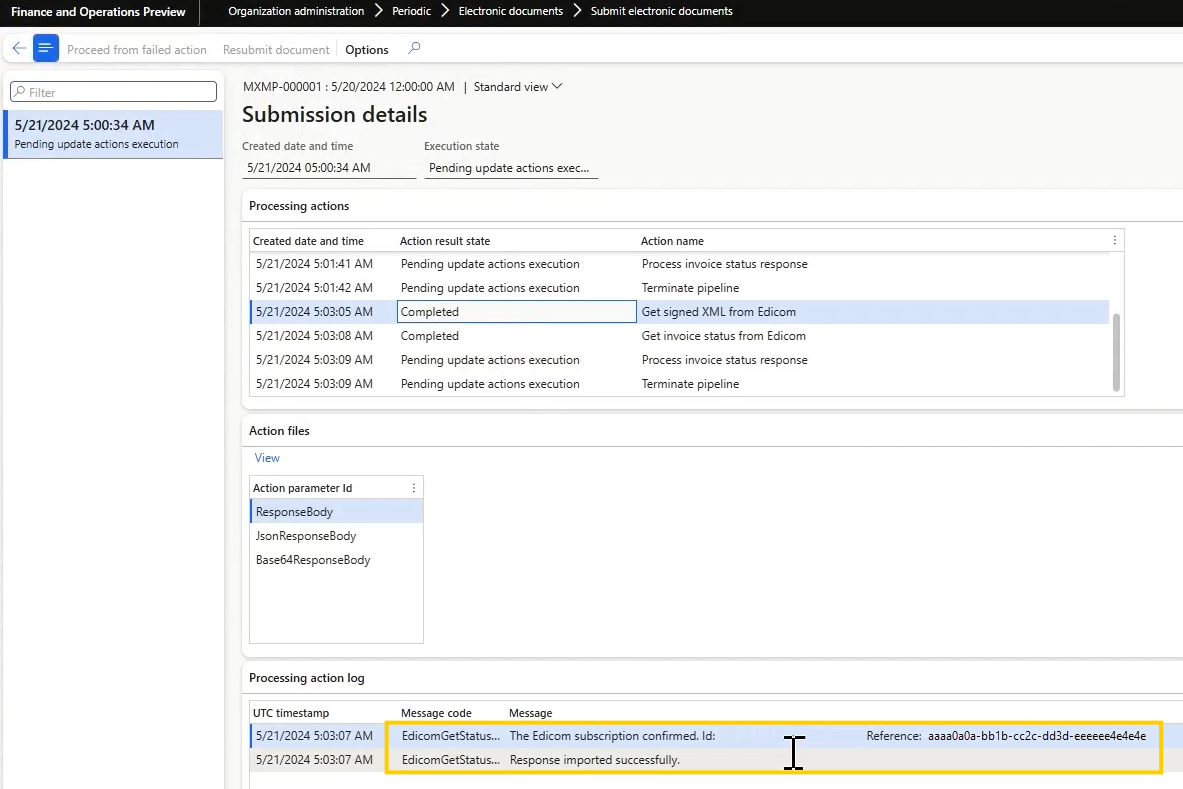
When you review the submission details, you see that the steps run again. This time, the signed XML is received.
After the outbound flow completes, the signed XML is attached to the invoice journal as EdicomSourceFile.
For Paraguay, the Process response action completes the pipeline after a few minutes.