Note
Access to this page requires authorization. You can try signing in or changing directories.
Access to this page requires authorization. You can try changing directories.
Note
Community interest groups have now moved from Yammer to Microsoft Viva Engage. To join a Viva Engage community and take part in the latest discussions, fill out the Request access to Finance and Operations Viva Engage Community form and choose the community you want to join.
This article explains how to define the tax rate type and assign it to the relevant master data. This task is part of the master data setup that is required to make the India localization solution for Goods and Services Tax (GST) available.
To make the India localization solution GST available in Dynamics 365 Finance, complete the following master data setup steps:
- Define a business vertical
- Update the state code and union territory
- Create a Goods and Services Tax Identification Number (GSTIN) master
- Define GSTINs for the legal entity, warehouse, vendor, or customer masters
- Define Harmonized System of Nomenclature (HSN) codes and Service Accounting Codes (SACs)
- Define tax rate type
- Create main accounts for the GST posting type
- Create a tax settlement period
- Attach the GSTIN to a tax registration group
Tax rate type
In most taxation systems, there's the concept of a tax rate type, such as standard tax rate, reduced tax rate, and super reduced tax rate. In India GST, there are five types as shown in the following table:
| Rates | Type | Products |
|---|---|---|
| 0% | Nil | Basic foods, including fish, meat, dairy, vegetables, bread, and salt. Postal services. Books and newspapers. Accommodation below Rs 999 per night. |
| 5% | Low | Household necessities, such as consumable oil, sugar, spices, tea, and coffee (except instant). Coal, Mmishti/mithai (Indian sweets), and life-saving drugs. |
| 12% | Standard1 | Computers and processed food. |
| 18% | Standard2 | Hair oil, toothpaste, and soaps. Capital goods. Industrial intermediaries. |
| 28% | High | Luxury items, such as small cars, consumer durables like AC and refrigerators, premium cars, cigarettes, carbonated beverages, and high-end motorcycles. |
When to use tax rate type
You don't need to set up the tax rate type. In the standard GST configuration, HSN codes and SACs determine the GST rate. If you maintain multiple HSN codes and SACs, completing the tax setup can be time-consuming, and it takes longer for the tax engine to pick up the tax rate.
By using the tax rate type, you can simplify the tax setup for the GST rate with just a few records. However, if you consider scenarios such as tax exemptions and reverse charges, you might need more records.
| Tax rate type | Rate |
|---|---|
| Nil | 0% |
| Low | 5% |
| Standard1 | 12% |
| Standard2 | 18% |
| High | 28% |
Note
When you use the tax rate type, GSTR requires HSN and SAC definitions.
Define a tax rate type
Go to Product information management > Products > Released products.
Select and open a released product.
On the General FastTab, find the Tax rate type field.
Right-click in the field and select View details.
Enter the name and description of the tax rate type you want to add.
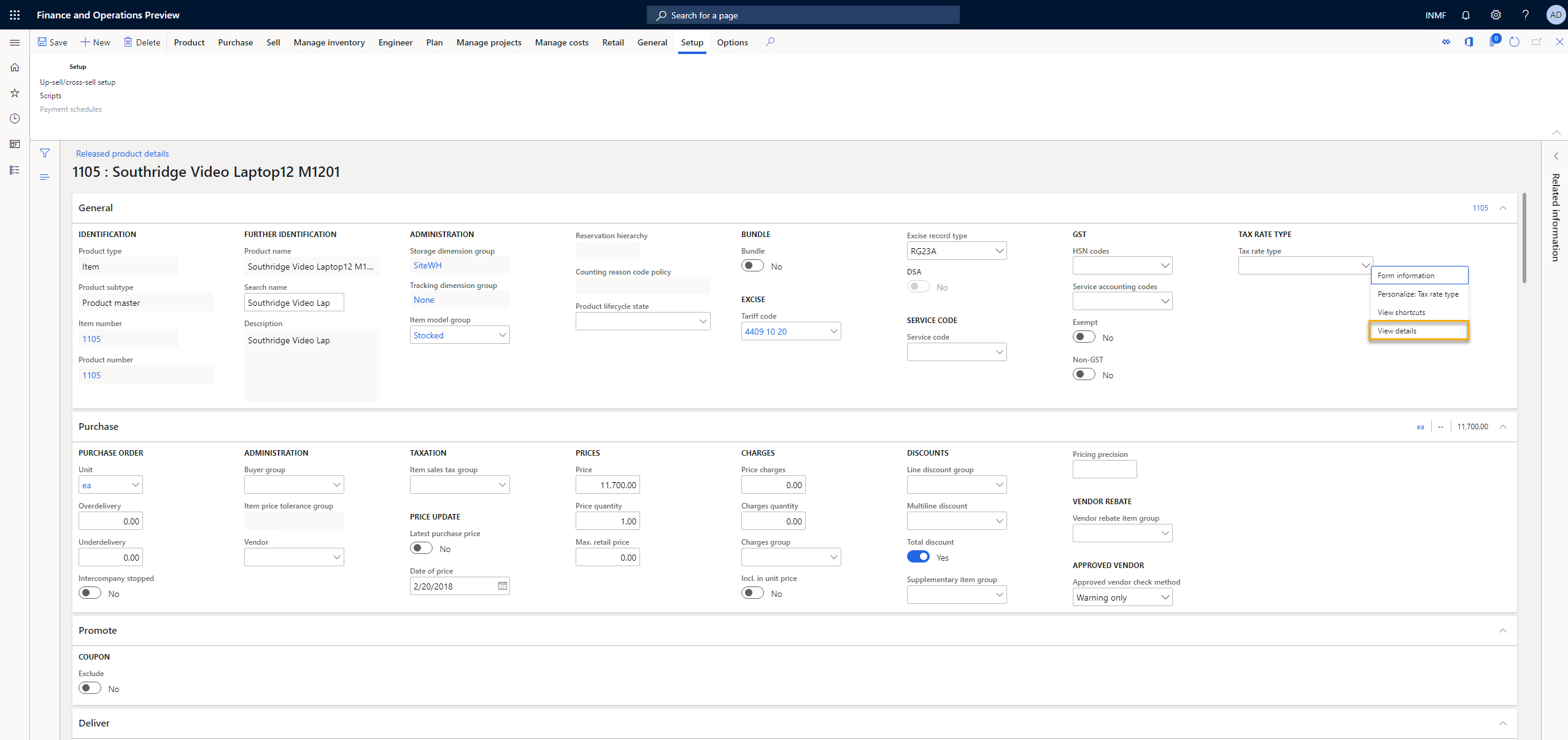
You can also import the tax rate type by using its data entity, Tax rate type.
Assign a tax rate type to relevant taxable master data
You can associate the tax rate type with the following taxable master data where a data entity supports it. When you attach the tax rate type, it defaults in the transaction and determines the rate when you create taxable transactions with the master data, such as a sales order or sales invoice.
- Released product
- Procurement and sales categories
- Charge code