Note
Access to this page requires authorization. You can try signing in or changing directories.
Access to this page requires authorization. You can try changing directories.
As an admin, you can configure AI-powered Data Enrichment to work on specific opportunity records and set preferences for how updates are applied.
Before you begin
Ensure that you meet the following prerequisites:
- You marked the prerequisites common to all Sales agents as Done. For more information, see Prerequisites for all Sales agents.
- You have the appropriate Dynamics 365 Sales license. Check out the Dynamics 365 licensing guide to know more about licensing requirements.
- You have admin privileges in Dynamics 365 Sales.
- You have the tenant administrator role in Microsoft 365 to connect Teams meetings.
- If you have custom fields that you want the agent to enrich, ensure that these fields have a meaningful name and description to help the agent understand their purpose and provide accurate suggestions.
Set up and configure AI-powered Data Enrichment
From the Sales Hub app, navigate to App Settings.
Under General Settings, select Dynamics 365 AI Hub and then select Create and manage agents.
In the AI Agents page, select Create.
If the Create button is disabled, select the Prerequisites button next to it to ensure that all the common prerequisites are met.Select Data Enrichment from the list of available AI agents. A dialog opens with a quick tour of the Data Enrichment feature and the option to create the agent.
Select Next to get a quick tour of the feature or select Skip to get started with the agent configuration.
Verify prerequisites
In the prerequisites dialog, configure the prerequisites described in this section.
Note
Sales Opportunity Agent and Data Enrichment use the same Microsoft 365 Services and Dataverse Search configuration. If you already configured these prerequisites for Sales Opportunity Agent, they're marked as done for Data Enrichment too.
Dataverse Search
Data Enrichment uses Dataverse Search to find and enrich records in Dynamics 365 Sales. If you didn't set up Dataverse Search, select Set up to open the Features page in Power Platform admin center. Learn more about configuring Dataverse search for your environment. After setting up Dataverse Search, return to the agent configuration page and select Refresh to update the status of this prerequisite.
Microsoft 365 Services
To allow the agent to read seller emails and fetch relevant data for enrichment, select Mark as done and then Apply changes.
Points to note:
- The agent reads emails from Exchange without storing them in Dynamics 365.
- Sellers can disable the agent if they don't want the agent to read their emails. Learn more in Enable or disable Data Enrichment suggestions.
To configure and use Microsoft 365 Services, you need:
- At least one of the following roles: Global administrator, Dynamics 365 administrator, or similar.
- At least one of the following licenses: Microsoft 365 or Office 365, Power Automate Premium, or Dynamics 365 Sales Enterprise Edition.
Microsoft Teams meetings
To allow the agent to read Teams meeting data of your sellers and fetch relevant data for enrichment, select Connect.
Points to note:
- You must be a tenant administrator.
- The agent reads meeting data such as meeting transcripts, attendee list, and AI summaries without storing them in Dynamics 365.
- Sellers can disable the agent if they don't want the agent to read their Teams meeting data. Learn more in Enable or disable Data Enrichment suggestions.
Create the agent
Select Create agent. The Start your Data Enrichment with recommended defaults dialog opens with recommended default settings:
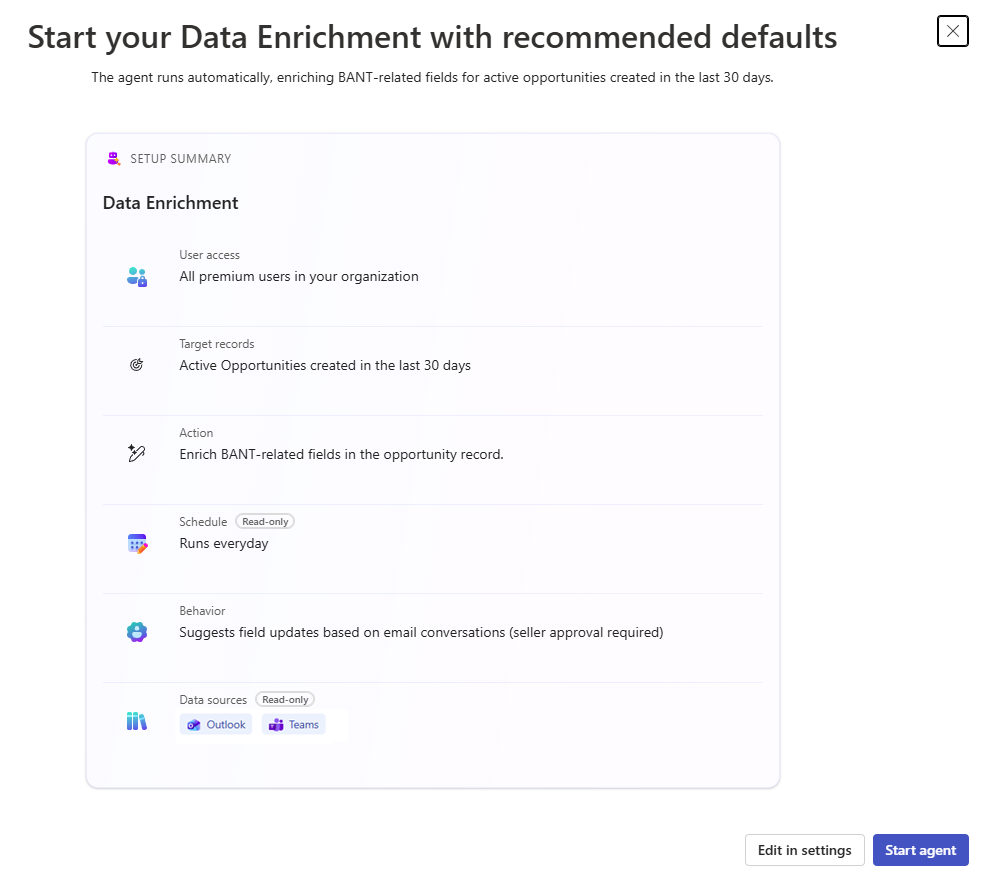 The default settings include:
Setting Value User access All premium users in your organization Target records Active Opportunities created in the last 30 days Action Enrich BANT-related fields in the opportunity record Schedule Runs everyday Behavior Suggests field updates based on email conversations (seller approval required) Data sources Outlook, Teams Do ONE of the following:
- Review the recommended settings and select Start agent if the default settings work for your business needs. The agent doesn't analyze any opportunity records, emails, or meeting data until sellers are enrolled. By default, sellers are automatically enrolled when they first open an opportunity record. Enrollment is specific to each seller.
- Select Edit in settings to customize the configuration. The agent doesn't start until you finish configuring the settings. Learn more about configuring the settings in the Configure AI-powered Data Enrichment settings article.
Grant permissions to sellers
For Salesperson security role, grant the following permission:
| Entity | Access level - Permissions |
|---|---|
| Connection | Business unit-level - Delete |
For a custom security role, grant the following permissions:
| Table/record | Access level and permissions |
|---|---|
| Connector | User-level - Read |
| Process (Workflow) | User-level - Read, Write, and Create |
| Connection | Business unit-level - Delete |
Sales Agent Configuration V2 (msdyn_salesagentconfigurationv2), Sales agent profile (msdyn_salesagentprofile) |
Organization-level - Read |
Data Quality Suggestion (msdyn_dataqualitysuggestion) |
Organization-level - Read; User-level - Write |
Data Quality Source (msdyn_dataqualitysource) |
Organization-level - Read |
| Target record, currently Opportunity | Read and write at a scope that covers the records the seller uses |
| Enriched opportunity fields | Read and Update field-level permissions |
Migrate agents across environments
When you have configured the Data Enrichment Agent in one environment, you can export the agent as a solution and import it into another environment. This is especially useful when you have set up the agent in a sandbox or test environment and want to deploy it in production after testing and validation. Learn more in Import an agent into a target environment.
Related information
Review and approve Data Enrichment suggestions
Edit AI-powered Data Enrichment settings