Note
Access to this page requires authorization. You can try signing in or changing directories.
Access to this page requires authorization. You can try changing directories.
The Identity Risk Management Agent (Preview) in Microsoft Entra ID Protection provides proactive risk management capabilities by analyzing the risky identities and suggesting actions to remediate them. By using a Large Language Model, the agent helps security administrators review and respond to risky activities before they lead to security incidents.
Note
The Identity Risk Management Agent is currently being deployed and in preview. This information relates to a prerelease product that might be substantially modified before it's released. Microsoft makes no warranties, expressed or implied, with respect to the information provided here.
Prerequisites
- You must have at least the Microsoft Entra ID P2 license.
- You must have available security compute units (SCU).
- On average, each agent run consumes less than one SCU.
- You must have the appropriate Microsoft Entra role.
- Security Administrator is required to activate the agent the first time and view the agent and take action on the suggestions.
- Security Reader and Global Reader roles can view the agent and any suggestions, but can't take any actions.
- For more information, see Assign Security Copilot access.
- Review Privacy and data security in Microsoft Security Copilot.
Review agent findings in the Risky users report
The Identity Risk Management Agent is integrated directly into the Risky users report in Microsoft Entra ID Protection to support your existing workflow.
- Sign in to the Microsoft Entra admin center as at least a Security Administrator.
- Browse to ID Protection > Risky users.
- Select the Agent view option at the top of the report.
The top half of the agent view of the risky user report contains a summary of recent agent activity. This tile provides quick access to the Chat with agent feature, an option to trigger a one-time run, and a link to the agent settings. The lower half of the report contains the full list of risky users. Select a user from the list to view agent insights and suggestions specific to that user.
Agent summary
An agent summary appears at the top of the Agent view, showing recent agent activities. This tile provides quick access to the Chat with agent feature and a Manage agent button, which lets you trigger a one-time run or open agent settings.
Agent suggestions
Agent suggestions are displayed below the agent summary. Hover over a suggestion to highlight impacted users in the table. Selecting a suggestion filters the table to show only those users for review. Each suggestion includes a bulk action button, so you can apply the action with one click.
Currently, the following remediation actions are available in agent suggestions:
- Dismiss risk
- Reset password
Risky users table with agent suggestions
The lower half of the report lists all risky users. Select a user to view agent findings, risk factors, and suggestions specific to that user. The Agent suggestion column also shows recommended remediation actions directly in the table. Select the action button to apply a remediation to individual users.
Risky user details
The Risky user details page provides a new Agent view, which presents agent findings specific to a risky user. This view includes the following information:
- Basic user information: Username, current risk level, and UPN
- Agent findings: The agent provides a verdict of Compromised or Not compromised based on its investigation.
- Risk summary: A detailed explanation of the agent's findings, based on analysis of the user's sign-ins and behaviors.
- Risk factors: Key risk indicators summarized for easy review.
- Suggested remediation action: A call-to-action button that allows you to quickly start remediating the risk.
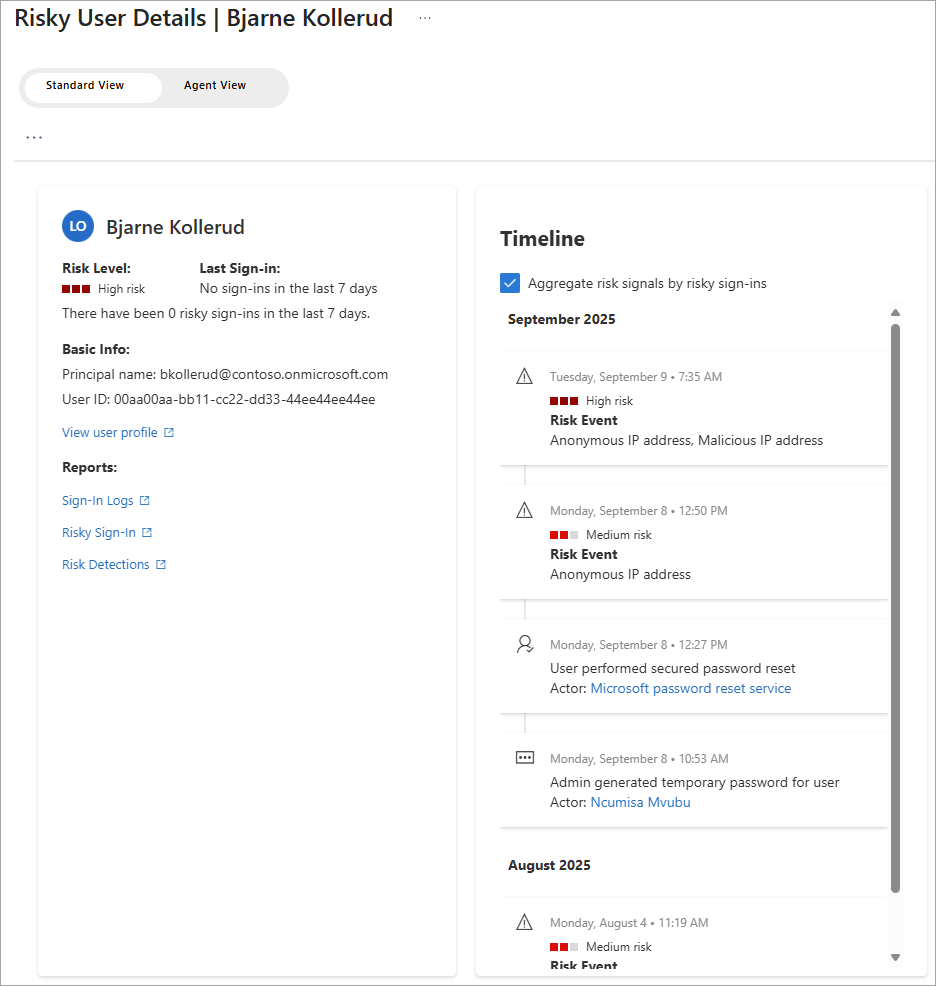
Standard view
Agent view
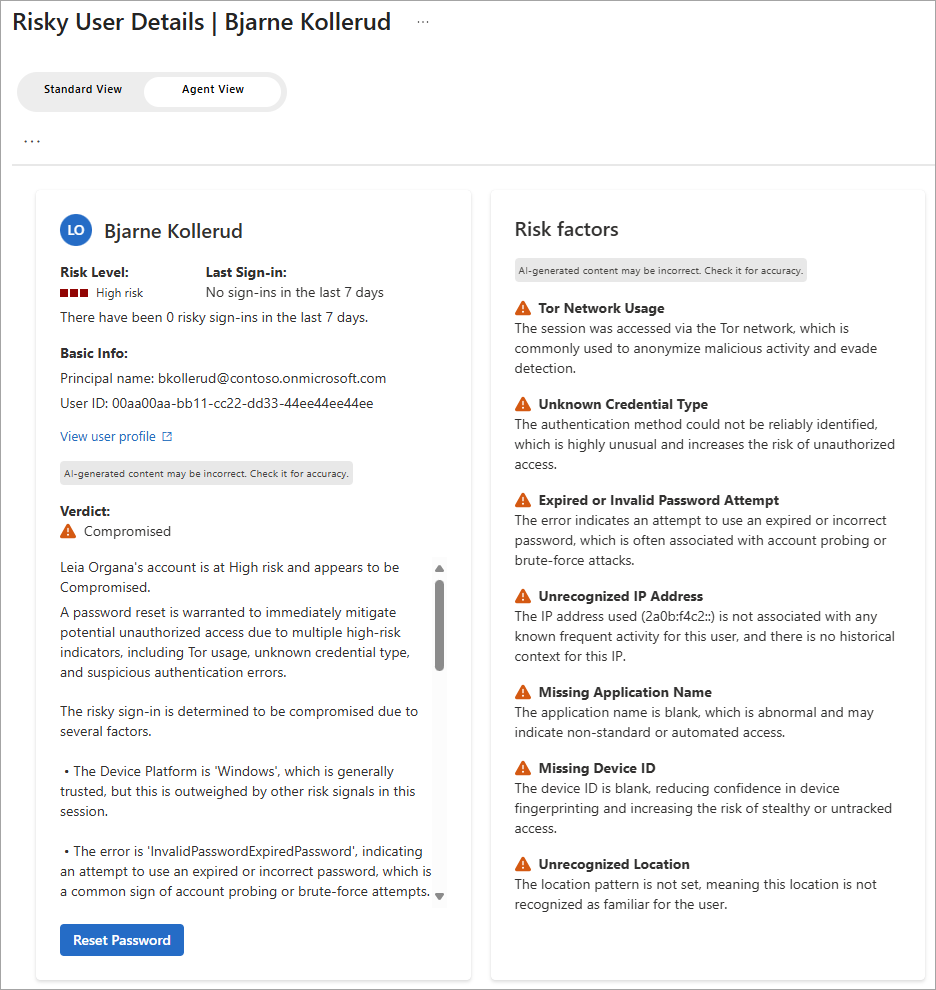
The agent findings, summary, and risk factors are AI-generated and therefore dynamic. Language might vary between runs.
The bottom half of the agent view of the risky user details provides a visual of recent activity. This section includes the following visualizations:
- User's risk level graph: A historical trend of the user's risk level over the past 7 days to help you understand changes.
- User's past sign-in counts: The number of sign-ins for this user in the past 7 days.
- Risky sign-in map: A map showing the locations of risky sign-ins for this user.