Note
Access to this page requires authorization. You can try signing in or changing directories.
Access to this page requires authorization. You can try changing directories.
The Microsoft Entra Workday provisioning connector retrieves worker data using the Workday Integration System User (ISU) account via the Get_Workers SOAP API. However, the Workday ISU account always operates in the Pacific Time Zone (PT), causing delays in processing termination events for workers in time zones ahead of PT.
For example, let's say a Workday user in Melbourne (UTC+10, +17 hours ahead of PDT in May) is terminated with an effective termination date of May 14, 2025, 11:59 PM Melbourne time. Using the Workday ISU account, the Microsoft Entra Workday connector fetches the termination event in the provisioning cycle that runs after May 14, 2025, 11:59 PM PDT, which is May 15, 2025, 4:59 PM Melbourne time—a significant delay.
To mitigate this issue, the connector now includes a 24-hour termination lookahead query. This query ensures termination-related attributes (StatusTerminationLastDayOfWork, StatusTerminationDate) appear in the connector feed when the termination day begins in UTC. The exact processing time varies due to daylight saving time adjustments.
Examples of when termination details start appearing in the feed:
- Melbourne (AEST, UTC+10) → May 14, 2025, 10:00 AM Melbourne time
For a user in Melbourne whose last working day is 14-May-2025, the connector starts including the attributes StatusTerminationLastDayOfWork and StatusTerminationDate, starting Melbourne time at 10:00am on 14-May-2025, which corresponds to the 10-hour time difference between UTC and Melbourne time in May.
- India (IST, UTC+5:30) → May 14, 2025, 5:30 AM India time
For a user in India whose last working day is 14-May-2025, the connector starts including the attributes StatusTerminationLastDayOfWork and StatusTerminationDate, starting India time 5:30am on 14-May-2025, which corresponds to the 5.5-hour time difference between UTC and Indian Standard time in May.
- Japan (JST, UTC+9) → May 14, 2025, 9:00 AM Japan time
For a user in Japan whose last working day is 14-May-2025, the connector starts including the attributes StatusTerminationLastDayOfWork and StatusTerminationDate, starting Japan time 9:00am on 14-May-2025, which corresponds to the 9-hour time difference between UTC and Japan Standard time in May.
This adjustment ensures the termination data is available earlier for workers in time zones ahead of Pacific Time. By updating attribute mapping rules in Microsoft Entra ID, you can then implement time-zone aware terminations.
Job configuration
Go to your Microsoft Entra admin center.
Important
Test the configuration changes described in this document in your test environment, before enabling the configuration in your production setup.
Open your Workday-to-AD/Microsoft Entra ID provisioning job.
If it's in a Running state, select Stop provisioning to first pause the job.
Open the Provisioning blade, then click Overview.
In the Properties tab, select the edit/pencil icon to open the edit pane. Under Termination lookahead, select the checkbox Enable termination lookahead query.
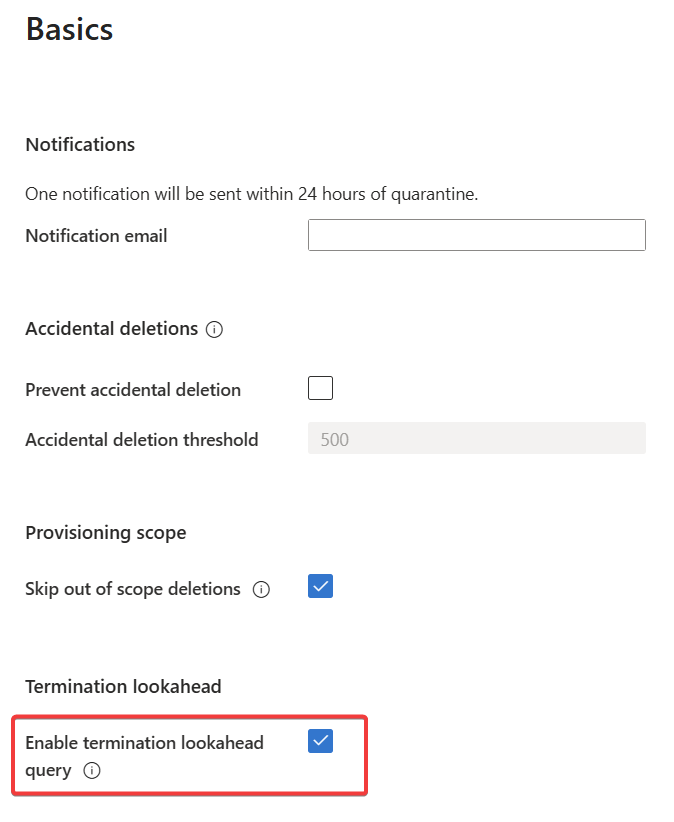
Click Apply.
Expand Mappings and open the attribute mapping page. Depending on your provisioning job type, update the expression logic for the account status attribute. If your provisioning target is Microsoft Entra ID, follow steps in the next section. If your provisioning target is on-premises AD, follow steps in the section Workday to AD job settings.
Workday-to-Microsoft Entra ID Provisioning Job settings
- If your Workday provisioning job target is Entra ID, then in the attribute mappings section, update the logic associated with
accountEnabledflag to include a check for Last Day of Work.
Switch([StatusTerminationLastDayOfWork],
  Switch([Active], "True",
"0", "False",
"1", IIF(DateDiff("n", DateAdd("h","-7",Now()),CDate(
    Switch([StatusTerminationLastDayOfWork],Mid([StatusTerminationLastDayOfWork],1,10),
"","9999-12-31")
    )
  ) <= 0, "False", "True")
  ),
"", Switch([Active], , "1", "True", "0", "False")
)
The expression checks for the presence of StatusTerminationLastDayOfWork, which is the attribute that is retrieved as part of the termination lookahead query.
If the attribute
StatusTerminationLastDayOfWorkis present and if the worker is inactive in Workday, then the Worker account is disabled in Microsoft Entra.If the attribute
StatusTerminationLastDayOfWorkis present and if the worker is still active, then the DateDiff logic is triggered, which checks ifStatusTerminationLastDayOfWorkis today. Using theMidfunction ensures that only the date portion of the value is used for the date comparison. To disable accounts at a specific local time, calculate the DateAdd hour value as:DateAdd-HourParameter = [UTC Offset of your time zone] - [TargetLocalHour in 24h format]For example, for Melbourne in AEST (UTC+10), if you want disablement at 5:00 PM local time (17:00), compute:
DateAdd-HourParameter = 10 - 17 = -7So the DateAdd hour value above is set to -7.
If the attribute
StatusTerminationLastDayOfWorkis missing, then it uses the default expression based on the Active flag associated with the user.

- If your Workday provisioning job target is Entra ID, you can also flow the
StatusTerminationLastDayOfWorkto theemployeeLeaveDateTimeattribute and then trigger Leaver Lifecycle Workflows based on theemployeeLeaveDateTime.

- After changing any settings, save the provisioning job.
Workday-to-AD Provisioning Job settings
- If your Workday provisioning job target is Active Directory, then in the attribute mappings section, update the logic associated with the
accountDisabledflag to include a check for Last Day of Work.
Switch([StatusTerminationLastDayOfWork],
  Switch([Active], "False",
"0", "True",
"1", IIF(DateDiff("n", DateAdd("h","-7",Now()),CDate(
    Switch([StatusTerminationLastDayOfWork],Mid([StatusTerminationLastDayOfWork],1,10),
"","9999-12-31")
    )
  ) <= 0, "True", "False")
  ),
"", Switch([Active], , "1", "False", "0", "True")
)
The expression checks for the presence of StatusTerminationLastDayOfWork, which is the attribute that is retrieved as part of the termination lookahead query.
If the attribute
StatusTerminationLastDayOfWorkis present and if the worker is inactive in Workday, then the Worker account is disabled in AD.If the attribute
StatusTerminationLastDayOfWorkis present and if the worker is still active, then the DateDiff logic is triggered, which checks ifStatusTerminationLastDayOfWorkis today. Using theMidfunction ensures that only the date portion of the value is used for the date comparison. To disable accounts at a specific local time, calculate the DateAdd hour value as:DateAdd-HourParameter = [UTC Offset of your time zone] - [TargetLocalHour in 24h format]For example, for Melbourne in AEST (UTC+10), if you want disablement at 5:00 PM local time (17:00), compute:
DateAdd-HourParameter = 10 - 17 = -7So the DateAdd hour value above is set to -7.
If the attribute
StatusTerminationLastDayOfWorkis missing, then it uses the default expression based on the Active flag associated with the user.Optionally, you can configure the
accountExpiresattribute in on-premises AD to use this date. Use the expression mapping.
NumFromDate([StatusTerminationLastDayOfWork])
Optionally, you can flow the last day of work to an extension attribute in on-premises AD.
After changing any settings, save the provisioning job.
Test your configuration
Terminate a worker in Workday
In Workday, terminate a user and set the user’s termination date and last day of work to a date that is 24 hours into the future, using Pacific Time zone as reference.

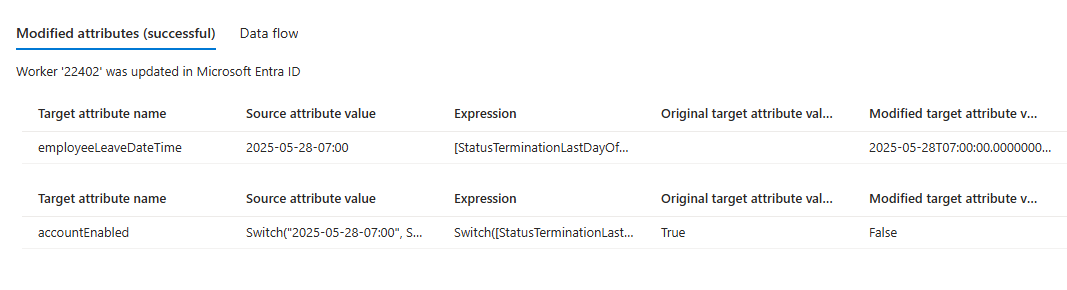
For example, in the test scenario shown above, the terminated worker is in the Melbourne time zone and his last day of work is set to May 28, 2025 Melbourne time. If this was a usual provisioning job run (without the lookahead query), the connector wouldn't see this termination event until the end of day Pacific time on May 28, 2025, which corresponds to May 29, 2025 5pm Melbourne time. However, with lookahead query, you'll now see the change show up as early as May 28, 2025 10am Melbourne time, so the connector can disable the account based on the expression mapping logic.
Run provision on demand for the worker
With the lookahead query, the last day of work for the user was fetched and the accountEnabled flag was updated to False.
Verify incremental sync performing termination lookahead
- After confirming the configuration change works with "provisioning on demand", restart your provisioning job.
- Allow the job to reach steady state. Once incremental sync starts, monitor the provisioning logs for future dated terminations effective over the next 24 hours. These termination events are processed as per the expression mapping logic configured in the job.
Known issues
- When termination lookahead is enabled, if the Workday worker record that is due for termination by end of day, also has another effective dated change for the same day (e.g. contact change), then you may observe temporary reactivation followed by deactivation of the user as the two changes are processed one after another.