Note
Access to this page requires authorization. You can try signing in or changing directories.
Access to this page requires authorization. You can try changing directories.
This tutorial describes how to use change data capture (CDC) in Copy job to efficiently replicate data changes from an Oracle database to a destination. Oracle CDC leverages LogMiner, a built-in Oracle Database utility that reads online and archived redo log files to capture data changes. This ensures your destination data stays up to date automatically.
Prerequisites
Before you begin, ensure you have the following:
Oracle database requirements:
- An Oracle database (version 11g or later) with access to the source tables.
- The database must be running in ARCHIVELOG mode. ARCHIVELOG mode enables Oracle to archive redo log files, which is required for LogMiner to access historical changes.
- Database-level supplemental logging must be enabled (minimum supplemental logging at a minimum).
- Table-level supplemental logging must be enabled on each table you want to capture changes from.
- A database user with the required privileges to access LogMiner and read redo logs (see Enable CDC via LogMiner on Oracle for details).
- Archived redo logs must be retained for a period longer than the interval between scheduled Copy job runs to avoid data loss.
For more information about Oracle LogMiner and supplemental logging, see the official Oracle documentation:
Fabric requirements:
- A Fabric workspace with the necessary permissions to create a Copy job.
- A destination data store supported by Copy job for CDC replication.
- An on‑premises data gateway running version 3000.310 or later, configured to connect to your Oracle database.
Tip
Use the SYSDBA or DBA role in Oracle to perform administrative tasks such as enabling ARCHIVELOG mode and granting LogMiner privileges. For day-to-day CDC operations, create a dedicated user with only the required permissions.
Enable CDC via LogMiner on Oracle
Oracle uses LogMiner to capture data changes from redo log files. To enable CDC, you must configure ARCHIVELOG mode, supplemental logging, and appropriate user permissions. Follow these steps to set up your Oracle database for CDC.
Step 1: Enable ARCHIVELOG mode
ARCHIVELOG mode ensures that Oracle archives redo log files, which LogMiner requires to read historical changes. To check and enable ARCHIVELOG mode:
Connect to your Oracle database as a user with
SYSDBAprivileges.Check the current archive log mode:
SELECT LOG_MODE FROM V$DATABASE;If the result shows
NOARCHIVELOG, proceed with the following steps to enable it.Shut down and restart the database in mount mode, then enable ARCHIVELOG mode:
SHUTDOWN IMMEDIATE;
STARTUP MOUNT;
ALTER DATABASE ARCHIVELOG;
ALTER DATABASE OPEN;
Verify that ARCHIVELOG mode is enabled:
SELECT LOG_MODE FROM V$DATABASE;The result should show
ARCHIVELOG.
Important
Enabling ARCHIVELOG mode requires a database restart. Plan this change during a maintenance window to minimize impact on your production environment.
For more information, see Managing Archived Redo Log Files in the Oracle documentation.
Step 2: Enable supplemental logging
Supplemental logging records additional column data in the redo logs, which is required for LogMiner to reconstruct data changes accurately.
Enable minimum database-level supplemental logging:
ALTER DATABASE ADD SUPPLEMENTAL LOG DATA;Enable table-level supplemental logging on each table you want to capture changes from. For each table, run one of the following commands:
To log all columns (recommended for full change tracking):
ALTER TABLE <schema_name>.<table_name> ADD SUPPLEMENTAL LOG DATA (ALL) COLUMNS;To log only primary key columns:
ALTER TABLE <schema_name>.<table_name> ADD SUPPLEMENTAL LOG DATA (PRIMARY KEY) COLUMNS;Replace
<schema_name>and<table_name>with your schema and table names.Example:
ALTER TABLE sales.customers ADD SUPPLEMENTAL LOG DATA (ALL) COLUMNS;
ALTER TABLE sales.orders ADD SUPPLEMENTAL LOG DATA (ALL) COLUMNS;
Verify that supplemental logging is enabled at the database level:
SELECT SUPPLEMENTAL_LOG_DATA_MIN, SUPPLEMENTAL_LOG_DATA_PK, SUPPLEMENTAL_LOG_DATA_ALL
FROM V$DATABASE;
Confirm that
SUPPLEMENTAL_LOG_DATA_MINshowsYES.Verify table-level supplemental logging:
SELECT OWNER, TABLE_NAME, LOG_GROUP_NAME, LOG_GROUP_TYPE
FROM DBA_LOG_GROUPS
WHERE OWNER = '<schema_name>'
  AND TABLE_NAME = '<table_name>';
For more information, see Supplemental Logging in the Oracle documentation.
Step 3: Create a LogMiner user and grant privileges
Create a dedicated database user for LogMiner CDC operations and grant the required privileges:
Create the user:
CREATE USER <logminer_user> IDENTIFIED BY <password>;Grant the required privileges:
GRANT CREATE SESSION TO <logminer_user>;
GRANT SELECT ON V_$DATABASE TO <logminer_user>;
GRANT SELECT ON V_$LOG TO <logminer_user>;
GRANT SELECT ON V_$LOGFILE TO <logminer_user>;
GRANT SELECT ON V_$ARCHIVED_LOG TO <logminer_user>;
GRANT SELECT ON V_$LOGMNR_CONTENTS TO <logminer_user>;
GRANT SELECT ON V_$LOGMNR_LOGS TO <logminer_user>;
GRANT EXECUTE ON DBMS_LOGMNR TO <logminer_user>;
GRANT EXECUTE ON DBMS_LOGMNR_D TO <logminer_user>;
GRANT LOGMINING TO <logminer_user>;
Replace
<logminer_user>and<password>with your desired username and password.Note
The
LOGMININGprivilege is available in Oracle 12c and later. For Oracle 11g, grantSELECT ANY TRANSACTIONinstead.Grant SELECT access on the source tables:
GRANT SELECT ON <schema_name>.<table_name> TO <logminer_user>;Repeat this command for each source table.
Note
- LogMiner reads redo log files to capture INSERT, UPDATE, and DELETE operations.
- Database-level supplemental logging must be enabled before table-level supplemental logging.
- Archived redo logs consume additional disk space. Configure an appropriate retention policy to balance storage costs and CDC requirements.
- Ensure that the redo log retention period is longer than your scheduled Copy job interval to prevent change data loss.
For more information about Oracle LogMiner, see the official Oracle Documentation - Using LogMiner to Analyze Redo Log Files.
Create a Copy job with Oracle database CDC
Note
- The following steps are very similar to what you have done in Use Copy job to ingest data from Azure SQL DB via CDC to another Azure SQL DB
Complete the following steps to create a new Copy job to ingest data from Oracle database via CDC to a destination:
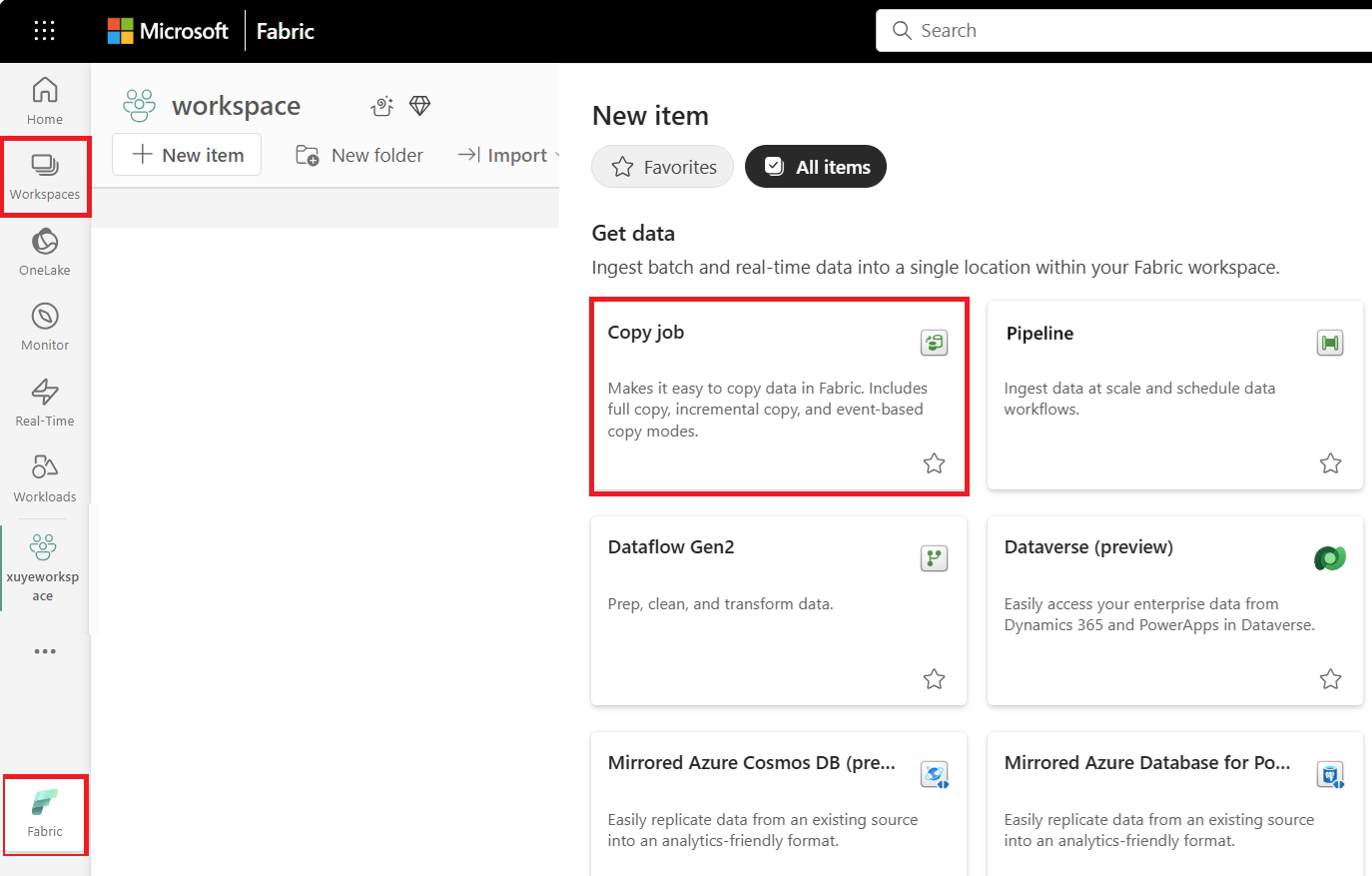
Select + New Item, choose the Copy job icon, name your Copy job, and select Create.
Choose the data store to copy data from. In this example, choose Oracle database.
Enter your connection details and credentials to connect to your Oracle database. You can copy data securely within a virtual network environment using an on-premises data gateway.
You should have clear visibility of which source tables have CDC enabled. Select the tables with CDC enabled to copy.
Tables with CDC enabled:

Tables without CDC enabled:


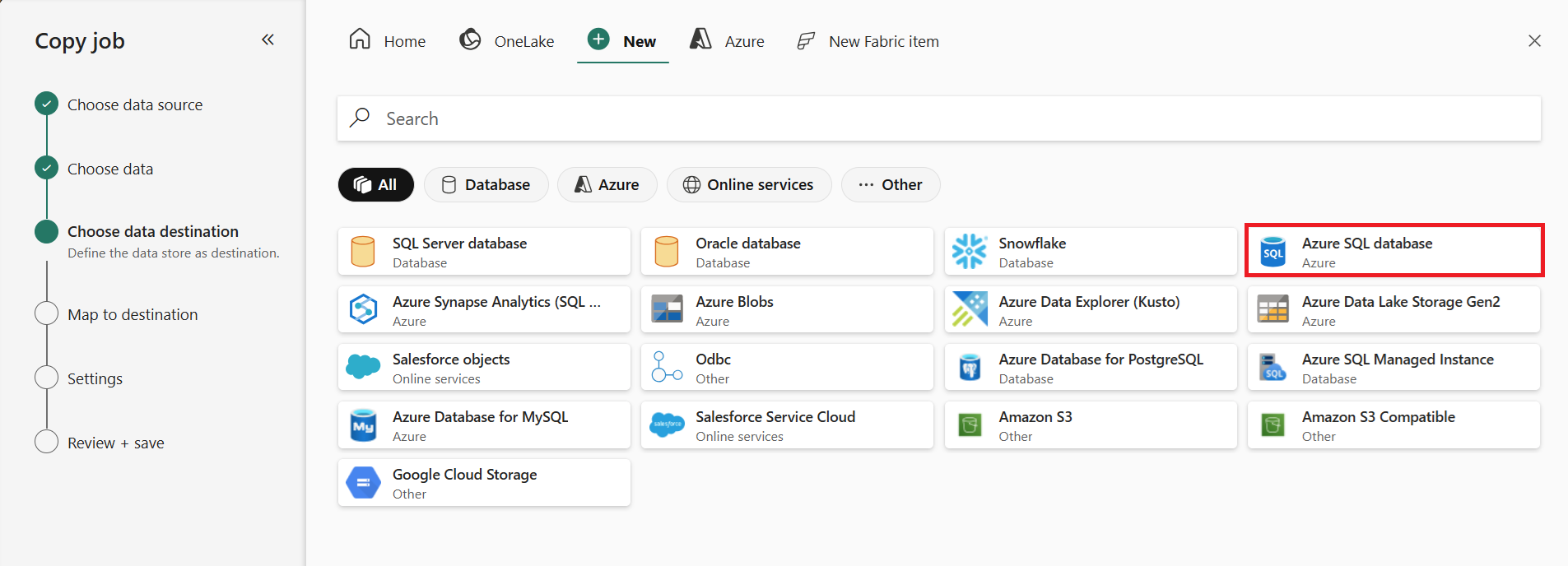
Select your destination store. Choose a destination that supports CDC merge or upsert operations for optimal CDC replication.
Select Incremental copy and you'll see no Incremental column for each table is required to be input to track changes. The default Update method should be set to Merge, and the required key columns will match the primary key defined in the source store by default.
Note
Copy job initially performs a full load and subsequently carries out incremental copies in subsequent runs via CDC.

Review the job summary, set the run option to on schedule, and select Save + Run.
Note
Ensure that your Oracle archived redo log retention period is longer than the interval between scheduled runs; otherwise, the changed data might be lost if not processed within the retention period.
Your copy job starts immediately. The first run copies an initial full snapshot.
Update your source tables in Oracle by inserting, updating, or deleting rows.
Run the Copy job again to capture and replicate all changes, including inserted, updated, and deleted rows, to the destination.