Note
Access to this page requires authorization. You can try signing in or changing directories.
Access to this page requires authorization. You can try changing directories.
Introduction
In Microsoft Sustainability Manager, you often need to establish custom security configurations to maintain data confidentiality across the organizational units of types units, divisions, departments, teams, and more. This article addresses these requirements, focusing on organizational setup and user data access.
Microsoft Sustainability Manager uses the Dataverse Platform authorization model to authorize data, such as activities, emissions, and reference data. This model maintains data confidentiality and provides appropriate access control across different organizational levels. Key aspects include:
Role-based security model: Microsoft Sustainability Manager uses the role-based security model in Dataverse. This model allows you to define access privileges on tables owned by Sustainability Manager through Dataverse security roles and assign them to users based on their specific needs and responsibilities.
Business units: Business units in Dataverse define security boundaries. They help segment users and data across the organization. By aligning your organizational unit structure in Microsoft Sustainability Manager to Dataverse business units, you can achieve the required role-based access.
Security roles: Security roles provide controlled access to the data with varied levels of scope of visibility. Data presented in user interfaces, such as menus, grid views, and forms, is filtered as per the logged-in user's security roles. Use the built-in security roles, configure them, or create new roles to fit your organization's needs.
For details on Dataverse authorization constructs, see Microsoft Learn.
Security set up fundamentals
Before diving into the hierarchical security in Microsoft Sustainability Manager, review fundamental Dataverse authorization model concepts.
Roles and privileges
Types of privileges: Defines the following actions at a table level:
- Read: View records
- Create: Add new records
- Write: Modify existing records
- Delete: Remove records
- Append: Attach another record to a record
- Append To: Be attached to a record
- Assign: Change the owner of a record
- Share: Grant access to a record to another user
Access levels of privileges: Access levels (Scope) define the level of access you're granted on any given table data (rows).
- None: No access to the records of a given table
- User: Access to records owned by the user or shared with the user
- Business Unit: Access to records owned by user's owned business unit
- Parent:Child Business Unit: Access to records owned by user's owned business unit and all child business units.
- Organization: Access to all records within the organization.
For more information, see Security roles and privileges - Power Platform | Microsoft Learn.
Team types
In Microsoft Dataverse, Ownership teams and Access teams serve different purposes and have distinct characteristics:
| Aspect | Ownership teams | Access teams |
|---|---|---|
| Structure | Owns records and have security roles assigned | Don't own records or have security roles |
| Privileges | Defined by the team's security roles plus individual member roles and other team roles | Defined only by individual member roles and other team roles |
| Access Rights | Full access rights on team-owned records | Specific shared rights (Read, Write, Append) on records |
| Usage | Suitable for scenarios where business policies require teams to own records and the owning teams need to report daily on progress | Best for dynamically formed teams where the number of teams isn't known during design time, and team members require different levels of access rights |
Choose the team type based on how you plan to manage access and ownership of records.
For more information, see Teams in Dataverse - Power Platform | Microsoft Learn.
Record ownership
In Microsoft Dataverse, understanding the difference between user ownership and team ownership of records is crucial for managing data access and security.
| Aspect | User ownership | Team ownership |
|---|---|---|
| Definition | Individual users own records | A team owns records rather than individual users |
| Privileges | Determined by user's security roles | Defined by team's security roles with inheritance by team members |
| Management | Users have full control over their owned records | Teams have full access rights with flexible member management |
| Best For | Individual accountability and specific user access scenarios | Collaborative environments requiring shared record access |
For more information, see User and team tables (Microsoft Dataverse) - Power Apps | Microsoft Learn.
Record owning business unit
In Microsoft Dataverse, the Owning Business Unit is a key concept that determines which business unit owns a particular record. The key features are:
Default setting: When you create a record, the system sets its Owning Business Unit to the business unit of the user who created it.
Security and access: The Owning Business Unit works with security roles to define the access level for users. Users in the same business unit as the record’s Owning Business Unit typically have access to that record.
Update the Owning Business Unit: By default, you can't change the Owning Business Unit after creating the record. However, you can change the owning business unit through the new feature support, Modernized Business Units, from Dataverse. For more information, see Matrix data access structure.
Cascading behavior: Changing the Owning Business Unit can have a cascading effect on related records, depending on the cascade relationship settings.
For more information: Update a record Owner and Owning Business Unit - Power Platform | Microsoft Learn
Matrix data access structure
The Matrix data access structure in Dataverse provides flexible and efficient data access across different business units and teams. This structure offers a dynamic and interconnected approach to managing data access, ensuring users can access the information they need while maintaining security and control.
Instead of confining data access to a single hierarchical path, this structure supports multiple pathways. This feature enables users from various business units and teams to collaborate and share data seamlessly. This approach is beneficial in complex organizations where cross-functional collaboration is essential, enhancing overall efficiency and teamwork.

The key features of the Matrix data access structure include:
- Hierarchical organization: Data is organized in a hierarchical structure, facilitating easy access and management.
- Cross-Unit access: Users can access data from multiple business units, enhancing collaboration and flexibility.
- Decoupled ownership: You can decouple the owning business unit from the user, allowing more flexible data management.
- Enhanced collaboration: Facilitates data sharing and collaboration across different business units.
- Improved data security: Maintains data security while allowing controlled access across units.
- Flexibility: Provides flexibility in managing data access and ownership.
For more information, see Modernized Business Units in Microsoft Dataverse - Power Platform | Microsoft Learn.
Microsoft Sustainability Manager security setup
Microsoft Sustainability Manager features a security setup that ensures data confidentiality and access control at different organizational levels.
The built-in security roles, customizable to your needs, cover the Organization and Business Unit scopes as follows:
- Full access role: Provides read-write access to all areas and data.
- Read-only role: Provides read-only access to all areas and data.
- Ingest role: Allows access for data ingestion actions.
- Reports role: Grants access to view and edit reports.
The following out-of-the-box security roles are available to perform application functions like ingestion and report viewing.

You can create custom roles by copying existing roles and modifying them as needed. This feature allows you to fine-tune access control to match your specific requirements.
The Sustainability Service Application Role is a specialized security role used by Microsoft Sustainability Manager. This role handles specific tasks related to data ingestion and calculation jobs, ensuring that users have the necessary privileges to perform their duties effectively.
In some cases, you might encounter issues where the Sustainability Service Application Role doesn't have the required privileges to handle certain data imports. For example, when importing Activity Data by using custom reference data, users might receive an error indicating that the role is missing specific privileges.
To resolve this error, provide the required access to a custom security role of Sustainability Service Application Role - Custom and add the necessary privileges.
For more information, see Set up user roles and access management - Microsoft for Sustainability | Microsoft Learn.
Enable hierarchical security configuration in Sustainability Manager
The following sections outline the steps to implement hierarchical security in Microsoft Sustainability Manager. This setup ensures that users can only access data relevant to their specific business unit, maintaining data confidentiality and security.
Scenario
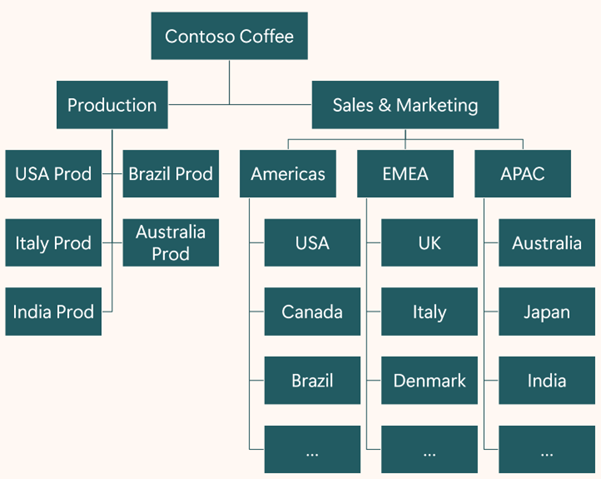
Contoso Coffee operates in over 20 countries/regions, with production plants in five countries/regions and sales and marketing offices across all its countries/regions. In this setup, sales and marketing departments can only access their own activities and emissions. Sustainability practitioners in each country or region can access data at the country or region level, while regional managers have visibility over their respective regions, such as the Americas, EMEA, and APAC. The same structure applies to the production departments.
Data import is centralized to regional sustainability teams. These teams own all data imports and have access to all activities and emissions within their region.
Perform the following actionable steps to enable hierarchical security in Contoso Coffee's Microsoft Sustainability Manager:
- Configure Business Units
- Assign security roles to users
- Enable Matrix Access Data
- Configure database setting
- Configure alternate key (optional)
- Configure data mapping
Configure Business Units
This area includes the country and region levels, and departments like Production and Sales & Marketing. The hierarchy is designed to ensure that each department can only access its own activities and emissions, maintaining data confidentiality.
Establish hierarchy: Align the hierarchy with the scenario. At the second level, create departments such as Production and Sales & Marketing. This structure ensures that each department can only access its own activities and emissions, maintaining data confidentiality.
Organize countries/regions: Arrange the countries/regions to allow sustainability practitioners in each country or region to access data at the country or region level. Regional managers have visibility over their entire region, such as the Americas, EMEA, and APAC. This setup centralizes data import to regional sustainability teams, who own all data imports and can view all activities and emissions in their region.
By structuring Business Units in this manner, you can effectively manage data access and maintain confidentiality across different organizational levels.
Assign security roles to users
Align system users with their respective business units and assign appropriate security roles to those requiring restricted access. The Sustainability all security role provides organization-wide access, while the Sustainability BusinessUnit roles restrict user access to the business unit scope.
Assign regional sustainability practitioners to their respective regions, while local users are designated at the country/region level. You can assign management roles at the department, regional level, or the root business unit, Contoso Coffee.
This structured approach ensures each user has the appropriate access level based on their role and location within the organization, maintaining data confidentiality and security.
Enable Matrix Access Data
In this scenario, data ingestion occurs at the regional level. Ensure that users see only their specific country/region's data. To achieve this objective, disconnect the Owner and Owning Business Unit by enabling cross-business unit ownership.
This configuration allows users to import data on behalf of other business units. The user performing the import remains the owner of the records, while the owning business unit grants access to users in specific countries/regions. This approach ensures data is compartmentalized and accessible only to the appropriate users.
For more information, see Security concepts in Microsoft Dataverse - Power Platform | Microsoft Learn.
Configure database settings
To ensure records remain connected to the selected business unit when a user's business unit changes, adjust the database settings. Set the AlwaysMoveRecordToOwnerBusinessUnit in the environment database settings to false. If this setting is true, the Owning Business Unit automatically updates to match the user's new business unit whenever it changes.
To make this database settings change, consider using the Organization Settings Editor.

For more information on Organization Settings Editor, see How to change default environment database settings - Power Platform | Microsoft Learn.
Configure alternate key (optional)
To simplify your data mapping, consider using an alternate key on the Business Unit. This step can be useful if you prefer a different field for data mapping during data ingestion instead of the GUID.
For example, set the Name column as an alternate key, referred to as 'Natural Key', on the Business Unit. This approach offers more flexibility in data mapping and helps streamline the data ingestion process.

Configure data mapping
After enabling cross-business unit ownership and creating an alternate key, proceed with defining import jobs and data mapping. It's crucial to configure the Owning Business Unit in your data mapping to restrict specific data at the organizational level for users.
If you don't configure cross-business unit ownership, the business unit you assign during data mapping reverts to the user's parent business unit after import. This step maintains controlled data access and alignment with the hierarchical security setup.

For more information, see Ingest data into business units - Microsoft for Sustainability | Microsoft Learn
Considerations and best practices
Existing data considerations
When you're managing existing data in Microsoft Sustainability Manager with Organization Hierarchical Security enabled, address several key factors:
- Ensure that all users can access reference data to facilitate operations such as Create, Update, and Read without any problems.
- Maintain clarity on which business unit owns the data even when cross-business unit ownership is enabled. This clarity helps keep data access controlled and aligned with security protocols.
- Update existing data ownership to ensure it aligns with its respective Owning Business Unit.
Copy environment considerations
When you plan to copy an environment from Development (Dev) to Testing (Test) or from Test to User Acceptance Testing (UAT) as part of your Application Lifecycle Management (ALM) plan or deployment process, start the Business Unit organization hierarchy one level below the root Business Unit.
This recommendation comes from the fact that the root Business Unit's name is automatically derived from the environment's Domain Name by default. You can't change this name by using the Business Unit Form, but you can modify it through the Web API. Additionally, the root Business Unit has a different Global Unique Identifier (GUID) compared to the source environment. This discrepancy can misalign your data, particularly affecting the root business unit, and potentially causes significant organizational problems.
By initiating the hierarchy one level below the root Business Unit, you avoid these complications and ensure a smoother transition between environments. This approach helps maintain consistency in your business unit alignment along with data and prevents the root business unit from becoming disorganized due to the differing GUIDs.
Reporting considerations
Dashboard and Insights: Organization scope role access solely governs the dashboard and insights in Microsoft Sustainability Manager. The business unit reporting role influences report generation access and data, but it doesn't apply to dashboards and insights views.
Custom Power BI reports: To restrict user access based on hierarchy, develop custom Power BI reports with necessary filters to limit data access according to the logged-in user’s context or business unit. Additionally, you might need a tailored app derived from the Microsoft Sustainability Manager App to hide out-of-the-box Power BI reports and display only the features relevant to the logged-in user persona.
Security roles and Power BI: Security roles in Dataverse don't impact Power BI views. While security roles can control access to data and user interfaces within Microsoft Sustainability Manager, they don't apply to Power BI dashboards and reports.
Best practices
- Follow principle of least privilege: Always assign the minimum necessary level of access to users. This strategy reduces the risk of unauthorized access and potential data breaches.
- Use predefined roles: Utilize the predefined security roles provided by Dataverse, such as Environment Admin and Environment Maker, which follow the principle of minimum required access.
- Create Custom roles: Create custom security roles tailored to specific needs. Custom roles allow for more granular control over permissions and access.
- Perform regular audits: Regularly audit security settings and monitor access logs to identify and respond to any unauthorized access attempts.
- Ensure training and awareness: Ensure your team is aware of security protocols and the importance of data protection. Regular training can help maintain a strong security posture.
- Use Business Units: Use business units to define security boundaries within your organization. This step helps in managing users and the data they can access more effectively.
- Review and update: Periodically review and update security roles to ensure they align with current business needs and security policies.