Note
Access to this page requires authorization. You can try signing in or changing directories.
Access to this page requires authorization. You can try changing directories.
For more small business content, see Small business help & learning.
Activate your Microsoft 365 Business Basic subscription
Use these steps to confirm your subscription is active and ready for users.
Note
If you bought a nonprofit offer, sign in to the Nonprofit Hub to claim or activate your nonprofit offer. Then return to the Microsoft 365 admin center to verify that the subscription appears under Billing > Your products. If the nonprofit offer still doesn't appear, use the Microsoft nonprofit support Contact Us form.
Go to the Microsoft 365 admin center.
In the admin center, go to Billing > Your products.
Verify that Microsoft 365 Business Basic shows Active.
Go to Users > Active users, and assign available Business Basic licenses to your users.
In the admin center Home page, select Dashboard view, and then select Go to guided setup to complete domain, email, and app setup.
Add an existing domain to your Microsoft 365 Business Basic subscription
When you purchase Microsoft 365 Business Basic, you can use a domain you own or buy one during the sign-up process.
- If you purchase a new domain during sign-up, your domain is all set up and you can move to Add users and assign licenses.
Go to the Microsoft 365 admin center.
In the admin center Home page, select Dashboard view, and then select Go to guided setup to start the wizard.
In the Add domain step, enter the domain name you want to use (like contoso.com).
Important
If you purchase a domain during sign-up, you don't see the Add a domain step. Instead, go to Add users.
Follow the steps in the wizard to Add DNS records to connect your domain that verifies you own the domain. If you know your domain host, see also Add a domain to Microsoft 365.
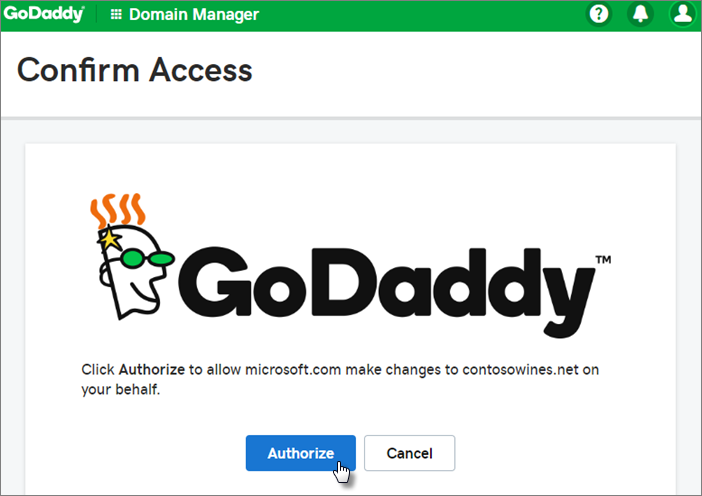
If your hosting provider is GoDaddy or another host that is enabled with domain connect, the process is easy and you're automatically asked to sign in and let Microsoft authenticate on your behalf.
Add users and assign licenses
You can add users in the wizard, but you can also add users later in the admin center.
Any users you add in the wizard automatically get assigned a Microsoft 365 Business Basic license.
If your Microsoft 365 Business Basic subscription has existing users (for example, if you used Microsoft Entra Connect), you get an option to assign licenses to them now. Go ahead and add licenses to them as well.
After you add the users, you also get an option to share credentials with the new users you added. You can choose to print them out, email them, or download them.
Connect your domain
Note
If you choose to use the .onmicrosoft domain, or use Microsoft Entra Connect to set up users, you don't see this step.
To set up services, you have to update some records at your DNS host or domain registrar.
The setup wizard typically detects your registrar and gives you a link to step-by-step instructions for updating your NS records at the registrar website. If it doesn't, Change nameservers to set up Microsoft 365 with any domain registrar.
- If you have existing DNS records, for example an existing website, but your DNS host is enabled for domain connect, choose Add records for me. On the Choose your online services page, accept all the defaults, and choose Next. Choose Authorize on your DNS host's page.
- If you have existing DNS records with other DNS hosts (not enabled for domain connect), you need to manage your own DNS records to make sure the existing services stay connected. See domain basics for more info.
Follow the steps in the wizard and email and other services are set up for you.
When the signup process is complete, you're directed to the admin center, where you can add users, and assign licenses. After you complete the initial setup, you can use the Setup page in the admin center to continue setting up and configuring the services that come with your subscriptions.
For more information about the setup wizard and the admin center Setup page, see Difference between the setup wizard and the Setup page.
Watch: Set up business email with a new domain
Steps: Set up business email with a new domain
From the How you'll sign in page on the Microsoft 365 Business Standard sign up, choose Create a new business email account (advanced).
Follow the steps to buy a new domain and enter the domain name you want to use (like contoso.com). After you complete buying your domain, you can add users and licenses and install your Microsoft 365 productivity apps in the admin center.
Finish setting up
Follow the steps in this section to set up Outlook, Teams, OneDrive, and your website.
Step: Set up Outlook for email
On the Windows Start menu, search for Outlook, and select it.
(If you're using a Mac, open Outlook from the toolbar or locate it using the Finder.)
On the Welcome page, select Next.
Choose File > Info > Add Account.
Enter your Microsoft email address and select Connect.
Watch: Set up Outlook for email
More at Set up Outlook for email.
Import email
If you used Outlook with another email account, you can import your previous email, calendar, and contacts into your new Microsoft account.
Export your old email
In Outlook, select File > Open & Export > Import/Export.
Select Export to a File and then follow the steps to export your Outlook Data File (.pst) and any subfolders.
Import your old email
In Outlook, select File > Open & Export > Import/Export.
Select Import from another program or file and follow the steps to import the backup file you created when you exported your old email.
Watch: Import and redirect email
More at Import email with Outlook.
You can also use Exchange admin center to import everyone's email. For more information, see migrate multiple email accounts.
Set up Microsoft Teams and OneDrive
Select the OneDrive cloud icon from your taskbar and follow the steps to move your files to your new OneDrive folder. To set up Microsoft Teams select Next.
- Open Microsoft Teams, select your profile icon, and then Add work or school account. To add your new account to Teams, follow the steps that appear after selecting Add work or school account.
Use a public website
Microsoft 365 doesn't include a public website for your business. If you want to set one up, consider using a Microsoft partner, such as GoDaddy or WIX.
From the admin center, go to Resources, and then select Public website.
Select Learn more under one of the options, and then sign up with a website partner and use their tools to set up and design your site.
Watch: Create your business website
Invite users to join your subscription and organization
Once you set up your organization, you can invite other users to join your Microsoft 365 business subscription. They get access to all the features of the subscription.
Invite users to my subscription
To join your organization and subscription, see the following articles:
Related topics
Migrate data to my Microsoft 365 Business Standard subscription