Note
Access to this page requires authorization. You can try signing in or changing directories.
Access to this page requires authorization. You can try changing directories.
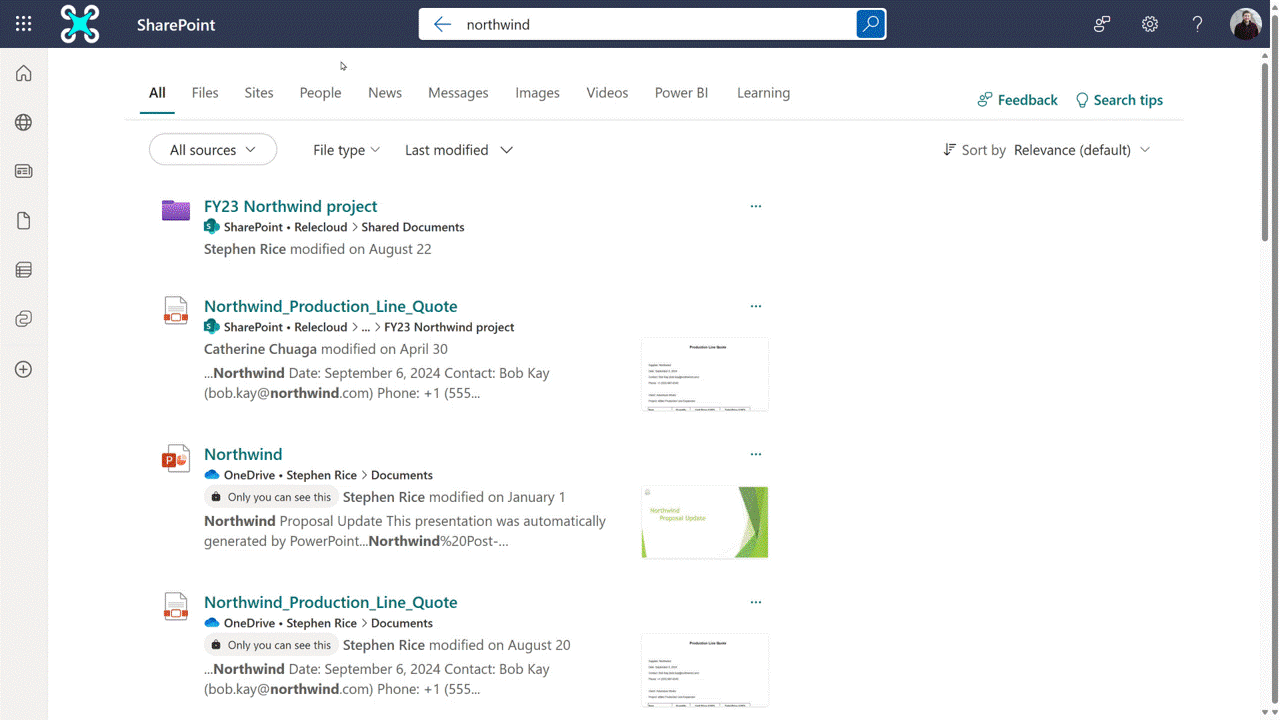
Content that has been archived either via site archive or file archive can be found by end-users. End-users can utilize SharePoint or OneDrive search to find these archived results. The results follow permission trimming and will still search the contents of files, exactly as search works for active content.
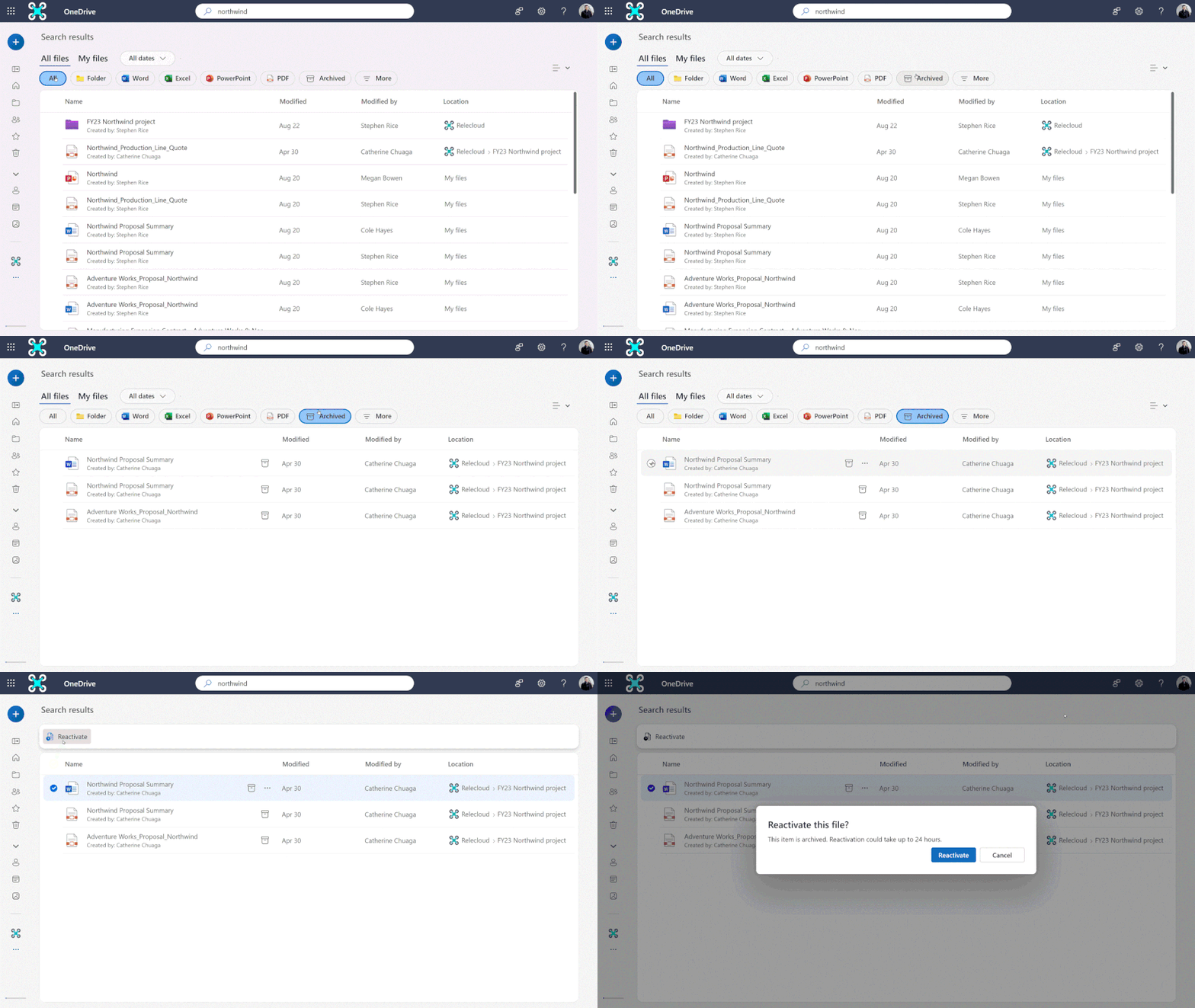
Archived content in OneDrive web search
In OneDrive web search, users can select the "Archived" pill to return archived results. This returns relevant content that is part of an archived site or has been archived at the file level. Content that has been archived at the file level can be reactivated by the current user. Content that is part of an archived site requires a SharePoint administrator to reactivate before it can be accessed.
Archived content in SharePoint web search
In OneDrive web search, users can choose to include archived content by selecting the "Archived" option under the "file-type" dropdown. This returns relevant content that is part of an archived site or has been archived at the file level. Content that is part of an archived site requires a SharePoint administrator to reactivate before it can be accessed.