An Outlook add-in that uses an add-in only manifest can be sideloaded automatically through the command line or manually through the Add-Ins for Outlook dialog.
Sideload automatically
If you created your Outlook add-in using the Yeoman generator for Office Add-ins, sideloading is best done through the command line. This takes advantage of our tooling and allows you to sideload across all of your supported devices with one command.
Open a command prompt and navigate to the root directory of your Yeoman generated add-in project. Run the command npm start.
Note
If you're developing on macOS, you must manually sideload your add-in after running npm start. For guidance, see the Sideload manually section of this article.
When you first use Yeoman generator to develop an Office Add-in, your default browser opens a window where you'll be prompted to sign in to your Microsoft 365 account. If a sign-in window doesn't appear and you encounter a sideloading or login timeout error, run atk auth login m365 before running npm start again.
A dialog appears stating an attempt to sideload the add-in. It lists the name and location of the manifest file. Select OK to register the manifest.
Important
If the manifest contains an error or the path to the manifest is invalid, you'll receive an error message.
If your manifest contains no errors and the path is valid, your add-in will now be sideloaded and available on the Outlook desktop client and on the web. It will also be installed across all your supported devices.
Sideload manually
Though we strongly recommend sideloading automatically through the command line as covered in the previous section, you can also manually sideload an Outlook add-in. Add-ins that use the add-in only manifest are manually sideloaded through the Add-Ins for Outlook dialog.
The following steps apply to Outlook on the web, on Windows (new and classic), and on Mac.
In your preferred browser, go to https://aka.ms/olksideload. Outlook on the web opens, then the Add-Ins for Outlook dialog appears after a few seconds.
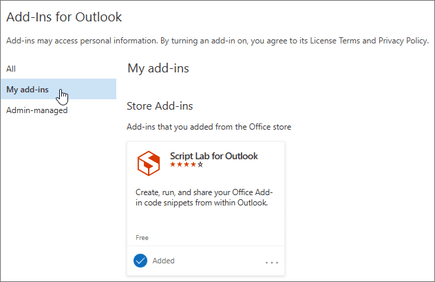
In the Add-Ins for Outlook dialog box, select My add-ins.
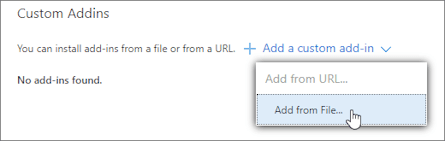
Locate the Custom Addins section at the bottom of the dialog box. Select the Add a custom add-in link, and then select Add from File.
Note
The Add from URL option is no longer available to sideload a custom Outlook add-in. As a workaround, open the URL in your preferred browser to download the manifest file, then use the Add from File option to sideload the add-in.
Locate the manifest file for your custom add-in and install it. Accept all prompts during the installation.
Note
In classic Outlook on Windows, it may take up to 24 hours for your manually sideloaded add-in to appear in the client. This is due to caching.
The add-in is sideloaded to Outlook. Although the add-in was sideloaded through the Add-Ins for Outlook dialog in Outlook on the web, the add-in should also appear in supported Outlook desktop clients.
Access the add-ins dialog in classic Outlook on the web or earlier versions of Outlook on Mac
Classic Outlook on the web
In Outlook on the web, if your mailbox toolbar looks like the following image, you're using the classic version of Outlook on the web.

To access the Add-Ins for Outlook dialog, open Outlook on the web. Then, select the gear icon from the top-right section of the toolbar and choose Manage add-ins.

Note that your organization may include its own logo in the mailbox toolbar, so you might see something slightly different from what is shown in the preceding images.
Earlier versions of Outlook on Mac
In Outlook on Mac, starting in Version 16.85 (24051214), the Get Add-ins button no longer opens the Add-Ins for Outlook dialog. Instead, it opens Microsoft Marketplace in your default browser. Earlier versions can still access the Add-Ins for Outlook dialog through the Get Add-ins button. If you don't see Get Add-ins in your version of Outlook, select the ellipsis button (...) from the ribbon, then select Get Add-ins.

Remove a sideloaded add-in
If you ran the npm start command and your add-in was automatically sideloaded, then run the command npm stop when you're ready to stop the dev server and uninstall your add-in. If you ran npm run start, then run the command npm run stop instead.
Otherwise, on all versions of Outlook, the key to removing a sideloaded add-in is the Add-Ins for Outlook dialog, which lists your installed add-ins. To access the dialog on your Outlook client, use the steps listed for manual sideloading in the previous section of this article.
To manually remove a sideloaded add-in from Outlook, in the Add-Ins for Outlook dialog, navigate to the Custom Addins section. Choose the ellipsis (...) for the add-in, then choose Remove.