Note
Access to this page requires authorization. You can try signing in or changing directories.
Access to this page requires authorization. You can try changing directories.
Here's the list of items to complete in Partner Center - and for your offer listing - before submission.
Publisher profile
Complete your publisher profile in Partner Center with all required legal, tax, and support information. This profile is a one-time setup when you joined the Microsoft Cloud Partner Program (MCPP). Make sure:
- The legal business name and address are correct (must match your legal entity that signs the marketplace agreement)
- Bank and tax info is provided so you can get paid
- You designated support contacts - Microsoft requires you to list how customers can get support (an email alias or support website, plus a phone number for certain offer types)
- The "Profile" section also includes things like a publisher logo - upload a high-quality logo since it might appear on your offer listing
Without a complete profile, you aren't able to publish or the offer might get stuck in review. It's mostly straightforward but double-check for completeness. Also ensure the publisher display name (the name customers see as the seller) is set as you want - typically your company name.
Offer listing content
Prepare all offer listing content thoroughly: this content includes the offer description, feature list, benefits, keywords, industry tags, and images/screenshots. The offer listing content is your storefront - spend time to make it appealing and clear:
- Description: You typically have a long description (up to several thousand characters) and a summary (short couple of sentences). Make the first sentence punchy and clearly state what the solution does. Use the rest to highlight key use cases, maybe mention "powered by AI" and how it solves customer problems. Avoid fluff - make every sentence informative. Also avoid forbidden content (no competitor mentions, no private data, etc., per listing policies)
- Capabilities/features: Some listing pages let you enumerate key features or benefits. Use bullet points to make it an easy read. For example, "Automated document analysis - uses GPT-4 to extract insights from PDFs in seconds"
- Keywords: Include relevant keywords that customers might search for (for example, "AI chatbot, customer service AI, document AI, GPT, Azure OpenAI"). There's a field for keywords/tags in Partner Center - use it since it helps search.
- Industries: Select the industries that apply. For example, if your solution is general, maybe "cross-industry"; if it's tailored, pick specific ones like "Financial Services" or "Healthcare"
- Screenshots: Upload high-quality images (usually 1280 x 720 or similar) showing the solution UI or outcomes. Since your solution might be an AI service, screenshots could be of the dashboard, sample output, or configuration screens. Make sure they're anonymized (no real customer data) and look professional. You can also upload diagrams or conceptual images if UI is hard to capture - but generally UI screenshots are required. Usually three to five screenshots is a good range. Each needs a caption describing what it is
Remember, this content not only informs customers, but Microsoft reviews it for compliance as well. Ensure no sensitive info, and no unrealistic claims ("100% perfect AI!" would be flagged). Also, if your solution has any prerequisites, mention them clearly (for example, "Requires an Azure Cognitive Services resource" or "Works best with an Azure OpenAI key from your Azure account" - if applicable). Clarity here reduces support issues later.
SaaS configurations** (landing page and redirect URLs)
In your offer setup for SaaS, configure the landing page URL and any redirect URLs precisely. The landing page URL is where the marketplace will send users after purchase. It should be the exact URL (including https:// and the path). Double-check spelling, and that it's accessible (for testing, you can use a temporary placeholder page that logs visits). If your flow involves multiple redirects (some advanced flows might redirect to an identity provider, etc.), ensure those redirects are approved as needed. In Partner Center technical configuration, you'll also set the connection info such as:
- Your Microsoft Entra tenant ID and App ID (for SaaS offers, to establish trust with marketplace)
- The webhook endpoint URLs (discussed next)
After setting the landing page URL, test it by simulating an acquisition from marketplace. Partner Center has a "Preview" experience where you can select "Test offer" to simulate the flow, or use the SaaS Accelerator test harness. The goal is that a customer who buys, gets to your site without errors. Also, if using Microsoft Entra ID sign-in on your site, consider the user experience: they might come from the marketplace not logged into your system, so perhaps prompt them to sign up or sign-in as needed. Make that flow simple. All of this is part of "configuration" that the listing asks for.
Fulfillment webhooks
Set up and verify your webhook endpoints for the SaaS fulfillment lifecycle events. In Partner Center's technical details, for SaaS, you must provide:
- Webhook URL: The endpoint in your app that receives subscription change messages (new, change, cancel, etc.)
- Webhook authentication: Usually a simple token that Microsoft includes in requests for you to verify (you set this value)
- Contact email for technical issues: Put an email that Microsoft can reach out to if the webhook fails repeatedly
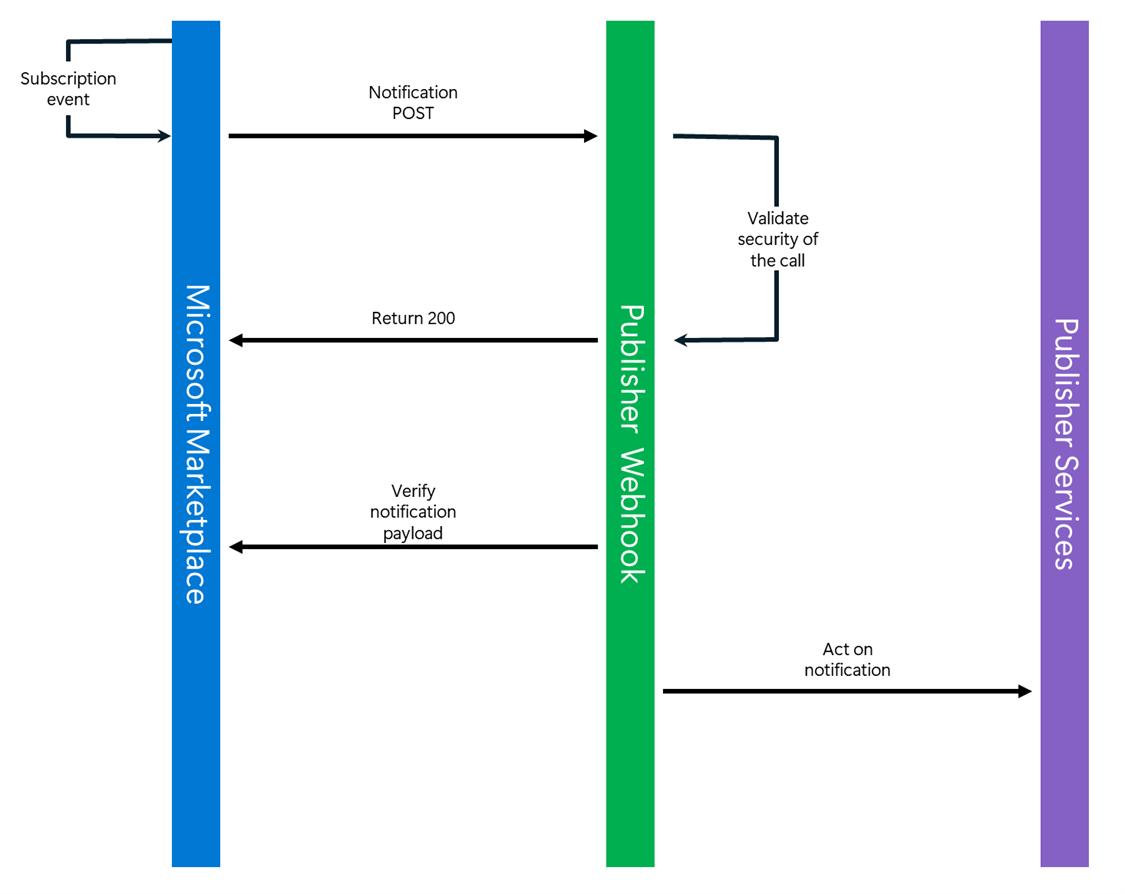
Ensure your webhook endpoint is live and returns the expected responses. Test it with the Marketplace SaaS webhook simulator (Microsoft provides a way to send sample events to your endpoint). If your webhook requires certain headers or has an IP allow list, configure them with Microsoft's documented IPs. Remember to handle idempotency as described earlier.
For non-SaaS offer types (like Azure Apps or containers), you don't have these webhooks, but you might have other config (like an Azure storage URL for a virtual machine (VM) image or a link to a container artifact). Make sure they're ready and accessible (for example, VM images are typically prepared in Azure Compute Gallery; container offers require publishing images to MCR or an accessible registry with a token). Follow the Partner Center instructions for those assets.
Plan setup
Trials, hidden stock-keeping units (SKUs), Cloud Solution Provider (CSP):
In the offer, define your plans (SKUs) including any free trials, and mark as hidden or private plans appropriately. This setup involves:
- Creating each plan, giving it a name and description (customers see these names and descriptions; for example, "Basic Plan - up to 5 users")
- Setting pricing for each; could be $0 for a trial, or specific monthly/annual rates, etc. If trial, you actually configure it as a free plan with a limited time or as a zero-dollar option that lasts 30 days for example, then instruct customers to switch to paid or to use marketplace's trial checkbox, if available
- If a plan is for internal/testing or for a specific customer, mark it as Hidden. Hidden plans don't show up publicly. You can generate private offers from them or have them accessible via direct links to specific customers.
- Enable "reseller program (CSP)" on the plan if you want it resellable. This is typically a checkbox per plan. Note if you do this, the pricing you set is what the customer pays; the reseller gets their margin out-of-band with Microsoft's rebate program. Ensure your support model accounts for dealing with resellers (they might be the ones contacting you on the customer's behalf)
- For usage-based, make sure to add the meter dimensions in each plan and link them to your pricing
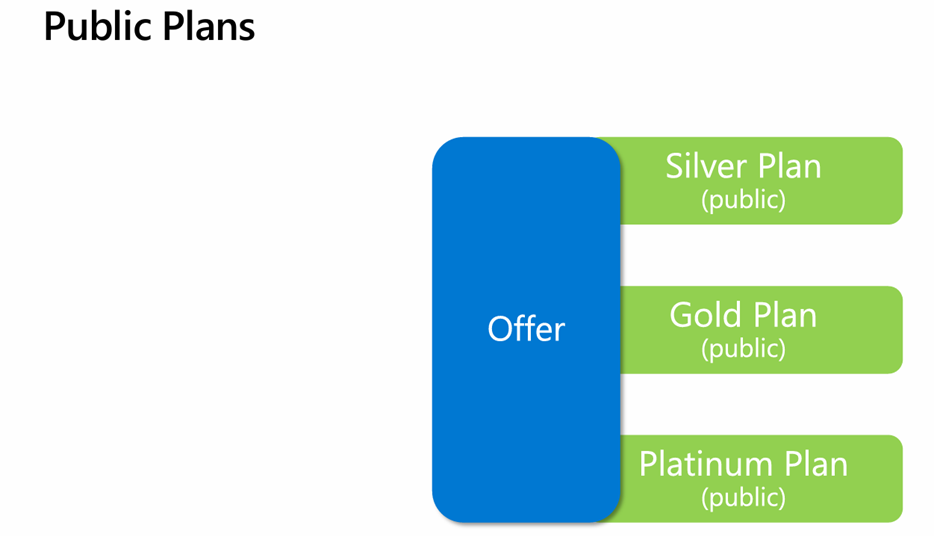
Once plans are input, use the Preview feature to see how it looks to a customer. Also, test switching plans if your app supports it (Marketplace allows customers to upgrade/downgrade plans; your system must handle the Update webhook for that). If you offer a trial, be prepared in your app to notify the user when the trial is ending and perhaps direct them to purchase a paid plan. The marketplace can handle conversion, but the user might need to explicitly upgrade in the portal.
Meter configuration: For usage-based plans, configure each meter dimension with a clear name, unit, and reporting interval in Partner Center. For example, define a meter named "documents processed" with unit "per document." The name should be something the customer sees on their bill, so make it understandable. If you have multiple dimensions, each gets its own name and unit. Partner Center gives each a GUID or resource ID, which you use when reporting usage.
Decide on reporting frequency; you might just report as events occur, or batch daily. This frequency reporting is up to you. Partner Center doesn't need a setting for frequency, but you should have an internal schedule. Align it with how customers expect to be billed (usually monthly cycles, but some do real-time daily charges). After setting up meters, do a dry run: simulate sending meter events through the API and then check in Partner Center's reporting section if the events registered. It's easier to fix any issues before you have real customers.

End-to-end testing
Test every lifecycle step of the offer thoroughly. From initial acquisition (Resolve/Activate), through subscription changes (Suspend/Resume, Plan updates), metering, and cancellation. You can use the Marketplace Sandbox:
- Create a test user with access to your offer's preview, or make it public but keep it in draft
- Have them go through purchasing the offer in test mode, no real charge. Verify your landing page handles the token and creates the account - check that the Resolve and activate events occurred (maybe by looking at your logs or call outcomes)
- Simulate a plan change. In Partner Center, there's a way to change the plan or quantity for the subscription. Did your service get the Update webhook and adjust the customer's entitlements accordingly?
- Simulate suspension: you can trigger a suspend (for example, by marking the subscription as unpaid in test UI). Does your app restrict the user's access?
- Send some metering events for that subscription via API. Then simulate an end-of-month - check that the billing record shows up in the reconciliation file in Partner Center (if available in time) or at least that no errors were returned
- Finally, cancel the subscription through the test interface. Ensure your system received the cancel event and de-provisioned the user (for example, shut down their services, or flagged their account as canceled)
It's many steps, but catching any bugs here's far better than during live operation or, worse, during Microsoft's certification test. They will test many of these aspects, so you want to preempt any failures. Document the results of your tests (could be needed if something odd happens in certification, you have evidence it usually works). Remember to also test weird cases: what if an Activate comes twice (idempotency), or what if a customer immediately cancels after buying (does your flow handle an Activate then Cancel quickly?). Being thorough limits risks you might encounter during your launch.
Next steps
Learn about certification requirements in the Certification article in this collection.