Note
Access to this page requires authorization. You can try signing in or changing directories.
Access to this page requires authorization. You can try changing directories.
Important
Legal and regulatory considerations- Organizations need to evaluate potential specific legal and regulatory obligations when using any AI services and solutions, which may not be appropriate for use in every industry or scenario. Additionally, AI services or solutions are not designed for and may not be used in ways prohibited in applicable terms of service and relevant codes of conduct.
Some or all of this functionality is available as part of a preview release. The content and the functionality are subject to change.
This article describes how to deploy Catalog Enrichment Agent in your Microsoft Copilot Studio environment.
Prerequisites and environment setup
Before deploying Catalog Enrichment Agent, ensure you have the following prerequisites in place:
Microsoft Copilot Studio: Catalog Enrichment Agent is based on Microsoft Copilot Studio and requires admin access to install the agent on your tenant and enable end-user access across the medium of your choice (for example, web-based, app-based, or Microsoft 365–based). If you already have access to Microsoft 365 Copilot, Copilot Studio is included with the Microsoft 365 Copilot service at no extra cost. For trial purposes, you can use the free trial license of Microsoft Copilot Studio.
Power Platform environment: The agent is built and hosted in a Power Platform environment (with Microsoft Dataverse) within your tenant. Use a sandbox or development environment and enable the Dataverse database. If you don’t have one, create a new environment via the Power Platform admin center. Keep in mind that Power Apps Developer Plan environments have limitations. For example, Dataflows can't be created in purely developer-plan environments, so a standard trial or sandbox environment is better for full functionality.
User accounts and permissions: Perform the deployment as a user who is both a Copilot Studio admin/user and a Power Platform maker. Set up Dataflows in the Power Apps maker portal, and ensure the account has permission to create Dataflows to bring your data into the Dataverse index that powers Catalog Enrichment Agent. This action requires a Power Platform license that includes Dataverse (for example, Power Apps per user or a trial license) and access to Copilot Studio. Put this account in the Copilot administrator role or an equivalent role to manage the agents.
Governance and compliance: This solution uses AI and can affect customer-facing scenarios, so involve your IT governance team early:
Legal/regulatory compliance: Verify the agent complies with your company's policies and any industry rules governing AI use or data handling. Consult Microsoft guidance and your legal or compliance teams to confirm obligations for your scenario.
Data residency: Your Dataverse environment stores the ingested retail data, so be mindful of where that environment is hosted (EU, US, etc.) to comply with data residency requirements.
Security: Plan who has access to the agent and its data. The agent operates under the context of the user chatting with it. For instance, you could restrict access to internal employees in Microsoft Teams during a pilot; alternatively, embedding the agent on a public, customer-facing site would provide broader access.
Connection security: When connecting to external data sources via Dataflows or connectors, use secure service accounts or OAuth connections. Don't hard-code any credentials. All Power Platform connectors handle authentication via connection references, which you can manage securely in the environment.
Install Catalog Enrichment Agent
You can create Catalog Enrichment Agent in your environment using Copilot Studio. Microsoft provides a ready-made template for this agent, which greatly simplifies deployment. To install the agent:
Navigate to the Microsoft Copilot Studio and sign in.
Note
Copilot Studio can also be accessed via the Power Apps maker portal in some previews.
Select the correct environment from the top-right corner where you want to install the agent. Use the environment switcher if you need to move out of the default environment.
Select Agents on the left navigation. Look under the section Install a managed agent and find the Catalog Enrichment (preview) card.
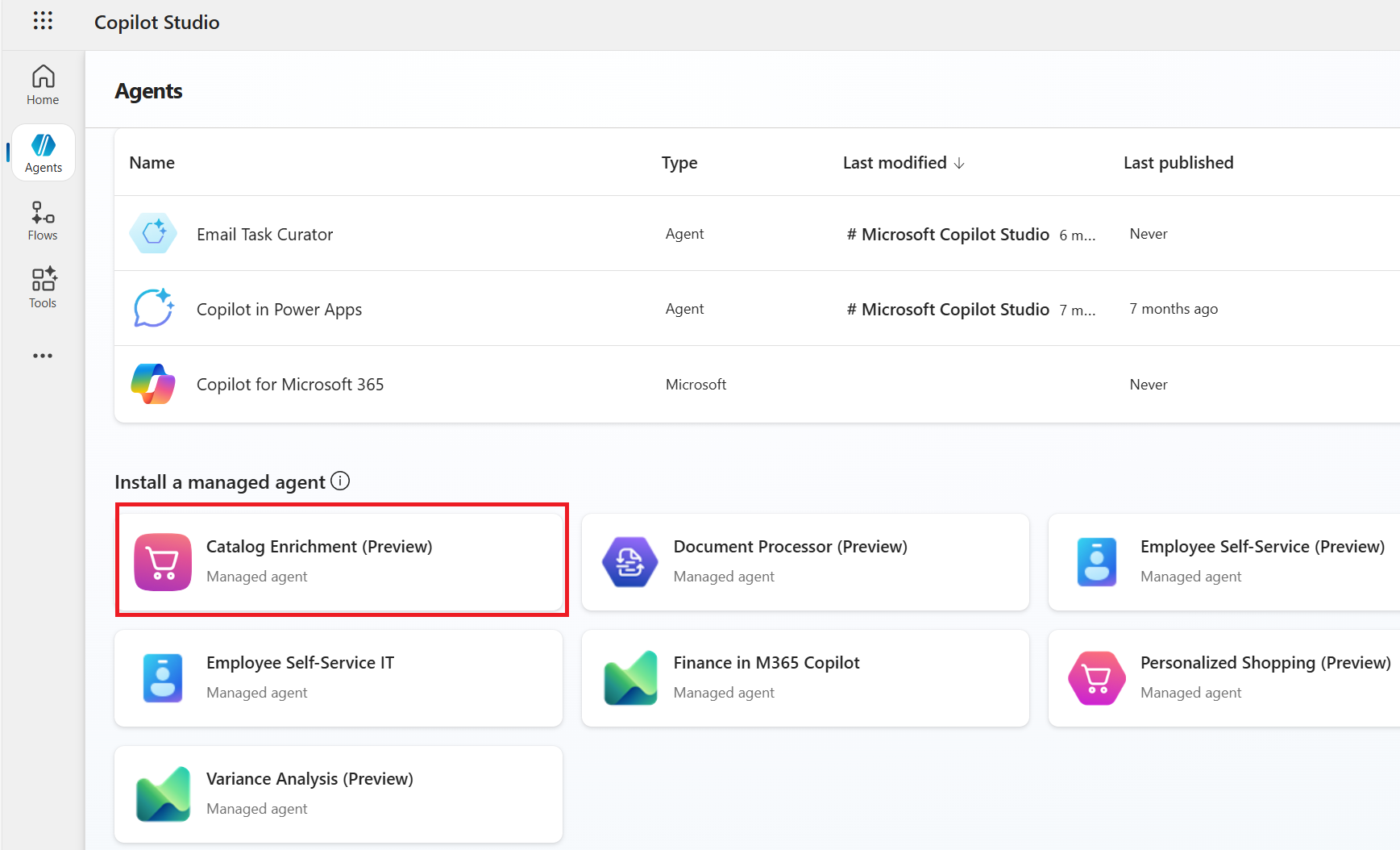
Select the card for more details. The agent is provided as a managed solution that includes initial topics, flows, and an out-of-the-box connection to the personalization microservice. A single quick-click installation provisions required components such as the Dataverse database and microservice connections needed for the agent to operate.
Select Install to add the agent to your environment. You're prompted to confirm installation. The installation process guides you to add related details like connection references at the appropriate steps.
You see a preview banner since the solution is in preview. If your tenant is enrolled in the preview program, you can proceed with the installation.
The installation can proceed in the background. You can safely close the installation window. The Catalog Enrichment Agent appears in the agents list when it’s ready.
Verify that the agent appears in Copilot Studio’s agent list. Select it to open the detailed Agent Builder view. Here you see sections such as Details (Name, description, icon), Select your agent's model, Analytics, Instructions, Triggers, Topics, and Suggested prompts.
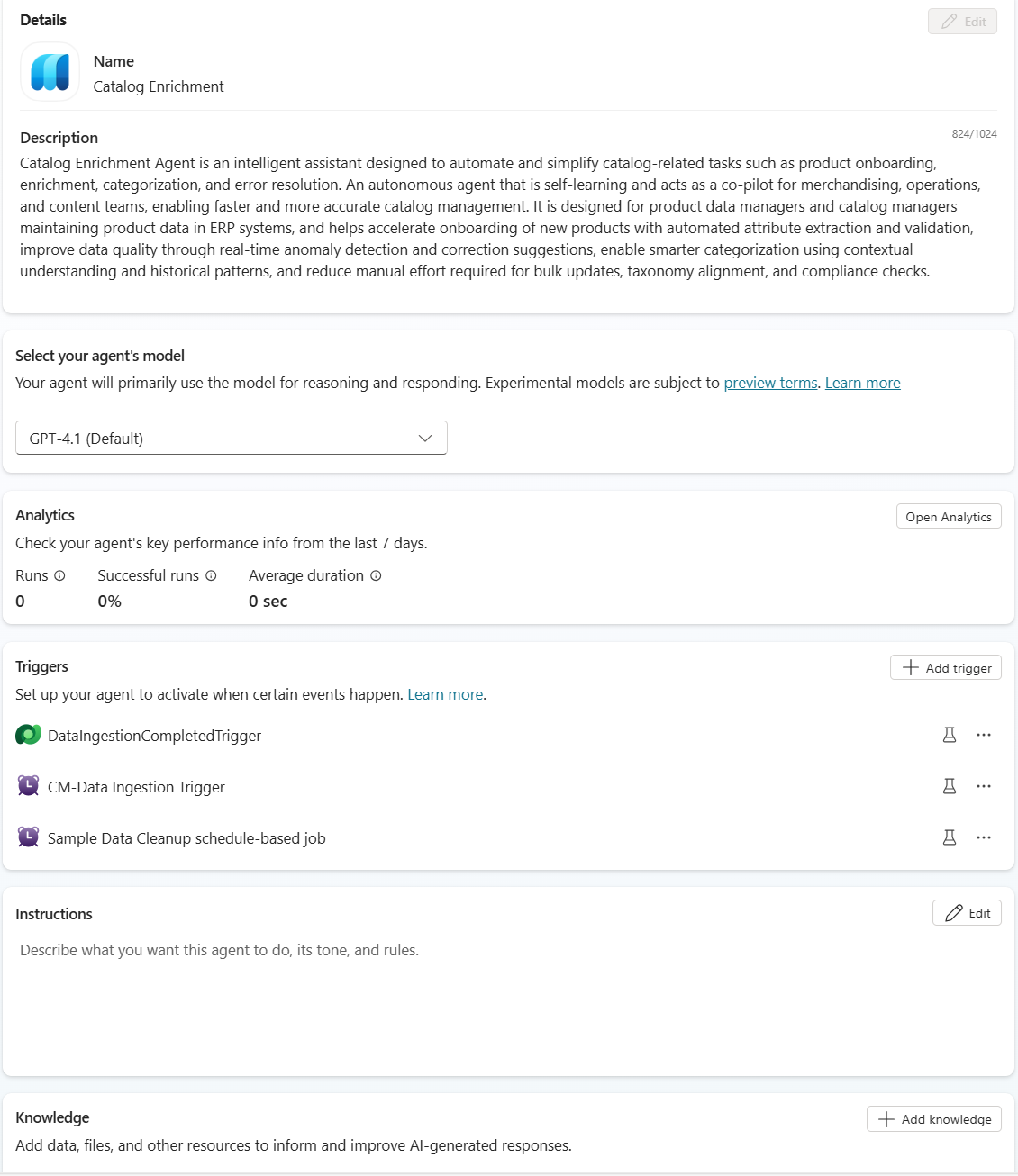
The template shows prefilled fields:
Name and description: The agent is named Catalog Enrichment (preview) by default. You can rename it as desired. The description explains its purpose, for example: “Catalog Enrichment Agent is an intelligent assistant designed to automate and simplify catalog-related tasks such as product onboarding, enrichment, categorization, and error resolution.”
Triggers: The agent includes prebuilt triggers that initiate the catalog enrichment process. DataIngestionCompletedTrigger activates when product data edits are completed. The CM-Data Ingestion Trigger runs on a scheduled basis to process new product data for enrichment.
Instructions: The system prompts that define the agent’s behavior. The system prompts are configured during Agent Setup process for a given catalog taxonomy.
Topics: The agent provides prebuilt conversation topics (dialog flows) that handle common scenarios. For example, the Agent Setup topic is triggered when the user initiates agent setup to fetch current configuration and update taxonomy etc. The Feed topic is triggered when a user asks for their feed, etc.
Suggested prompts: The agent comes with few default suggested ways to start conversations and interact with the agent.
At this point, Catalog Enrichment Agent is deployed in your tenant environment; the next step is to import and index your product data so the agent can answer queries with actual product information.
Next steps
- Ingest data to connect your product data and customize the agent behavior.