Note
Access to this page requires authorization. You can try signing in or changing directories.
Access to this page requires authorization. You can try changing directories.
Applies to:  SQL Server on Linux
This article covers memory configuration for SQL Server on Linux, including mssql-conf memory limits, control group (cgroup) settings, Docker container memory examples, and swap space considerations.
Note
For storage, kernel, CPU, and network recommendations, see Performance best practices: Storage, kernel, CPU, and network for SQL Server on Linux.
Set a memory limit using mssql-conf
To ensure there's enough free physical memory for the Linux operating system, the SQL Server process uses only 80 percent of the physical RAM by default. For some systems with large amounts of physical RAM, 20 percent might be a significant number. For example, on a system with 1 TB of RAM, the default setting leaves around 200 GB of RAM unused. In this situation, you might want to configure the memory limit to a higher value.
You can adjust this value using the mssql-conf tool or the MSSQL_MEMORY_LIMIT_MB environment variable. For more information, see the memory.memorylimitmb setting that controls the memory visible to SQL Server (in units of MB). For detailed sizing guidance, see Guidelines for setting memory limits on Linux and in containers.
Control group (cgroup) v2 support
SQL Server detects and honors control group (cgroup) v2 constraints, starting with SQL Server 2025 (17.x) and SQL Server 2022 (16.x) Cumulative Update (CU) 20. These constraints provide fine-grained control in the Linux kernel over CPU and memory resources, and improve resource isolation in Docker, Kubernetes, and OpenShift environments.
In earlier versions, containerized deployments on Kubernetes clusters (for example, Azure Kubernetes Service v1.25+) could experience out of memory (OOM) errors because SQL Server didn't enforce memory limits defined in container specifications. Support for cgroup v2 addresses this problem.
Check cgroup version
stat -fc %T /sys/fs/cgroup
The results are as follows:
| Result | Description |
|---|---|
cgroup2fs |
You use cgroup v2 |
cgroup |
You use cgroup v1 |
Switch to cgroup v2
The easiest path is choosing a distribution that supports cgroup v2 out of the box.
If you need to switch manually, add the following parameter to your GRUB configuration:
systemd.unified_cgroup_hierarchy=1
Then update GRUB. For example, on Ubuntu, run:
sudo update-grub
On Red Hat Enterprise Linux (RHEL), run:
sudo grub2-mkconfig -o /boot/grub2/grub.cfg
CPU limit reporting with cgroup v2
When you configure CPU limits using cgroup v2, SQL Server doesn't show the configured CPU core count in the error log. Instead, it continues to report the total number of host CPUs.
To align SQL Server scheduler and query plans (for example, parallelism decisions) with the intended CPU count defined in cgroup v2, apply the following configuration.
Configure processor affinity
Explicitly set SQL Server processor affinity to match the cgroup execution quota. In the following example, the cgroup quota is four CPUs on an eight-core host:
ALTER SERVER CONFIGURATION
SET PROCESS AFFINITY CPU = 0 TO 3;
This configuration ensures that SQL Server creates schedulers only for the intended number of CPUs. For more information, see ALTER SERVER CONFIGURATION and Use PROCESS AFFINITY for Node and/or CPUs.
Enable trace flag 8002 (recommended)
Enable trace flag 8002 to use soft affinity at the SQLPAL layer:
sudo /opt/mssql/bin/mssql-conf traceflag 8002 on
By default, schedulers are bound to specific CPUs defined in the affinity mask. Trace flag 8002 allows schedulers to move across CPUs instead, which generally improves performance while still respecting affinity and cgroup constraints. For more information, see DBCC TRACEON - Trace Flags.
Restart SQL Server after enabling the trace flag.
Expected behavior
After restart:
SQL Server creates only the number of schedulers defined by the affinity setting (for example, four schedulers).
The Linux kernel continues to enforce the cgroup v2 CPU execution quota.
Query optimization and parallelism decisions are based on the intended CPU count, rather than the total host CPUs.
Note
The SQL Server error log might continue to display the total host CPU count. This logging and display behavior doesn't affect actual CPU usage, scheduler creation, or CPU enforcement by cgroup v2 or processor affinity.
For more information, see the following resources:
- Quickstart: Deploy a SQL Server Linux container to Kubernetes using Helm charts
- Control Group v2 (Linux Kernel documentation)
Guidelines for setting memory limits on Linux and in containers
SQL Server on Linux has multiple memory controls that operate at different levels. The following table and diagram show how each level narrows the available memory, from host RAM down to the buffer pool.
| Level | Set by | Description |
|---|---|---|
| Host | Hardware / VM configuration | Physical RAM on the server or virtual machine (VM). |
cgroup limit (docker run --memory, systemd, or manual) |
Container runtime, systemd slice, or manual cgroup configuration |
Kernel-enforced ceiling (memory.max) for all processes in the cgroup. Optional on bare-metal Linux. |
SQL Server process (memory.memorylimitmb / MSSQL_MEMORY_LIMIT_MB) |
mssql-conf or environment variable |
Total memory across all SQL Server components. Must be lower than the cgroup limit (if present) or host memory. |
Buffer pool (max_server_memory) |
sp_configure |
The cache of 8-KB data pages. Must be lower than memory.memorylimitmb. |
| Headroom | Calculated (gap between limits) | The gap between the cgroup limit (or host memory) and memory.memorylimitmb, reserved for OS overhead and auxiliary processes. |
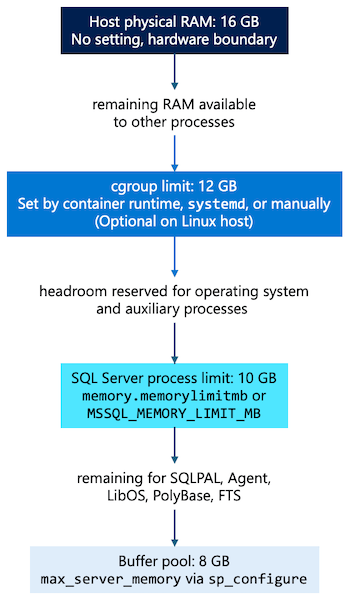
When setting memory limits for SQL Server on Linux, consider the following guidelines:
In container deployments, use
cgroupto limit the overall memory available to the container. This setting establishes the upper bound for all processes inside the container.The memory limit (whether set by
memory.memorylimitmbor theMSSQL_MEMORY_LIMIT_MBenvironment variable) controls the total memory that SQL Server on Linux can allocate across all its components, such as the buffer pool, SQLPAL, SQL Server Agent, LibOS, PolyBase, Full-Text Search, and any other process loaded in SQL Server on Linux.The
MSSQL_MEMORY_LIMIT_MBenvironment variable takes precedence overmemory.memorylimitmbdefined inmssql.conf.memory.memorylimitmbcan't exceed the actual physical memory of the host system.Set
memory.memorylimitmblower than the host system memory and thecgrouplimit (if present), to ensure there's enough free physical memory for the Linux operating system. If you don't explicitly setmemory.memorylimitmb, SQL Server uses 80 percent of the lesser value between total system memory and thecgrouplimit (if present).The max_server_memory server configuration option limits only the size of the SQL Server buffer pool, and doesn't govern overall memory usage for SQL Server on Linux. Always set this value lower than
memory.memorylimitmbto ensure sufficient memory remains for the other components described in the previous bullet.
Headroom between SQL Server and container memory limits
When you run SQL Server in a container with a configured memory limit (for example, the cgroup setting memory.max), maintain headroom between memory.memorylimitmb and the container memory limit. This headroom provides operating system overhead and auxiliary processes inside the container.
For most deployments, reserve between 10 and 20 percent of the container memory for the operating system and non-SQL Server processes, and set
memory.memorylimitmbbelow the remaining capacity.For large memory configurations, a percentage-based buffer can reserve more memory than necessary. For example, 10 percent of a 256-GB container is about 25 GB, which is reasonable for operating system overhead. However, 10 percent of a 512-GB container is about 51 GB, which is likely more than the operating system requires. In these cases, use a fixed buffer instead, sized appropriately for your workload and operating system overhead, and allocate the rest to SQL Server.
Adjust the buffer based on workload characteristics, other services running in the container, and the host configuration.
Note
No single recommended headroom value applies to all environments. Validate memory settings through testing to ensure system stability under peak load.
Avoid configuring memory limits higher than available memory
Don't configure memory.memorylimitmb higher than the available physical memory on the host or higher than the container-enforced memory limit. If you do, SQL Server might aggressively consume memory, leaving insufficient capacity for the operating system and supporting processes. This configuration can result in:
- Increased memory pressure.
- Reduced system stability and unexpected service interruptions.
- The operating system terminating the
sqlservrprocess due to out-of-memory (OOM) conditions.
Configure SQL Server memory limits below the effective memory available to the host or container, and leave adequate buffer space for the operating system and runtime services.
Docker memory configuration examples
The docker run --memory option sets the cgroup memory limit for the container. This limit is the kernel-enforced hard ceiling for all processes in the container. MSSQL_MEMORY_LIMIT_MB (or memory.memorylimitmb) controls how much of that memory SQL Server can use. As described in the previous guidelines, always set MSSQL_MEMORY_LIMIT_MB lower than the container memory limit to leave headroom for the operating system and auxiliary processes.
The following examples use a host with 16 GB of RAM. Adjust values for your environment.
Not recommended: no container memory limit
docker run -e "ACCEPT_EULA=Y" -e "MSSQL_SA_PASSWORD=<password>" \
   -e "MSSQL_MEMORY_LIMIT_MB=14336" \
   -p 1433:1433 \
   -d mcr.microsoft.com/mssql/server:2022-latest
Without --memory, the container has no cgroup ceiling. MSSQL_MEMORY_LIMIT_MB constrains SQL Server, but other processes inside the container can still consume unbounded host memory.
Not recommended: memory limit equal to SQL Server memory limit
docker run -e "ACCEPT_EULA=Y" -e "MSSQL_SA_PASSWORD=<password>" \
   -e "MSSQL_MEMORY_LIMIT_MB=12288" \
   --memory 12g \
   -p 1433:1433 \
   -d mcr.microsoft.com/mssql/server:2022-latest
Both limits are set to 12 GB (--memory 12g = 12,288 MB). No headroom remains for operating system overhead or auxiliary processes, which can lead to OOM kills.
Not recommended: SQL Server memory limit exceeds container limit
docker run -e "ACCEPT_EULA=Y" -e "MSSQL_SA_PASSWORD=<password>" \
   -e "MSSQL_MEMORY_LIMIT_MB=14336" \
   --memory 12g \
   -p 1433:1433 \
   -d mcr.microsoft.com/mssql/server:2022-latest
MSSQL_MEMORY_LIMIT_MB (14 GB) exceeds the container limit (12 GB). This scenario leads to the OOM conditions described in Avoid configuring memory limits higher than available memory.
Recommended: container limit with headroom for the operating system
docker run -e "ACCEPT_EULA=Y" -e "MSSQL_SA_PASSWORD=<password>" \
   -e "MSSQL_MEMORY_LIMIT_MB=10240" \
   --memory 12g \
   -p 1433:1433 \
   -d mcr.microsoft.com/mssql/server:2022-latest
The container is limited to 12 GB (--memory 12g), and SQL Server is configured to use up to 10 GB (MSSQL_MEMORY_LIMIT_MB=10240). The remaining 2 GB (about 17 percent) provides headroom for the operating system and other processes.
Swap space considerations
When you run SQL Server in a container, enable swap space at the host level to help protect the operating system and non-SQL Server processes. However, configure SQL Server to operate within its configured memory limits, and don't rely on swap during normal operation.
Follow the memory limit guidelines to ensure SQL Server operates within physical memory or the applicable
cgroupmemory limit.If swap is enabled, treat it as a safety net for transient memory pressure on the host, not as capacity for steady-state SQL Server workloads.
Important
SQL Server performance can degrade significantly if memory pressure causes swapping. Proper memory sizing is the primary mechanism for preventing memory-related failures.