This article provides practical instructions for managing roles and role assignments for a Managed HSM. It implements the role-based access control model described in Access control for Managed HSM by using the built-in roles documented in Local RBAC built-in roles for Managed HSM.
For an overview of Managed HSM, see What is Managed HSM? If you don't have an Azure subscription, create a free account before you begin.
To allow a security principal (such as a user, a service principal, group, or a managed identity) to perform managed HSM data plane operations, assign them a role that permits those operations. For example, if you want to allow an application to perform a sign operation by using a key, assign it a role that contains the Microsoft.KeyVault/managedHSM/keys/sign/action as one of the data actions. Assign a role at a specific scope. Managed HSM local RBAC supports two scopes, HSM-wide (/ or /keys) and per key (/keys/<key-name>).
For a list of all Managed HSM built-in roles and the operations they permit, see Managed HSM built-in roles.
Prerequisites
An Azure subscription is required. If you don't have one, create a free account before you begin.
You also need:
Create a new role assignment
In the Azure portal, navigate to your Managed HSM resource.
In the left menu, under Settings, select Local RBAC.
Select Add role assignment, choose the role, scope, and principal, then save.
Assign roles for all keys
Use az keyvault role assignment create command to assign a Managed HSM Crypto User role to user identified by user principal name <user-principal-name> for all keys (scope /keys) in the <hsm-name>.
az keyvault role assignment create --hsm-name <hsm-name> --role "Managed HSM Crypto User" --assignee <user-principal-name> --scope /keys
Assign role for a specific key
Use az keyvault role assignment create command to assign a Managed HSM Crypto User role to user identified by user principal name <user-principal-name> for a specific key named <key-name>.
az keyvault role assignment create --hsm-name <hsm-name> --role "Managed HSM Crypto User" --assignee <user-principal-name> --scope /keys/<key-name>
Assign roles for all keys
Use the New-AzKeyVaultRoleAssignment cmdlet to assign a Managed HSM Crypto User role to a user for all keys (scope /keys).
New-AzKeyVaultRoleAssignment -HsmName <hsm-name> -RoleDefinitionName "Managed HSM Crypto User" -SignInName <user-principal-name> -Scope /keys
Assign role for a specific key
New-AzKeyVaultRoleAssignment -HsmName <hsm-name> -RoleDefinitionName "Managed HSM Crypto User" -SignInName <user-principal-name> -Scope /keys/<key-name>
List existing role assignments
In the Azure portal, navigate to your Managed HSM resource.
In the left menu, under Settings, select Local RBAC.
The portal displays all role assignments for the Managed HSM. You can filter by principal or scope.
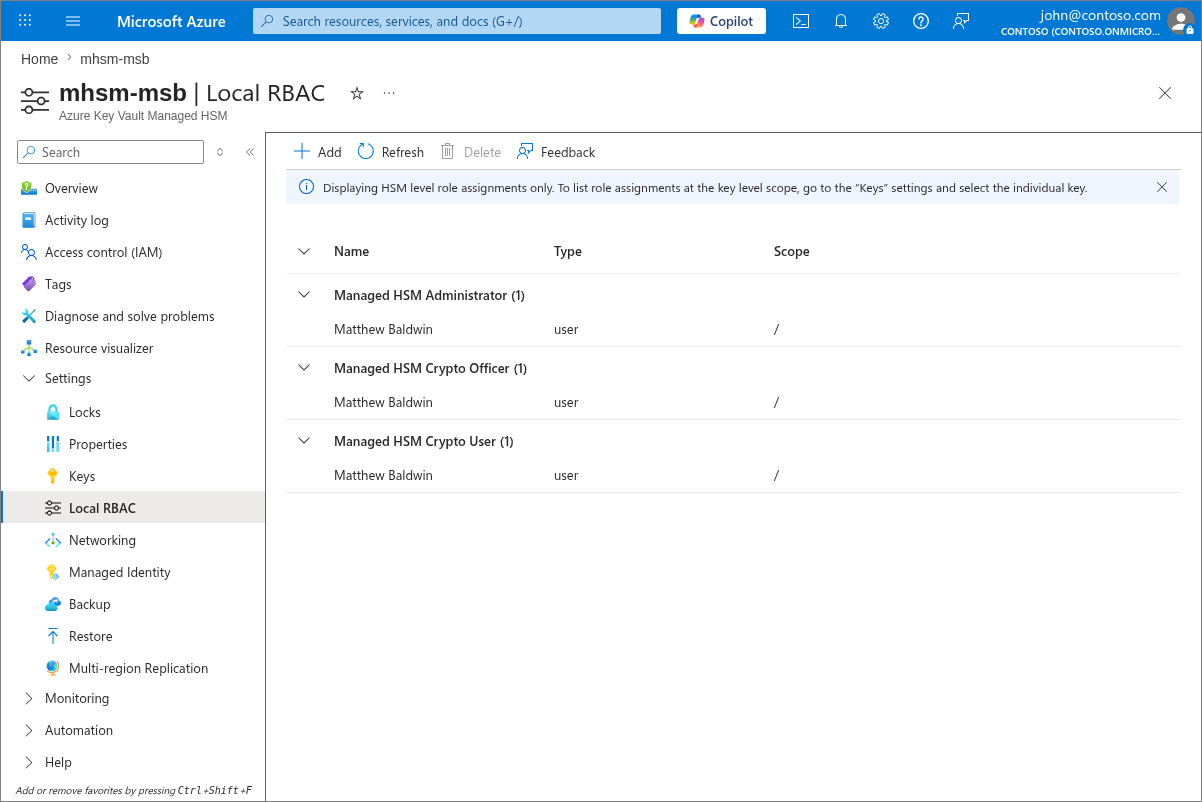
All role assignments at scope / (default when no --scope is specified) for all users (default when no --assignee is specified)
az keyvault role assignment list --hsm-name <hsm-name>
All the role assignments at the HSM level for a specific user <user-principal-name>.
az keyvault role assignment list --hsm-name <hsm-name> --assignee <user-principal-name>
Note
When scope is / (or /keys) the list command only lists all the role assignments at the top level and does not show role assignments at individual key level.
All role assignments for a specific user <user-principal-name> for a specific key <key-name>.
az keyvault role assignment list --hsm-name <hsm-name> --assignee <user-principal-name> --scope /keys/<key-name>
A specific role assignment for role Managed HSM Crypto Officer for a specific user <user-principal-name> for a specific key <key-name>
az keyvault role assignment list --hsm-name <hsm-name> --assignee <user-principal-name> --scope /keys/<key-name> --role "Managed HSM Crypto Officer"
List all role assignments for the Managed HSM:
Get-AzKeyVaultRoleAssignment -HsmName <hsm-name>
List all role assignments for a specific user:
Get-AzKeyVaultRoleAssignment -HsmName <hsm-name> -SignInName <user-principal-name>
List role assignments for a specific user at a specific key scope:
Get-AzKeyVaultRoleAssignment -HsmName <hsm-name> -SignInName <user-principal-name> -Scope /keys/<key-name>
Delete a role assignment
In the Azure portal, navigate to your Managed HSM resource.
In the left menu, under Settings, select Local RBAC.
Locate the role assignment you want to remove.
Select the Delete (trash can) icon next to the assignment.
Confirm the deletion when prompted.
Use az keyvault role assignment delete command to delete a Managed HSM Crypto Officer role assigned to user <user-principal-name> for key <key-name>.
az keyvault role assignment delete --hsm-name <hsm-name> --role "Managed HSM Crypto Officer" --assignee <user-principal-name> --scope /keys/<key-name>
Use the Remove-AzKeyVaultRoleAssignment cmdlet to delete a role assignment:
Remove-AzKeyVaultRoleAssignment -HsmName <hsm-name> -RoleDefinitionName "Managed HSM Crypto Officer" -SignInName <user-principal-name> -Scope /keys/<key-name>
List all available role definitions
In the Azure portal, navigate to your Managed HSM resource.
In the left menu, under Settings, select Local RBAC.
Select the Roles tab to view all available built-in and custom role definitions.
Use az keyvault role definition list command to list all the role definitions.
az keyvault role definition list --hsm-name <hsm-name>
Use the Get-AzKeyVaultRoleDefinition cmdlet to list all role definitions:
Get-AzKeyVaultRoleDefinition -HsmName <hsm-name>
Create a new role definition
Note
Custom role definitions can only be managed by using Azure CLI or Azure PowerShell.
Managed HSM has several built-in (pre-defined) roles that are useful for most common usage scenarios. You can define your own role with a list of specific actions that the role is allowed to perform. Then you can assign this role to principals to grant them the permission to the specified actions.
Custom role creation isn't currently available in the Azure portal. Use the Azure CLI or Azure PowerShell.
Use az keyvault role definition create command to a role named My Custom Role using a JSON string.
az keyvault role definition create --hsm-name <hsm-name> --role-definition '{
    "roleName": "My Custom Role",
    "description": "The description of the custom rule.",
    "actions": [],
    "notActions": [],
    "dataActions": [
        "Microsoft.KeyVault/managedHsm/keys/read/action"
    ],
    "notDataActions": []
}'
Use az keyvault role definition create command to a role from a file named my-custom-role-definition.json containing the JSON string for a role definition. See example above.
az keyvault role definition create --hsm-name <hsm-name> --role-definition @my-custom-role-definition.json
Use the New-AzKeyVaultRoleDefinition cmdlet to create a custom role from a JSON file:
New-AzKeyVaultRoleDefinition -HsmName <hsm-name> -InputFile ./my-custom-role-definition.json
Show details of a role definition
Viewing custom role definition details isn't currently available in the Azure portal. Use the Azure CLI or Azure PowerShell.
Use az keyvault role definition show command to see details of a specific role definition using name (a GUID).
az keyvault role definition show --hsm-name <hsm-name> --name xxxxxxxx-xxxx-xxxx-xxxx-xxxxxxxxxxxx
Use the Get-AzKeyVaultRoleDefinition cmdlet to view role definitions. To view a specific custom role by name:
Get-AzKeyVaultRoleDefinition -HsmName <hsm-name> -RoleDefinitionName "My Custom Role"
Update a custom role definition
Updating custom role definitions isn't currently available in the Azure portal. Use the Azure CLI or Azure PowerShell.
Use az keyvault role definition update command to update a role named My Custom Role using a JSON string.
az keyvault role definition create --hsm-name <hsm-name> --role-definition '{
            "roleName": "My Custom Role",
            "name": "xxxxxxxx-xxxx-xxxx-xxxx-xxxxxxxxxxxx",
            "id": "Microsoft.KeyVault/providers/Microsoft.Authorization/roleDefinitions/xxxxxxxx-
        xxxx-xxxx-xxxx-xxxxxxxxxxxx",
            "description": "The description of the custom rule.",
            "actions": [],
            "notActions": [],
            "dataActions": [
                "Microsoft.KeyVault/managedHsm/keys/read/action",
                "Microsoft.KeyVault/managedHsm/keys/write/action",
                "Microsoft.KeyVault/managedHsm/keys/backup/action",
                "Microsoft.KeyVault/managedHsm/keys/create"
            ],
            "notDataActions": []
        }'
To update a custom role, modify the role object and re-create it:
$role = Get-AzKeyVaultRoleDefinition -HsmName <hsm-name> -RoleDefinitionName "My Custom Role"
$role.Permissions[0].DataActions = @("Microsoft.KeyVault/managedHsm/keys/read/action", "Microsoft.KeyVault/managedHsm/keys/write/action", "Microsoft.KeyVault/managedHsm/keys/backup/action", "Microsoft.KeyVault/managedHsm/keys/create")
New-AzKeyVaultRoleDefinition -HsmName <hsm-name> -Role $role
Delete custom role definition
Deleting custom role definitions isn't currently available in the Azure portal. Use the Azure CLI or Azure PowerShell.
Use the Azure CLI az keyvault role definition delete command to delete a custom role definition using name (a GUID).
az keyvault role definition delete --hsm-name <hsm-name> --name xxxxxxxx-xxxx-xxxx-xxxx-xxxxxxxxxxxx
Use the Remove-AzKeyVaultRoleDefinition cmdlet to delete a custom role definition:
Remove-AzKeyVaultRoleDefinition -HsmName <hsm-name> -RoleName "My Custom Role"
Note
Built-in roles cannot be deleted. When custom roles are deleted, all the role assignments using that custom role become defunct.
Next steps