Note
Access to this page requires authorization. You can try signing in or changing directories.
Access to this page requires authorization. You can try changing directories.
Applies to:  External tenants (learn more)
Migrate your users, credentials, and applications from Azure AD B2C to Microsoft Entra External ID using the standard migration approach. This article focuses on migration scenarios where identities already exist in Azure AD B2C and must be transitioned with minimal disruption.
New customers evaluating Microsoft Entra External ID at scale should refer to Planning your solution.
If you're an Azure AD B2C customer and haven't yet reviewed the available options for migration, refer to Plan your migration from Azure AD B2C to External ID.
In this article, you’ll learn how to:
- Assess your current Azure AD B2C implementation
- Prepare your destination External ID tenant and baseline security
- Migrate users and preserve passwords (if needed)
- Validate, monitor, and plan application cutover
Prerequisites
This article assumes you've already chosen the standard migration approach. If you still need to decide between approaches (standard vs. HSC mode), start with Plan your migration from Azure AD B2C to External ID.
Stage 1: Assess your current Azure AD B2C implementation
Inventory what you have today so you can recreate equivalent behavior in External ID: applications, user flows, identity providers, token/claim requirements, and any custom business logic.
Use the following feature mapping table as a starting point when translating your Azure AD B2C implementation into External ID configuration.
Feature mapping table
| Feature | Azure AD B2C | External ID equivalent |
|---|---|---|
| Custom business logic | Custom policies (XML/IEF) | Custom authentication extensions |
| Authentication UI | Hosted pages with HTML/CSS | User flows with branding + native authentication |
| User management | Microsoft Graph API | Microsoft Graph API |
| Access policies | Custom policies, user flow conditions | Microsoft Entra conditional access |
| Mobile authentication | Browser-based flows, web redirects | Native authentication SDKs (local accounts only) |
| Token customization | Custom claims in policies | Custom authentication extensions |
For a full feature overview, see Supported features.
Stage 2: Prepare your destination External ID tenant
Set up your destination External ID tenant and baseline security, compliance, and monitoring before migrating production users or cutting over applications. For step-by-step deployment guidance for new External ID tenants, see Planning your solution.
This stage typically includes:
- Creating your external tenant
- Registering applications and configuring user flows
- Setting up federation with social identity providers (optional)
- Configuring security, compliance, and monitoring
Complete these steps before you migrate any production user data.
Stage 3: Migrate users and credentials
In this stage, you decide how users and credentials move from Azure AD B2C to External ID. Bulk user migration is always required, regardless of whether you preserve passwords. The key decision is whether you need to preserve existing passwords, and if so, which approach to use.
Do you need to preserve passwords?
Decide whether you need to preserve existing passwords. Not every migration requires password preservation. If you don't need it, users can reset their password after migration using self-service password reset (SSPR), or you can move to passwordless or social sign-in options.
You typically don’t need password preservation if:
- Users authenticate using social identity providers (for example, Google or Facebook).
- You plan to use passwordless authentication (such as email one-time passcodes).
- You're comfortable requiring users to reset their password after migration.
- Regulatory requirements mandate renewing user consent. In this case, you can obtain consent through outbound email communications followed by a user-initiated password reset.
- You have access to plain-text passwords and can set them directly via Microsoft Graph during bulk user migration.
If you don't need password preservation, complete Stage 1 in Migrate users and credentials to External ID and skip directly to Stage 4: Validate, monitor, and plan cutover.
Choose a password preservation approach
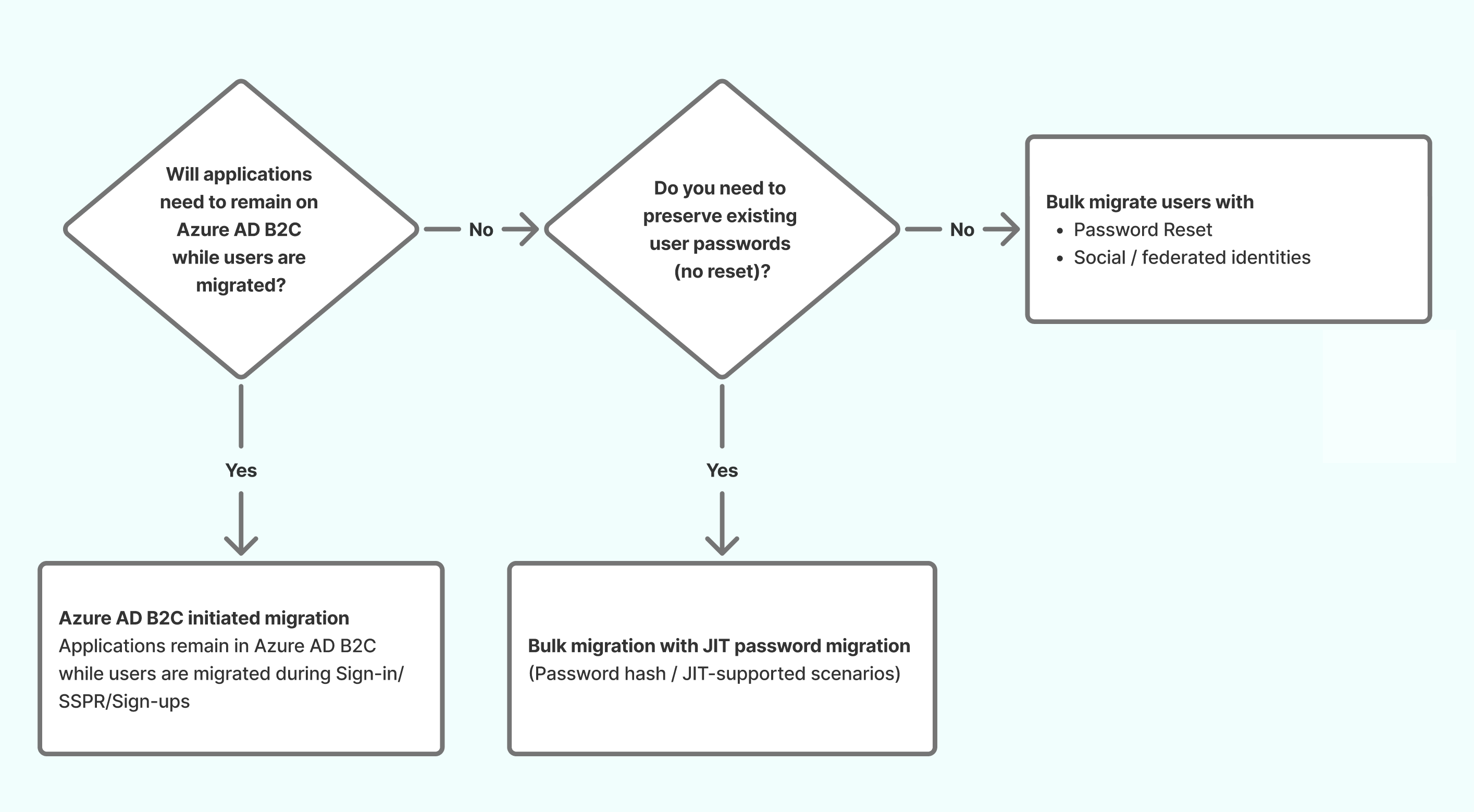
If you need to preserve passwords, choose an approach based on where applications authenticate during the migration.
Use the following decision tree to determine the remaining password-preservation and cutover steps.
Just-in-Time (JIT) password migration (External ID-initiated)
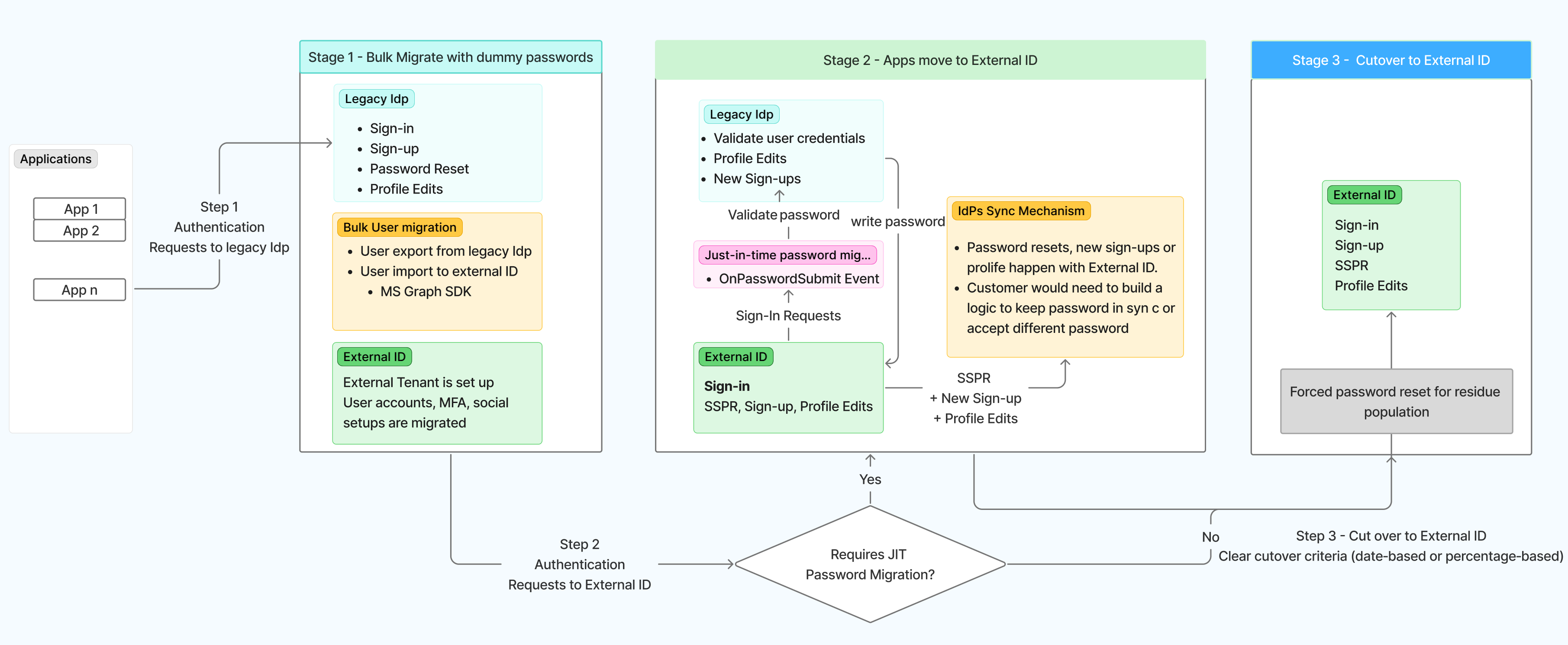
In JIT password migration, applications have already moved to External ID endpoints. When a user signs in, External ID uses the OnPasswordSubmit custom authentication extension to validate the user's credentials against the legacy IdP, writes the password to the External ID account, and flags the account as migrated.
This diagram provides a deeper view of the standard migration path, combining bulk migration, JIT password migration, and application cutover.
- 1: User accounts are pre-provisioned in External ID while applications continue to authenticate through your legacy IdP.
- 2: Applications transition to External ID while passwords are migrated via JIT, with the legacy IdP validating credentials for migration.
- 3: The legacy IdP is shut down once all users and credentials have been fully moved, leaving External ID as the sole authentication system.
 Considerations when using JIT password migration
JIT introduces a coexistence period where both Azure AD B2C and External ID must be monitored and supported. Keep the following in mind:
- Bulk user migration is still required. User accounts must exist in External ID before JIT sign-in can work. Complete bulk migration early.
- Identity state sync grows harder over time. Profile updates, password changes, and new sign-ups must stay aligned across both systems. Periodic reconciliation is typically required.
- Users who never sign in won't migrate. Plan forced password resets or a final bulk migration for remaining users, and set clear cutover timelines.
JIT works best when coexistence is time-boxed, not open-ended.
Azure AD B2C-initiated migration
In the B2C-initiated pattern, applications remain on Azure AD B2C endpoints while credentials are harvested in the background. A B2C custom policy calls a REST API to validate credentials against the legacy IdP and write them to the corresponding External ID accounts. Once enough credentials have been migrated, applications cut over to External ID.
- 1: Applications keep authenticating with the legacy IdP while users are progressively migrated into External ID using Azure Functions for credential validation and background migration.
- 2: Applications cut over to External ID once most users have been migrated, and External ID becomes the primary authentication service for all core user flows.

For step-by-step implementation instructions, see Migrate users and credentials: Legacy IdP-initiated credential harvesting. In a B2C-initiated migration, this pattern is implemented using Azure AD B2C custom policies that call a REST API during sign-in to validate and harvest credentials.
Implementation steps
Once you've decided on your approach, complete the following in order:
Migrate user data. Complete Stage 1 in Migrate users and credentials to External ID.
Tip
When migrating large numbers of user objects, you might encounter Microsoft Graph throttling limits. See Throttling limits and Throttling guidance for best practices.
Prepare for credential migration (if preserving passwords). Complete Stage 2 in Migrate users and credentials to External ID to set up the migration extension property and flagged user accounts.
Implement your chosen approach:
- JIT. Just-in-time password migration
- B2C-initiated. Migrate users and credentials: Legacy IdP-initiated credential harvesting, implemented using Azure AD B2C custom policies
Stage 4: Validate, monitor, and plan cutover
Validate migration success
Before you move to production and decommission Azure AD B2C apps, validate end-to-end user journeys and integrations:
- Test all authentication flows (sign-up, sign-in, password reset).
- Validate token issuance and custom claims.
- Test application and API integrations.
- Verify custom authentication extensions.
- Test password provisioning and native authentication.
- Conduct performance and load tests.
- Ensure security policies and user data integrity.
Note
The following Azure AD B2C features aren't available in Microsoft Entra External ID and should be addressed before migration:
- Social identity providers configured through B2C custom policies. Social federation must be reconfigured using External ID's built-in social identity provider support. Third-party identity providers configured through B2C custom policies aren't supported.
See Test user flows, Samples, and Custom extension attribute collection for guidance.
Monitor and optimize
After you go to production, implement monitoring and analytics to maintain system health and optimize user experience:
- Set up logging and monitoring with Azure Monitor and Microsoft Sentinel. For more information, see Azure Monitor integration.
- Use built-in dashboards for user activity, authentication, and engagement insights. For more information, see User insights.
Ongoing monitoring enables proactive issue resolution, data-driven optimization, and continuous improvement of your CIAM solution.