Note
Access to this page requires authorization. You can try signing in or changing directories.
Access to this page requires authorization. You can try changing directories.
APPLIES TO:  Power BI Desktop
Power BI service
Power BI Desktop
Power BI service
Power BI reports display on screens with different sizes and aspect ratios. You can configure your report's page size and display settings to control how content appears across devices.
Use Page view settings to control how the report fits in the browser window. Use Canvas settings to set the page dimensions and aspect ratio.
Note
This article covers desktop layout view settings. For reports viewed on mobile devices, you can create a separate mobile-optimized layout. See Create mobile-optimized Power BI reports.
Where to find page view settings
Page view settings are available in both the Power BI service and Power BI Desktop, but the interface is a little different. The following sections explain where you can find View settings in each Power BI tool.
In Report view, select the View tab to open Page view settings as well as phone layout settings.
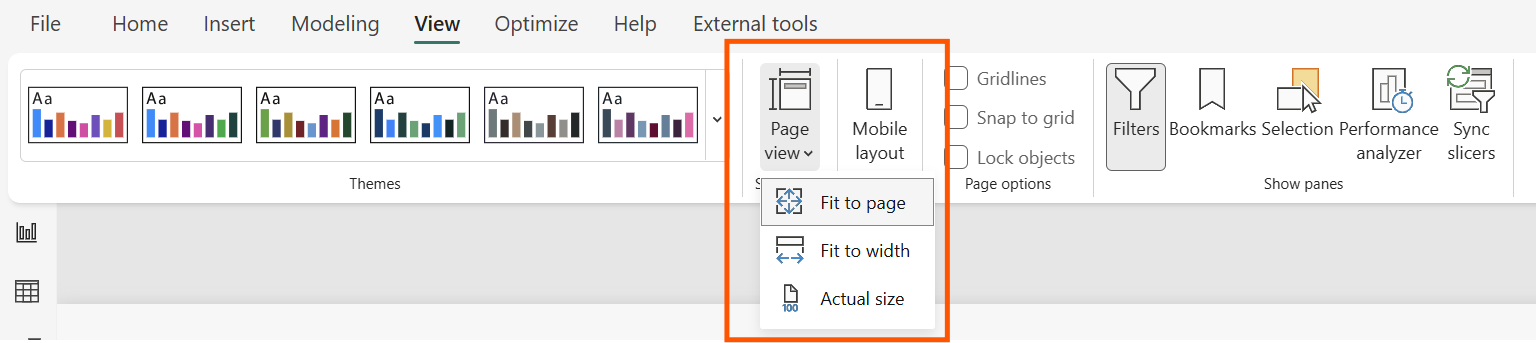

Page view settings
The first set of Page view settings controls the display of your report page relative to the browser window. Choose between:
- Fit to page (default): Contents are scaled to best fit the page
- Fit to width: Contents are scaled to fit within the width of the page
- Actual size: Contents are displayed at full size
The second set of Page view settings controls the positioning of objects on the report canvas. Choose between:
- Show gridlines: Turn on gridlines to help you position objects on the report canvas.
- Snap to grid: Use with Show gridlines to precisely position and align objects on the report canvas.
- Lock objects: Lock all objects on the canvas so that they can't be moved or resized.
- Selection pane: The Selection pane lists all objects on the canvas. You can decide which to show and which to hide.
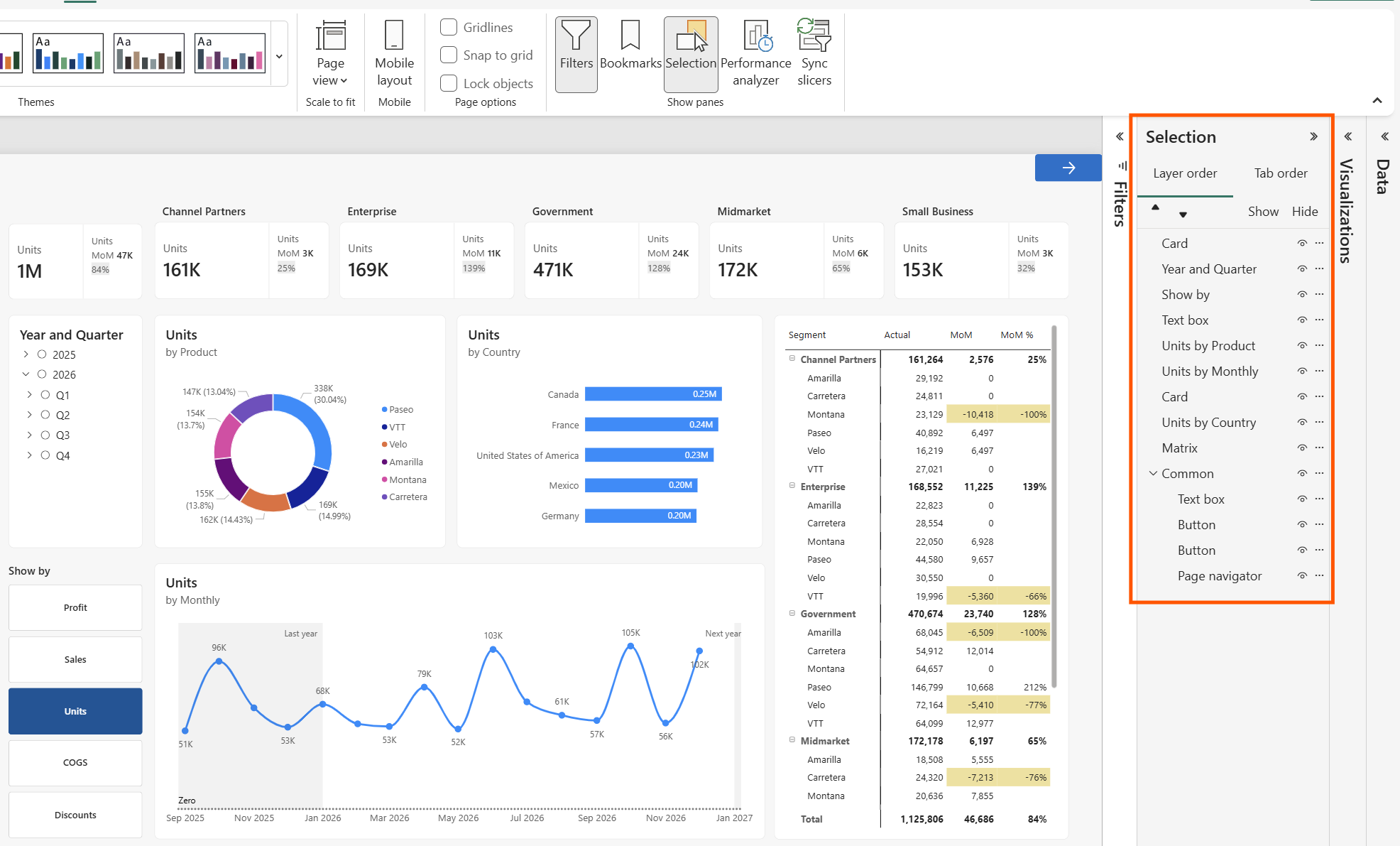
Canvas settings
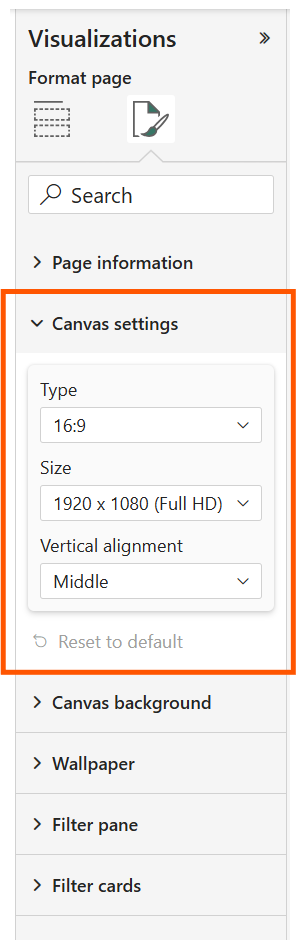
When you don't have anything selected on the page canvas, the Visualizations pane shows Format page options. Expand Canvas settings to control the aspect ratio, dimensions, and vertical alignment of the report canvas.
Type
The Type dropdown sets the aspect ratio:
- 16:9 (default): Widescreen aspect ratio
- 4:3: Standard aspect ratio
- Letter: Letter page dimensions
- Tooltip: Sized for tooltip pages
- Custom: Specify custom height and width in pixels
Size
When you select a standard aspect ratio like 16:9, the Size dropdown offers common screen dimensions:
| Size | Description |
|---|---|
| 1280 x 720 (HD) | Standard HD resolution |
| 1920 x 1080 (Full HD) | Full HD, common for presentations |
| 2560 x 1440 (QHD) | Quad HD resolution |
| 3840 x 2160 (4K UHD) | Ultra HD resolution |
Vertical alignment
The Vertical alignment dropdown controls how content aligns vertically on the canvas:
- Top: Aligns content to the top of the canvas
- Middle: Centers content vertically
Set default page size in a theme
You can specify the default page size for new pages in a custom report theme JSON file. This setting applies to new pages added to the report, not existing pages.
Related content
- Report view in Power BI Desktop
- Change Page view and Page size settings in your own Power BI reports
- Read more about reports in Power BI
- Basic concepts for designers in the Power BI service
More questions? Try the Power BI Community