Note
Access to this page requires authorization. You can try signing in or changing directories.
Access to this page requires authorization. You can try changing directories.
Use this article after you complete the shared setup in Configure Azure Monitor pipeline. The Azure portal is the quickest way to create a pipeline and its dataflows because it creates the required pipeline resources for you. If you need automation, buffering, or more control over the deployed resources, use Configure Azure Monitor pipeline with CLI or ARM templates.
Create a pipeline
Start the creation flow from one of the following locations in the Azure portal:
- From Azure Monitor pipelines, select Create.
- From your Arc-enabled Kubernetes cluster, select Extensions, and then add Azure Monitor pipeline extension.
Configure basics
On the Basics tab, provide the following information to deploy the extension and pipeline instance on your cluster.

| Property | Description |
|---|---|
| Instance name | Name for the Azure Monitor pipeline instance. Must be unique in the subscription. |
| Subscription | Azure subscription where the service creates the pipeline instance. |
| Resource group | Resource group where the service creates the pipeline instance. |
| Cluster name | Arc-enabled Kubernetes cluster where you install the pipeline. |
| Custom location | Custom location for the Arc-enabled Kubernetes cluster. This value is autopopulated if a custom location is created for the cluster, or you optionally select another custom location on the cluster. |
| Enable transport security (TLS) | Deploy the pipeline endpoints with TLS enabled so incoming traffic is encrypted in transit. This setting configures the deployment mode only. After deployment, complete the TLS configuration to choose the certificate management approach and TLS mode. For more information, see Configure TLS. |
| Require client authentication within cluster | Require gateway and cluster-local clients to present client certificates when they connect to the pipeline. Use this option when you want mutual TLS (mTLS) for in-cluster or gateway-to-pipeline connections. |
When you're done, select Next: Dataflows.
Configure dataflows
On the Dataflows tab, create one or more dataflows for the pipeline instance.

| Property | Description |
|---|---|
| Name | Name for the dataflow. Must be unique for this pipeline. |
| Source type | Type of data to collect. Supported values are Syslog and OTLP (Preview). |
| Port | Port that the pipeline listens on for incoming data. If two dataflows use the same port, they both receive and process the data. |
| Protocol (Syslog only) |
Whether the dataflow collects TCP or UDP traffic. |
| Format (Syslog only) |
Syslog message formats to collect. 5424 is the newer structured format. 3164 is the older, less structured format. |
| Collect messages with PRI header (Syslog only) |
Collect Syslog messages that don't include the PRI header. |
| Log Analytics workspace | Log Analytics workspace that receives the data. |
| Table (Syslog only) |
Destination table. Select Syslog, CommonSecurityLog, or a custom table. |
| Table name | Table name in the Log Analytics workspace. Must match Table when the destination is Syslog or CommonSecurityLog. |
| Add Data Transformations | Add a transformation to the dataflow. See Azure Monitor pipeline transformations. |
Choose a destination table
Choose the destination table based on the data that you want to collect.
- To send Syslog or CEF data to standard Azure Monitor tables, select
Syslogas the Source type, and then selectSyslogorCommonSecurityLogas the Table. The incoming data is converted automatically to the required format. - To send data to a custom table, select
SyslogorOTLPas the Source type, and then specify a custom table name in the Table name field. Add a transformation to shape the incoming data to match the custom table schema. See Azure Monitor pipeline transformations.
Add transformations
If you specify a transformation, select Check KQL syntax before saving the dataflow. For Syslog and CEF data, the validator also checks whether the transformed output matches the destination table schema. If the transformation renames columns or adds columns as part of an aggregation, send the data to a custom table instead. See Azure Monitor pipeline transformations for details on transformations.
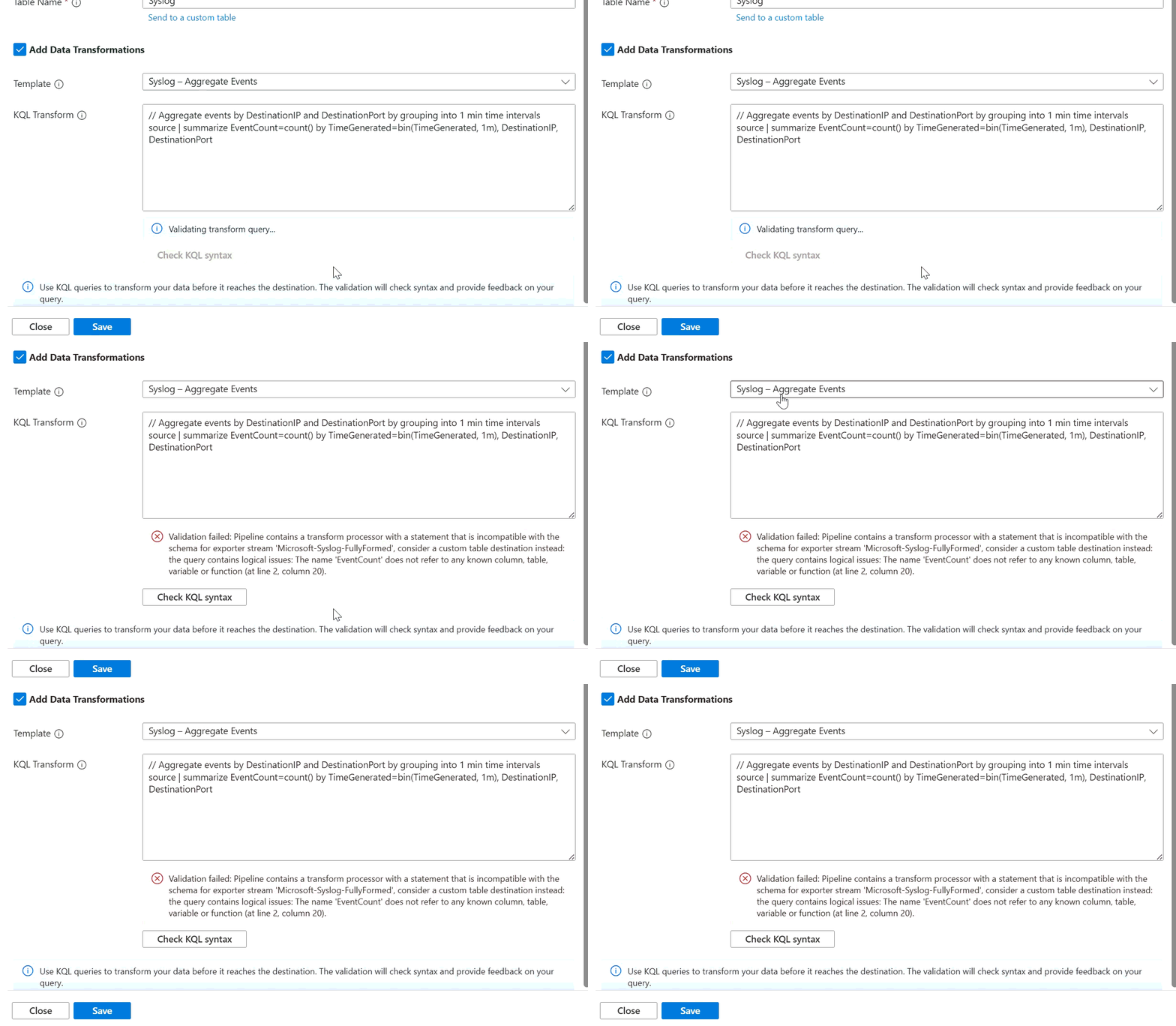
For Syslog and CommonSecurityLog, the transformation has access to the appropriate table columns. For custom tables, the portal experience provides access to only TimeGenerated, SeverityText, and Body. If you need other columns, use Configure Azure Monitor pipeline with CLI or ARM templates.
Note
For details on creating transformations, see Azure Monitor pipeline transformations.
Review and create
After you configure the basics and dataflows, review the configuration on the Review + create tab. Select Create.
Deployment typically takes several minutes while Azure installs the extension, creates the pipeline instance, and applies the dataflow configuration.
Verify deployment
After deployment completes, use the shared verification steps in Configure Azure Monitor pipeline to confirm that the pipeline components are running and that data is reaching your Log Analytics workspace.
Related articles
- Configure a Kubernetes gateway to expose the pipeline to external clients.
- Configure TLS to encrypt incoming traffic.
- Modify data before it's sent to the cloud.
- Set up a gateway for clients outside the cluster.
- Configure Azure Monitor pipeline with CLI or ARM templates for automation and advanced scenarios.