Note
Access to this page requires authorization. You can try signing in or changing directories.
Access to this page requires authorization. You can try changing directories.
If you need to reduce the volume of data sent to Azure Monitor, clean up incoming records, or change data into a format that works better for analysis, transform the data before it leaves your cluster. Azure Monitor pipeline transformations let you filter, aggregate, and modify incoming log data in the pipeline before sending it to the cloud.
This article shows how to configure transformations in the Azure portal or in ARM templates. It also explains how aggregations work and which KQL operators Azure Monitor pipeline transformations support.
Basic query structure
Like Azure Monitor transformations, all pipeline transformation queries start with source, which is a virtual table that represents the input stream. You can then use any supported KQL operators to filter, modify, or add columns to the data as you would with any other table. The query is applied individually to each entry sent by the data source.
For more details on the query structure and supported operators, see Basic query structure.
Define a transformation
You define pipeline transformations as part of a dataflow. Configure them by using either the Azure portal or ARM templates. Define your own custom transformation or use prebuilt templates for common patterns. Syntax validation, such as checking KQL expressions, is available to help ensure accuracy before saving your configuration. These capabilities provide flexible and powerful data shaping directly within your monitoring infrastructure.
To define a transformation in the Azure portal, select Add Data Transformations. From the transformation editor, select a template that provides predefined queries for common scenarios. Use the template as a starting point and modify the KQL query as needed to fit your requirements. Use the Custom template to start with a blank query.

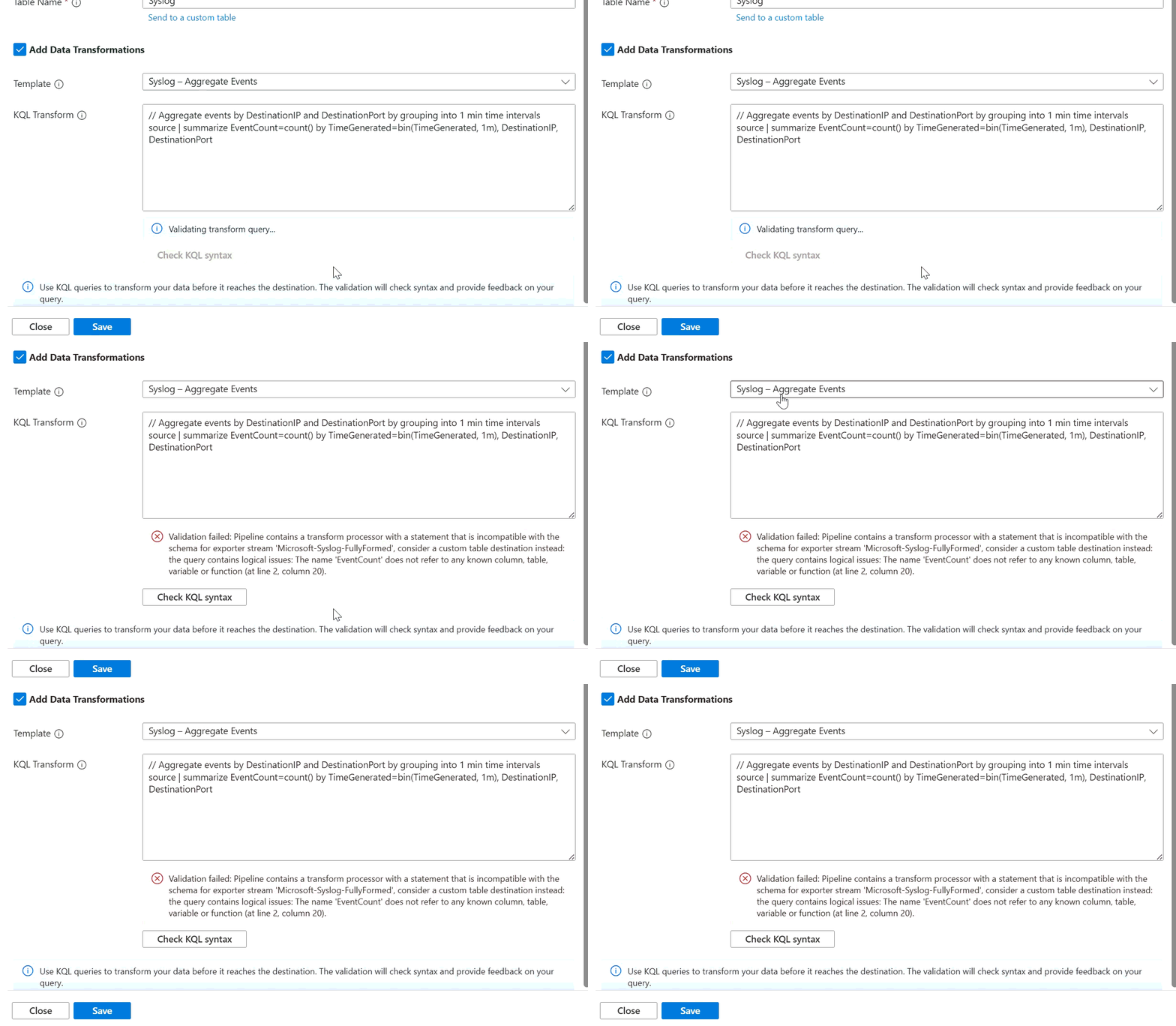
After you define the query, select Check KQL syntax to validate the syntax of the query before saving the dataflow. For syslog and CEF data, the checker also verifies that the data resulting from the transformation matches the schema of the table the data is sent to. If the transformation renames or adds columns as part of an aggregation, for example, you're prompted to either remove those transformations or send the data to a custom table instead. An example is shown in the following image.
Aggregations
An aggregation in KQL summarizes data from multiple records into a single record based on specified criteria. For example, you can aggregate log entries to calculate the average value of a numeric property or count the number of occurrences of specific events over a defined time period. Aggregations help reduce data volume and provide insights by condensing large datasets into meaningful summaries.
Azure Monitor pipeline retrieves and processes data in batches of one-minute intervals by default. Aggregations form in a pipeline transformation over each batch of data, so the process creates an aggregated record each minute. To change this time window, configure the Batch processor in the pipeline configuration as described in Pipeline configuration. You can't change the time interval by using the Azure portal.
Define aggregations by using the summarize operator in KQL. Specify the aggregation functions and the grouping criteria. For example, the following query counts the number of events collected over the past minute grouped by DestinationIP and DestinationPort:
source
| summarize EventCount=count() by DestinationIP, DestinationPort
The following example extracts CPU usage values from syslog messages, then calculates the average and maximum CPU usage over one-minute intervals:
source
| where Facility == "daemon"
| where SyslogMessage has "CPU="
| parse SyslogMessage with * "CPU=" CPUValue:int *
| summarize AvgCPU = avg(CPUValue), MaxCPU = max(CPUValue)
Aggregation notes
- When you use the
summarizeoperator for aggregation, batching in the pipeline introduces an automatic latency of up to five minutes. - You always need a batch processor to perform aggregations. Modify the batch processor to change the aggregation interval. Avoid using batch processor to send data with minimum latency.
- If an aggregation includes
bin(), you might receive multiple records for the same time interval. This result occurs because of batching and the streaming nature of data ingestion. - If the transformation alters the schema of Syslog or CEF data, send the data to a custom table. When you create the transformation by using the Azure portal, the only columns exposed are
SeverityText,Body, andTimeGenerated.
Supported KQL
Expand the following sections for KQL functions and operators that Azure Monitor pipeline transformations support:
Aggregations
sum()max()min()avg()count()bin()
Filtering
wherecontainshasinandor==!=>>=<<=
Schematization
extendprojectproject-awayproject-renameproject-keepiifcasecoalesceparse_json
Functions
let
String functions
strlenreplace_stringsubstringstrcatstrcat_delimextract
Conversion
tostringtointtobooltofloattolongtorealtodoubletodatetimetotimespan
Related articles
- Set up the service in Configure Azure Monitor pipeline.
- Configure transformations in the Azure portal by using Configure Azure Monitor pipeline with the Azure portal.
- Configure transformations by using templates in Configure Azure Monitor pipeline with CLI or ARM templates.
- Read more about schemas and streams in Data collection rules (DCRs) in Azure Monitor.